
Adding Users to a CampusPress Blog
< CampusPress: Guides for Students home page
< CampusPress: Guides for Staff home page
You can add multiple users to a blog, from which you can choose to give an assigned role. For example, you may want a group to collaborate on the same blog with editing permissions, or enable read-only permissions for select users.
Although all staff and students have access to CampusPress, they must first log in to the system in order to create their account.
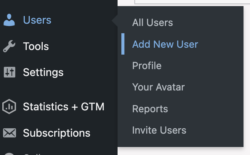
To add a user to your blog, go to the dashboard. From the left hand menu, select Users, then Add New User.
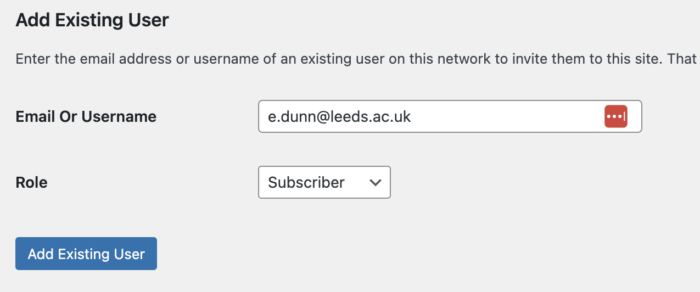
To add a student, enter their username or email address into the field.
To add staff, enter their email address. This must be the email address that includes their initials and surname.
Choose an appropriate role. You can read more about each role in this guide.
Click Add Existing User.
A confirmation message will display at the top of the page if the user has been successfully added. If you have entered an incorrect username, you will see a message that says 'user not found'. This will also occur if the user does not have an account in CampusPress yet.
Do not use the option to add a new user. All access to CampusPress is restricted to staff and students with a University of Leeds email address.