
Skill Review in FeedbackFruits - Staff Guide
The Skill Review tool facilitates teacher feedback on activities such as presentations, oral exams or an interview, where students are not required to make a submission.
If you are unsure of which FeedbackFruits tool to use, please see guide: What are the FeedbackFruits tools.
Creating a Skill Review in FeedbackFruits
Navigate to the Minerva Module you would like to create a FeedbackFruits Skill Review in and select the purple plus button to add content to your module.

From the drop-down menu select Content Market then select FeedbackFruits.
You will then be taken to the FeedbackFruits dashboard. From here you can select to use a template from your library, copy a past activity, or create something from scratch. When creating a new assignment select start from scratch.
You will now see the 7 feedback tools available within FeedbackFruits. Once you have selected Skill Review, the settings page for your assignment will open.
Instructions
Insert a title in the top left corner of the screen. You will also need to add content in the instructions box available.
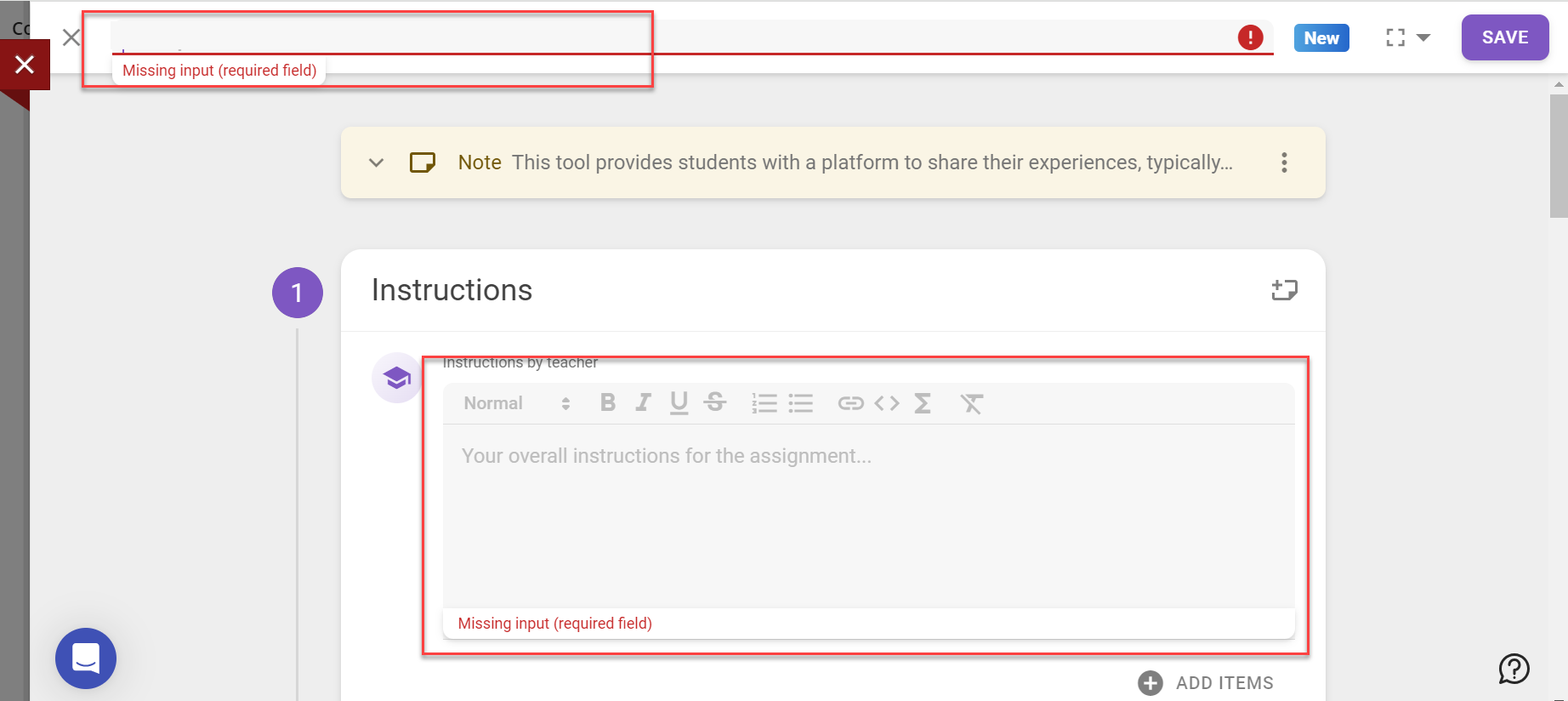
Note that you need to save your work on FeedbackFruits as you go using the save button in the top right corner of the screen. However, your work will only save once something is entered into the instructions box; this box cannot remain empty.
Once you click save on a FeedbackFruits assignment you will be taken back to your content screen within Minerva and the item will automatically be visible to students. We recommend changing the status to hidden from students until you have configured all the settings. To continue editing the settings on the assignment, click on the item that you have created and select edit in the top right corner.

Once you have added a name and instructions, you can also add extra items in the instruction box if you wish. This could be a recorded audio or video of the instructions, or a file that you want to provide your students with.
The last item in the Instructions section allows you to decide how staff will review their students. To access the options, click on the purple change button next to student collaboration and select from the options available. For more information on these options, please see the FeedbackFruits collaboration options guide. [LINK].
Give feedback on students
This section allows you to configure settings on how teachers will give feedback on students’ skills, what criteria should be used and set the visibility of feedback.
To set feedback criteria, click on the purple configure button to open the settings menu. Click on create new criteria to open the options for building your first criterion and follow the instructions (note, you can have as many criteria as required).
Click on the type of criteria you want to add (rubric, scale, or comment only). Additional options are available depending on which criteria type is chosen. For more information on setting up criteria, please see the How to set up feedback criteria guide.
You also have the option to switch on Explanation cards. As this setting is in Beta we suggest leaving it off. If you do want to add explanation cards please follow the FeedbackFruits guide.
Visibility
To set when students can see their received feedback, use the drop-down arrow to access the settings and then use the second drop-down arrow to choose from four options. If you choose a specific time and date, additional date and time pickers will appear on the screen for you to use.
We recommend that you select never (release manually) to ensure that all students receive feedback at the same time.
Received Reviews
To require students to provide feedback-on-feedback, use the toggle button to switch on/off. Feedback-on-feedback is a scaled response (1-10) with space for optional written comments.
To set a deadline date for the submission of feedback-on-feedback use the drop-down arrow and select after a certain date to access the date and time settings.
You can also allow extensions to individual students by clicking on the person icon to the left of the date field and completing the fields in the pop-up box that appears.
Grading
Grading is split into two components: Average ratings received from reviewers and Has read all received feedback. Grading is presented as a percentage, and you can choose the weightings for each component. Note that the average ratings option is only available if more than one section is created within the Feedback Criteria section.
To update the weightings, click on the purple configure button in the lower right corner. A pop-up will appear where you can edit component weightings by using the toggle buttons.
Under Grading Options, select whether you want the mark to show as a percentage or a pass/fail by using the drop-down menu and selecting your preferred choice. If you choose pass/fail, an added step will be visible for you to choose the pass mark (as a percentage).
Additional functions
The final section on the page allows you to add further learning steps of Participation Grading and/or Reflections for the students to complete. To include these activities, click on the purple plus button to access the options available. Any additional learning steps you choose will appear on the page and you can edit the settings to suit your needs.
You have now created a Skill Review in FeedbackFruits. Save the content and return to Minerva. Remember to make the link visible to students when appropriate.
Grading a skills Review
In a skills review, there is no submission to grade, you will be reviewing the skills a student has shown during either a piece of work, or a live presentation.
To start reviewing you students open the skills review FeedbackFruit link you have created in Minerva.
Navigate to section 2, Give feedback on Students. Press start reviewing/continue reviewing to go through the reviews one by one. You can also click on review behind a specific student/group to start reviewing that specific selection.
When reviewing, you use the rubrics you have previously created to review the student. When you are done reviewing you can press next at the bottom of the page to go to the next student to review.
When you are finished reviewing students, navigate back to the FeedbackFruits skills review.
At the bottom of the screen, you will be able to see the grades that have been generated for students based on the grading structure you set up when creating the assignment. You can choose to edit, publish and schedule a publish date here. Once grades are published they will appear posted in the Gradebook in Minerva.