
How to Embed Panopto Videos in Minerva
Panopto videos can be embedded in the content area of your Minerva module or organisation from the Content Market. You can also embed videos into a Minerva Document.
If you are embedding a Panopto video into a webpage such as WordPress, Atlassian, SharePoint, or any webpage that supports iframes, refer to the Embed Video into a Webpage guide on Panopto's website.
Embed a Panopto video as a content item
Embed a Panopto video in a Minerva Document
Embed a Panopto video as a content item
To embed a video in your Minerva module or organisation:
- From the Content tab in Minerva, hover between content items. Click on the highlighted line or plus (+) button and choose Content Market.

- In the Content Market, scroll down and click on the Panopto Video Embed tool.

- By default, the Panopto folder associated with the Minerva module or organisation appears. You can click on the drop-down menu to browse and search for folders you have access to. You can also use the search bar next to the drop-down menu.

- You can also use the Upload tab to upload a file from your device or Record to record a video with Capture, the browser tool.

- Select the video you would like to add and click Insert. The video will be added to the Content tab.

- Your video will now be added to the content area.
Embed a Panopto video in a Minerva Document
To embed a video in a Minerva Document:
- From the Content tab in Minerva, hover between content items. Click on the highlighted line or plus (+) button and choose Create.

- Select Content.
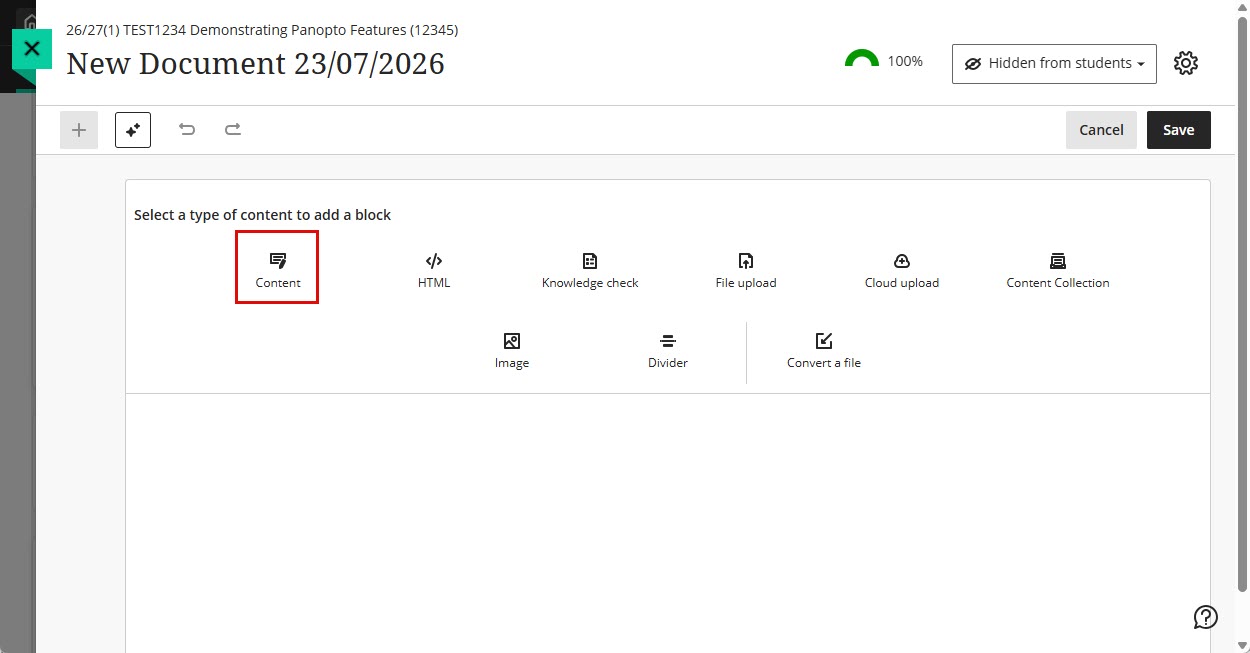
- Select the content block and click the Insert content icon. Select Content Market.

- In the Content Market, scroll down and click on the Panopto Video Embed tool.
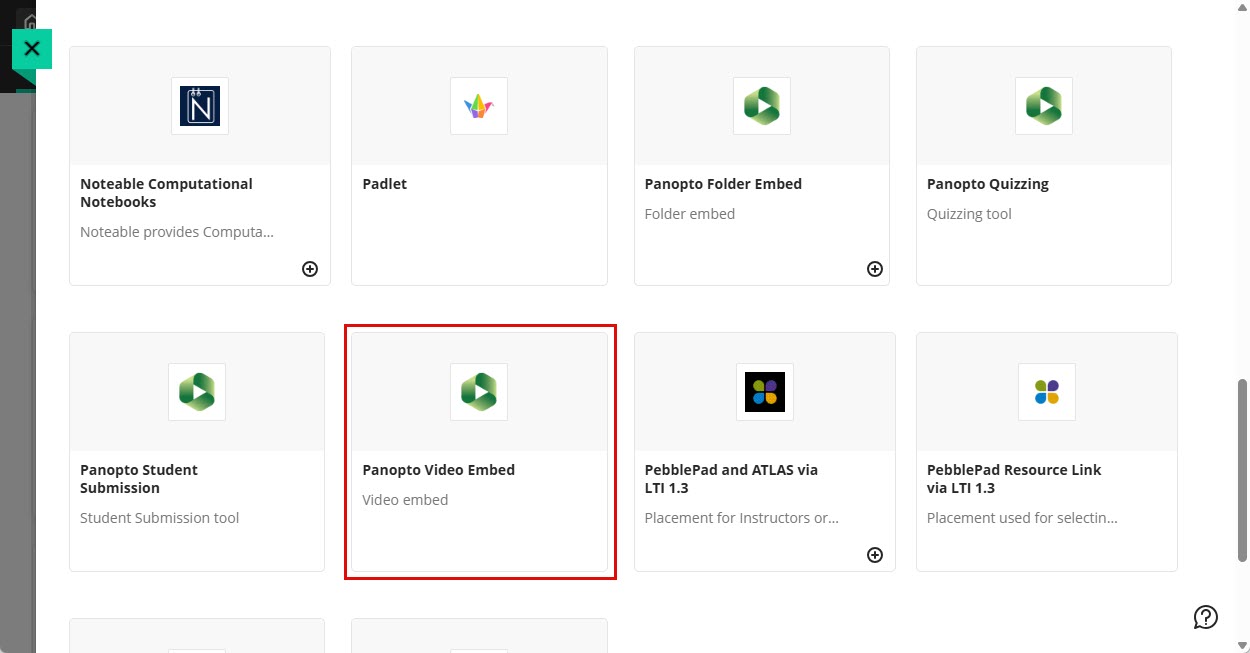
- By default, the Panopto folder associated with the Minerva module or organisation appears. You can click on the drop-down menu to browse and search for folders you have access to. You can also use the search bar next to the drop-down menu.
- You can also use the Upload tab to upload a file from your device or Record to record a video with Capture, the browser tool.
- Select the video you would like to add and click Insert.
- You can change the display name of the video item. Click Insert.
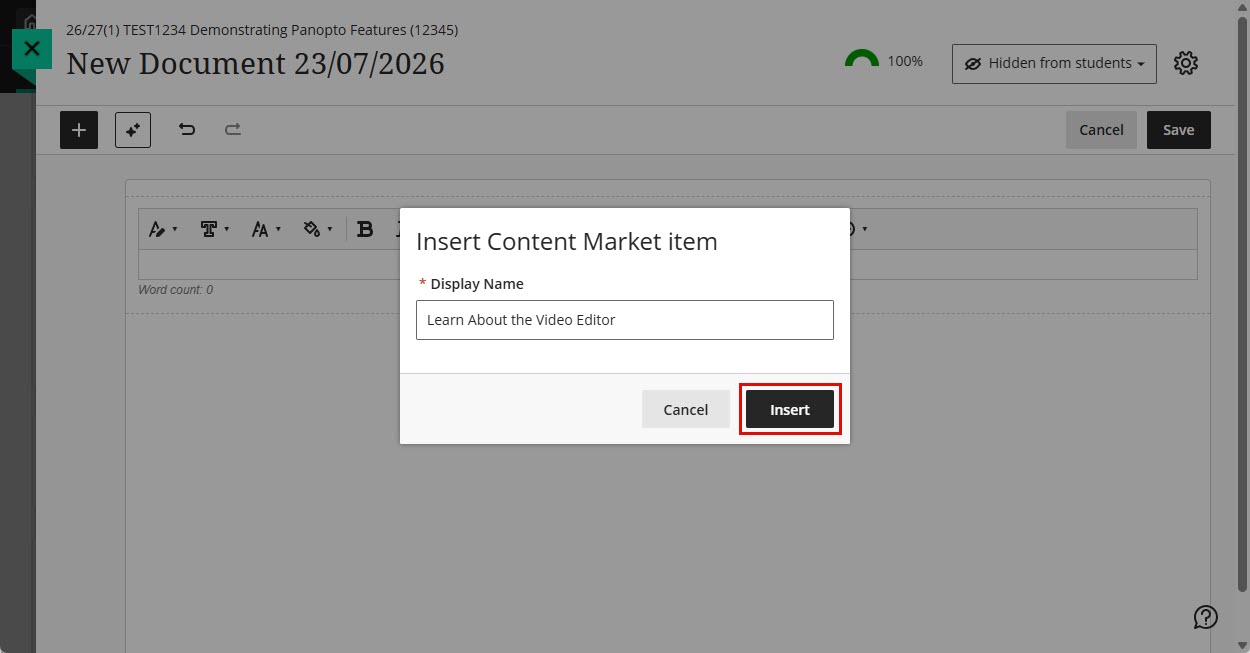
- Add additional content elements and text to your document, if needed. Click Save.

- The Minerva document with embedded video will now be added to the content area.