
Share Panopto Recordings to Multiple Minerva Modules - Staff Guide
How to Share Panopto Recordings Across Multiple Minerva Modules
This guide demonstrates how to create a Reference Copy of a Panopto video to share it from one Minerva module to other modules that you have access to as a member of staff. This process is suitable for merged or jointly taught activities involving multiple module codes in Minerva.
Terminology
- Source Recording: The original video in its current Minerva folder.
- Target Module: The destination Minerva folder where you want the recording to appear.
- Reference Copy: A link to the original video that reflects any future edits or settings changes made to the source.
Before You Start
- Ensure you are enrolled as a staff member on both the source and target Minerva modules.
- Confirm you are the recording owner or have the owner's permission to copy the video.
- Check that the recording is viewable for students on the source module.
Step 1: Access the recording settings
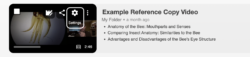
Open the source recording via Minerva or via Panopto interface directly. Hover over the video and select Settings (cog icon).
Step 2: Go to the Manage tab
Select the Manage tab from the left-hand menu.
Step 3: Configure the reference copy
Give your reference copy a name: Under the Copy video menu item, assign a New video name (This can be the same as the original by deleting ‘(copy)’ from the title).
Chose a Target Folder: In the Copy video to field select the Target Module, either by using the drop down, or by typing the module code. Modules you have access to are listed under ‘Blackboard’.

Step 4: Create the link
Click Create Reference Copy.

The copy will process (this will take approx. 5 seconds) you can then safely leave the settings window. The video will now be visible to staff and students enrolled on the target module.
Important Information
Permissions: You do not need to manually change permissions. Once the reference copy is created, all students and staff in the target module folder will automatically have access.
Making Changes to the Video: Any changes made to the source recording (such as edits or captions) will automatically update in the target module. Changes made to the target recording will not reflect in the source recording, and will break the reference copy link, in effect creating two separate recordings.
Reference vs Full Copy: A Reference Copy is a virtual link; any edits, captions, or quizzes added to the source video will automatically appear in all reference copies. A Full Copy creates an entirely independent file; changes made to the source will not affect the copy, and vice versa.
For more information, please view the Panopto web guide on Reference Copies here.
If you encounter issues, please raise an IT ticket for further assistance.
If you require support with the same process in Media Site please follow this IT guide.
< Return to Panopto Staff Guides
Page last checked: February 2026