
How to Record a Video in Panopto - Student Guide
In this guide
Record a video in Panopto
- Log in to Panopto from your Device (open a browser and log in via leeds.cloud.panopto.eu)
Interactive guide
Text guide
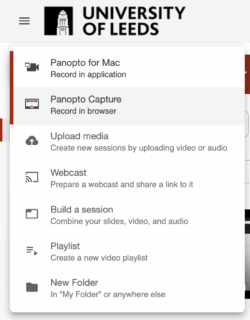
- Select Create.

- Select Panopto Capture – Record in Browser from the dropdown menu.
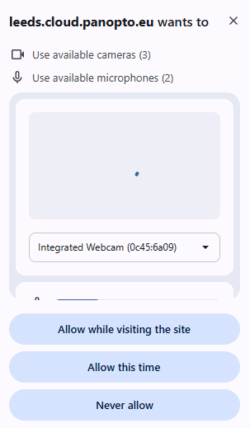
- If your browser prompts you to allow the camera and microphone, ensure you select Allow.
Configure the recording
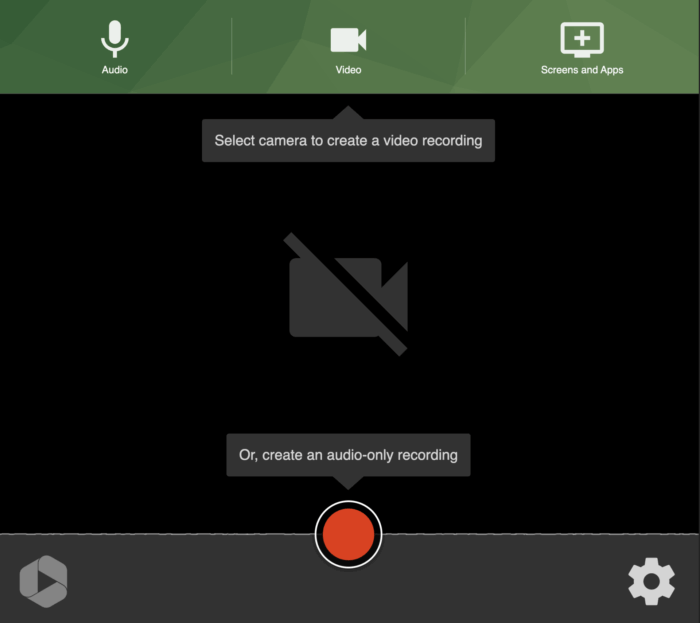
Next, set your preferred options for Audio, Video, and Screens and Apps.
- Audio: Choose your preferred audio input – usually the built-in microphone on your device.
- Video: Select your device's camera from the dropdown.
- Screens and Apps: You can share your screen, a window, or an individual app.
Stop and start the recording
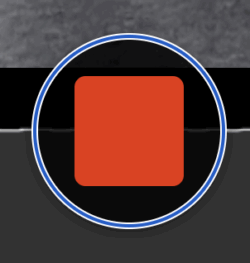
Use the central red button to start and stop the recording.
Select Record / Start to start recording.

Select Stop to end the recording.
Save the recording
As soon as you stop your recording, you will be taken to a menu to save and name your video.

- Select the appropriate folder (My Folder is your private, personal folder).
- Give your recording a relevant and clear title, for example: Student ID - module code. Ensure you follow the video naming convention indicated in the assessment brief if you're recording a video for an assignment.
- Enter a concise description.
- Your video will become available on Panopto after processing. Depending on the length of the video, this may take several minutes.
Panopto saves recordings automatically. You can close the tab when you have finished.
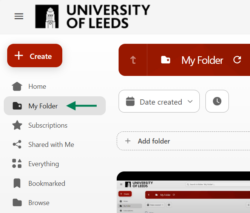
Unless you have selected a different folder, you will find your saved video in your My Folder, located in the left-hand side menu on the Panopto interface.
Download the recording
You can download a Panopto video that is saved to your My folder. This option is only recommended if your class tutor advised you to do so as part of an assessment.
You can download a Panopto video from your My folder or the Panopto video player.
Download a video from your Panopto My Folder
- Log in to Panopto
- Select My folder from the left-hand side menu.
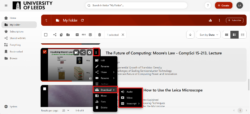
- Find the video to download. Select the ellipsis (three dots), then download. You will have the option to download audio only, video (including audio), or a transcript. Select your preferred option to start the download.
Download a video from the Panopto video player
- Log in to Panopto
- Select My folder from the left-hand side menu.
- Find the video to download and select it. The video player will open in a new tab.
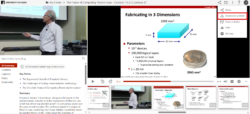
- From the video player, select the ellipses (three dots), then download podcast. The video will be downloaded to your device.
< Return to Panopto Student Guides
Page last checked: October 2026