
Panopto Video Submission on Minerva - Student Guide
How to Submit Video Assignments on Minerva Using Panopto
Students can use Panopto to submit video assessments via Minerva Assignment. If a video assessment is required for a module, the instructor will specify it in the module's assessment brief and create a Minerva Assignment submission point on the module page.
Interactive Guide:
Please ensure you follow the steps below and use the Panopto tool in the Content Market to submit your work, otherwise your submission may not be successful.
To submit a video assessment within a module:
If you are using a mobile device, we recommend accessing the interactive guide directly via ThingLink. A browser tab will open in full screen on both Android and Apple devices.
Written Guide:
Please ensure you follow the steps below and use the Panopto tool in the Content Market to submit your work, otherwise your submission may not be successful.
- Navigate to the Blackboard Assignment submission point, usually located in the Submit My Work folder of a Minerva module page.

- Choose View Instructions or Start Attempt.

- You will see a submission point with different options running along the top. Click on the + icon (Insert Content) at the far right of that bar. That will open a drop-down menu. Select Content Market.

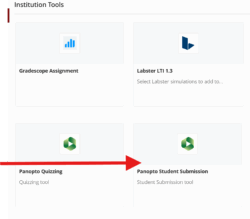
- In the Content market panel, select Panopto Student Submission.
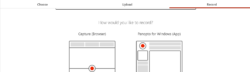
- Upload your video file. You can choose a video you already have in Panopto, upload a video file from your device, or record a video with the Panopto Capture (Browser) or Panopto for Windows (app).
- Choose the right video file and click Insert.
- Important! You must select Insert here, or you will have to start the process again. If you move away from this box, your video upload will be lost.
- Ensure you are naming the video file correctly in accordance with your School's or tutor's guidelines. Click Submit.
The video may take a while to process, depending on its size. The submission screen will indicate that the video will be ready shortly. You do not need to wait for the video to finish processing. Once you click Submit, your video will be uploaded to Minerva, and you will be able to download a receipt of your submission.
Submission of multiple videos and different file types
- To submit more than one video, repeat steps 1-6 above before you select Submit.
- You can also submit more than one file format as part of the same assignment. To upload a Word or PDF document alongside you video(s), select the Attachment option (paperclip icon) to choose a file from your device.

< Return to Panopto Student Guides
Troubleshooting issues with online submissions - Student Guide
Content last checked: May 2026