
Private Podcasts in Sharepoint
Private podcasting is available within Podbean for sharing content with a limited, controlled group. With embeddable content in University Sharepoint sites, podcast episodes can be made available to either specific user groups or internally to the entire university without need of a separate solution or listing your channel publicly.
This guide compliments our existing guidance on Private Podcasting in PodBean. Sharepoint requires additional configuration before an iframe can be used from a third-party site. Once your Sharepoint site is configured, please return to our other guide for next steps and generating the embeddable code.
Enabling iframes in Sharepoint
Private sharing can only be done via embedded iframe. If iframes from Podbean haven’t yet been enabled on your Sharepoint site, please refer these next steps to your site admin.
-
- Visit the Sharepoint site as a site admin/owner
- Click the settings cog in top right
- Go to site contents, then site settings
- Under "Site Collection Administration" select "HTML Field Security"
- HTML Field Security should be set to "Allow contributors to insert iframes only from the following domains"
- In "Allow iframes from this domain" enter "podbean.com" and click Add
Note: this is not required for public channels. In these cases you can also use the “Silicon Reef Media Experience Webpart” to add public links.
Adding your private episodes to Sharepoint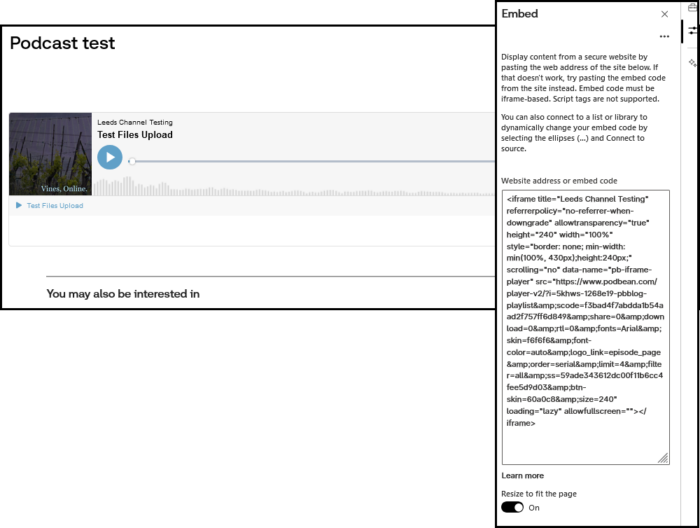
Open your Sharepoint site, selecting Edit in the top-right corner of the page. Under the Toolbox menu, then select See all web parts then Embed. Paste the copied widget code from the steps in our Private Podcasting guide into the text box that opens in the next screen.