
Creating a Class Blog in CampusPress
Class blogs can be used within modules where staff would like to have oversight of blogs that their students create. A class blog acts a parent site, which allows instructors to both access and moderate the attached student blogs. It also allows instructors to prohibit further edits to all student blogs from being made when a deadline is reached. Instructors do not need to add content to the class blog, as this is simply an 'anchor' site from which the student blogs are created.
Students will be prompted to create their own individual blog which will automatically attach to the class blog.
If you'd like students to contribute to the same blog and see each others posts, see the guide on Creating a Collaborative Class Blog.
In this guide
- Setting up a class blog
- Inviting students to join the class blog
- Using templates
- Editing the class blog
Setting up a class blog
To set up a class blog, go to campuspress.leeds.ac.uk and login using your University username and password.
From the main dashboard, select Add New
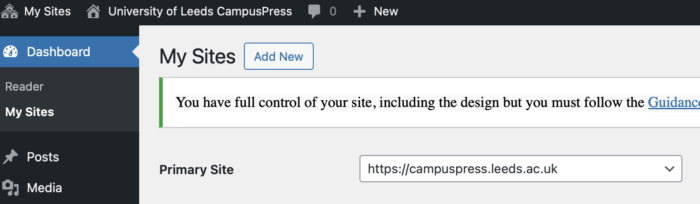
You will now be prompted to fill in a number of fields.
- Site name – for a class blog, it is recommended that the site name is made up of the academic year, term and module code for the module that it relates to, e.g. 24251lubs1234. All letters must be lower case and no additional characters will be accepted. All site names must be unique. Once entered and saved, this cannot be changed.
- Site title – It is recommended that you use the module title for which the site relates to.
- Site language – can be left as default
- Privacy – Select 'only registered users of this site’ so that only specifically invited students can access the class blog.
- Do not select a template for the class blog. Templates can be created for use by students so that their own blogs follow a certain style or contain pre-existing content to be edited (e.g. portfolio). Please contact DE Systems via the IT Service Desk if you'd like to discuss creating a template for your students.

Click Create site, which will load a new page. Click on the link with the site title that you chose in the steps above to be taken directly to the class blog. A default post will appear, which you can delete or amend later.

Next you will need to turn your blog into a class blog. Go to the dashboard by hovering over the site title at the top of the screen. A dropdown menu will appear where you can select the dashboard.

From the Dashboard, hover over the My Class item in the left hand menu. Select Create a Class.

Tick the box at the top of the page. This will turn your blog into a class blog that students can join.

The Allow Students To Post On The Class Blog settings relate only to the blog that you have just created. It does not affect a students ability to post to their own blog.
- Yes, no moderation: students can post to the class blog and their posts will be visible straight away
- Yes, with moderation: students can post to the class blog but they must be approved by an instructor before being visible
- No: students can't post to the class blog: This is the default option and must be used if you'd like students to work on their own blog. This setting will allow only the instructor to add content to the main class blog, which acts as a parent site.
The Moderation on Student Blogs settings relate to students' own blogs, and can be used to restrict students publishing posts or comments directly on their own blogs by selecting the tick boxes. They are turned off by default, but could be turned on to prohibit students from adding new content to an assessed blog after a deadline has passed.
Make sure that the privacy is set to Only registered users of this site can view it. This will mean that the main class blog and any student blogs attached to it are only visible to students/teachers on the specific class.
Once you are happy with your settings, click save at the bottom of the page.
Inviting students to join the class blog
You will now need to invite students to join the class blog and create their own blog in the process by creating an invite link. Go to My Class from the left hand menu, then select Invite Students.

Add the module code to the Invite Code field. Leave the default role as Student. Under Site Creation, select Force users to create a site in process. Then click the Add new invite code button.

A link will then appear which can be copied and shared into the Assessment and Feedback folder in Minerva.

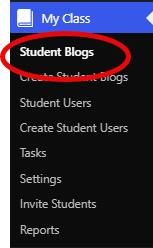
When students click the link, they'll be prompted to create a new blog which will automatically add to the class blog. They will be the administrator of the new blog that they have created. As students create their blogs, you'll start to see them appear under My Class.
Using Templates
If you'd like the blogs that students create to be based on a predefined template, please get in touch with Digital Education Systems via the IT Service Desk to discuss your use case. Templates can be set up then added to the class blog, so that all blogs created by students via the invite link have a set style and/or placeholder content.
Editing the class blog
The class blog itself is accessible by all students who are invited to join, and the content maintained by the instructor. This content could include information relevant to the assessment or module activity.