
Exporting a CampusPress blog as a PDF
To submit your CampusPress blog to Turnitin or Blackboard Assignment, you will first need to download the blog as a .pdf file. To do this, you will need to export, save or print as PDF function in your browser.
This guide includes instructions on how to do this from Google Chrome, Safari and Microsoft Edge.
Chrome Browser
- Open your blog post in Chrome.
- Open Chrome control settings in the top right corner, by selecting the customise and control Google chrome button (the three dots icon).
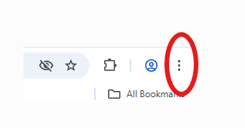
- Select Print to open the print screen.
- Under Destination, select Save as PDF from the dropdown menu.
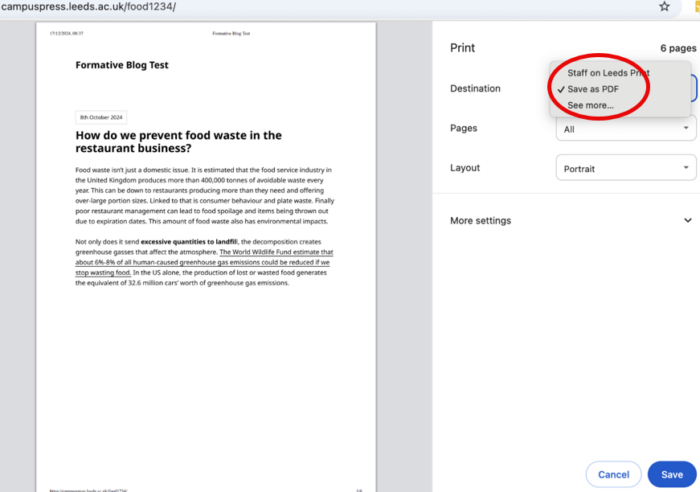
- Select Save and choose somewhere memorable to save it.
Safari Browser
- Open your blog post in Safari.
- Go to File and select Export as PDF.
 Save it somewhere memorable.
Microsoft Edge
- Open your blog post in Microsoft Edge.
- Open Settings by selecting the Settings and more button (the three dots icon) and then select Print to open the print dialogue box.
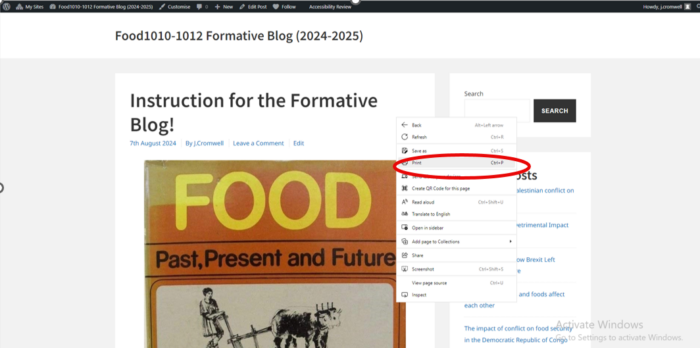
- In the dialogue box, under the Printer dropdown select Microsoft Print to PDF. Check the options are correct in the left hand menu (including under More settings), then select Print.

- Save your file somewhere memorable.
Submit your assignment
Once you have downloaded and saved your PDF, you can then submit this as per your tutor's instructions. Please check if they have asked you to also submit the web address/URL of your blog post.
If you have been asked to submit via Blackboard Assignment, the guide can be found on the Submit a Blackboard Assignment page. If your tutor has asked for your work to be submitted via Turnitin, the guide can be found on the Submitting a Turnitin paper page.
< CampusPress: Guides for Students home page
Page last checked: July 2026