
Minerva November update
- Tags
- News for Staff
The November update adds a new option to print rubrics and improves the Beta Content Editor in Minerva Documents.
Print/Save Rubrics
You can print both blank and marked rubrics.
To print a blank rubric, go to the Gradebook, select the settings icon:
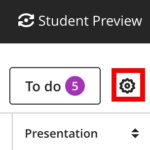
The settings panel will open. Scroll down and select the Manage module rubrics option.
Rubrics for the module will load. To print/save, select the three-dot icon next to the rubric and then Print.
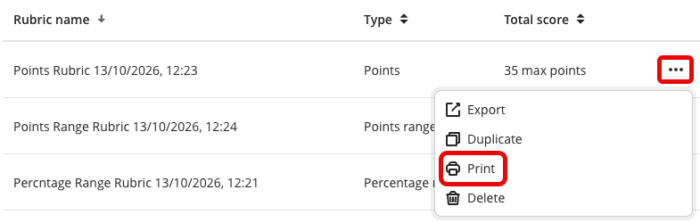
The browser’s print dialog will then open with a printer-friendly version of the rubric that shows its criteria and levels without scores. From the print dialog, you can print the rubric or save it as a PDF.
To print a scored rubric, go to the marking interface for the relevant student and open the rubric via the pop out icon (above the rubric).
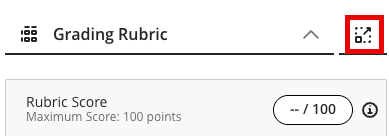
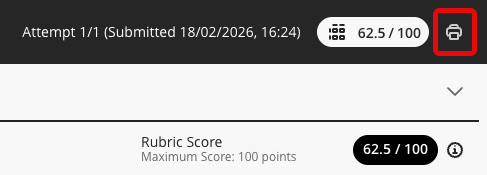
Select the printer icon (next to the calculated grade) to open the browser’s print dialog. From the print dialog, you can print the rubric or save it as a PDF.
Beta Content Editor Improvements
Updates include:
- Skip navigation link. A skip navigation link now appears when you move through the Content Editor with a keyboard, giving you quick access to the editor's keyboard navigation instructions and shortcuts. This helps you learn to operate the editor efficiently without a mouse.
- Improved contrast for disabled toolbar actions. Disabled toolbar actions now have higher contrast, making them easier to distinguish and improving accessibility.
- File properties on image upload. File properties now display when you upload an image, so you can add alternative text and adjust display options before the image is inserted.
- Content Collection access. You can now access and select files directly from the Blackboard Content Collection within the Content Editor, without leaving the editor to find them.