
Share a Panopto Video
Before you start
Access Panopto at leeds.cloud.panopto.eu and login using your University of Leeds credentials if prompted.
What can I share in Panopto?
You can share both videos and folders in Panopto.
When a video is uploaded or created in Panopto, the default location for that video is the My Folder area. This is a folder linked to your account that is private to you. You may also have access to share videos contained within Minerva module folders.
It is also possible to share the contents of other folders in Panopto.
How do I share in Panopto?
- Open the share menu from your video or folder.
- From a video - Find the video you want to share and select the Share icon on the video thumbnail.
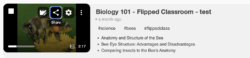
- From a folder - Go to the folder you would like to share, select the menu (three dots icon) and click Share.
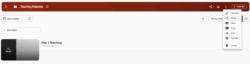
- From a video - Find the video you want to share and select the Share icon on the video thumbnail.
- A share window will appear with options to allow you to share your video or folder with a wider audience.
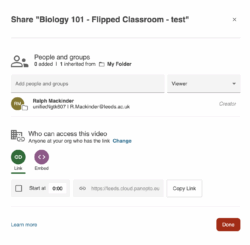
- Choose the type of share for your video or folder:
- People and groups allows you to add individuals with a University of Leeds email address as viewers. Distribution lists can also be added here.
- Who can access this video allows you to specify a wider audience:
- Restricted: Set by default. Only people listed in the People and groups area can see the video or folder. Use this to share with individual staff or distribution lists at Leeds.
- Your Organisation (unlisted): Allows anyone with a link to the video AND a University of Leeds account to view the video. Embed codes can also be used for internal websites using this setting.
- Public (unlisted): Anyone, including members of the public with the link or viewing an embed can view the video. Useful for engagement with external stakeholders and other external groups if the content is suitable for those audiences.
 Get your share link or embed code.
- Link - Select Copy Link to copy the link to share with someone.
- Embed Code - If you wish to embed onto a internal or external website, select the Embed menu and then Copy Embed Code. There are a number of options to customise the look of the video player for users but the default settings are adequate for most use cases.
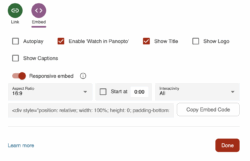 When you have finished amending the settings, select Done to complete the process.
How do I stop sharing in Panopto?
All sharing settings can be dynamically changed by the creator or editor of the video. If you wish to restrict sharing settings, you can do so by repeating the process above, and selecting Restricted at step 3. Remove any people or distribution lists from People and groups who no longer need access. Any links previously shared will be deactivated.
For more information about sharing videos on Panopto, please refer to the detailed guide on Panopto's Website.
Related guides
< Return to Panopto Staff Guides.
Page last checked: November 2025