
Panopto Video Submission on Minerva - Staff Guide
Why use Panopto for video assessment?
Students can submit videos via Panopto within a Blackboard Assignment submission area. Panopto hosts the video submissions, but staff manage assessment and marking in Blackboard.
Panopto is recommended for video assessment as it offers a more reliable submission process than uploading video files directly through Blackboard. The Panopto student submission tool:
- Automatically captions submitted videos, allowing staff to benefit from the accessibility features of the Panopto video player.
- Supports large video files more reliably than standard file submissions and does not have file size restrictions.
- Offers consistent video playback and simplifies the management of video-based assessments for both students and staff.
Creating a Submission Box for Panopto Videos in Minerva
Students can use Panopto to submit video assessments. For them to do so, you will need to create a Blackboard Assignment submission point in your Minerva module page.
- Use our Blackboard Assignment Staff Guide to set up your submission box.
- When you open your new Blackboard Assignment, you will see an Instructions panel.
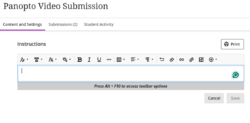 In the Instructions panel, copy and paste these submission guidelines for your students to follow:
Submission Instructions:
Disclaimer (for students): Please ensure you follow the steps below and use the Panopto tool in the Content Market to submit your work, otherwise, your submission may not be successful.
- In the Submission box below, there is a menu of options running along the top of the box. Select the + icon (Insert Content) at the far right of that bar.
- That will open a drop-down menu. Select Content Market.
- In the Content Market, select the Panopto Student Submission tool.
- Select Choose to locate videos you previously created or stored in Panopto. Select Upload to upload a video file directly from your device (this applies to videos you don't have in Panopto, such as videos recorded with MS Teams, PowerPoint, or other video platforms).
- Please note that if you recorded a video on your phone, you will need to transfer it to the laptop or device you are using to access Minerva before uploading it to Blackboard Assignment.
- Select Insert in the bottom right-hand corner of the screen. You will be asked to name your video. Please use the module's file naming convention, e.g., your student ID.
- Select Submit in the bottom right-hand corner of the screen. The video may take a while to process, and during that time, the screen will say that it will be ready shortly. You do not need to wait for this process to conclude. Once you select Submit, your video will be uploaded, and you can download your submission receipt.
- The submission process is now complete.
Submitting multiple videos and different file types
- To submit more than one video, repeat steps 1-6 above before you select Submit.
- Students can also submit more than one file format as part of the same assignment. To upload a Word document, a PDF, or slides alongside your video(s), use the file upload option in Blackboard Assignment.

- Once you have checked that the right video(s) and document(s) were selected and uploaded, choose Submit at the bottom-right corner of your screen.

An interactive Student Guide on how to submit Panopto videos via Minerva, with step-by-step instructions and useful tips, is now available. Please share it with your students ahead of their video submissions.
< Return to Panopto Staff Guides
Page last checked: August 2026