
Panopto top tips
Record videos • Revise smarter • Study better
Panopto is a powerful tool for video recording, submission, and revision.
Below are the best tips and insights from our Digital Education Ambassadors who tested the platform and co-wrote this webpage.
Accessing Panopto
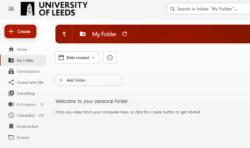
Every student at the University of Leeds can access Panopto for learning and research. You can log in using your university username and password.
Creating and editing your own video
Panopto allows you to record and edit videos quickly using just a phone or a laptop.
Video recording
- A countdown signals when recording begins in the Panopto Browser Capture.
- Playback features help you refine your video.
Video editing
- Cut clips easily by dragging the cursor in your video stream.

- You can also preview your cuts and edits before you apply them!
- For more details on editing videos, visit the Panopto Support website (External Site)
Captions
- Panopto offers editable, customisable captions. You can adjust their colour, position, and size to suit your needs.
Captions were very easy to edit, and the snipping tool also appeared straightforward and intuitive. […] The video creation process was easy to follow, and I especially enjoyed how user-friendly the playback features were, as well as the countdown that signalled when recording was about to start. (Natasha, Computer Science BSc)
Submitting your video assignments
Submitting a Panopto video on Minerva is straightforward, but students recommend:
- Following the instructions in your submission box, as requirements vary by module.
- Previewing your video before submitting it using the Preview function in the Blackboard Assignment box.
Check out our step-by-step guide on how to submit video assignments to Minerva
Panopto study tools you should know about

Timestamped notes
- Create timestamped notes linked to exact moments in a video, so you can revisit key points easily.

Sharing notes
- Timestamped notes are private by default, but can be shared with lecturers or other students to compare ideas.
Panopto video viewer
- View the instructor, slides, and attachments in a single screen.
- Top tip: switch between primary and secondary video sources to view slides or screencasts in full screen.
Universal search

Search for keywords within any video you can access to quickly locate relevant content. This feature also works in the Panopto Video folder on Minerva.

AI summary
- AI-generated summaries give a quick overview of a session’s content, useful for checking what a lecture covered at a glance.
I liked the search feature because it works just like searching for a word in a document. That saves time for the students. (Ahmed, PGR in Electronic and Electrical Engineering)
In the Panopto viewer, I really like how easy it is to switch between the different cameras. [...] The search function is clever and will be extremely helpful when wanting to refer back to content in assessment periods. Rather than trying to skim a 60-minute video, you can just search the terms. (Sebastian, BA Communications and Media (Industrial))
Things to keep in mind
- Automatic captions may need checking for accuracy, especially before submitting assessments.
- Some viewer features (e.g., downloads) depend on instructor settings and might not be available for every video.
- AI summaries are helpful but not a replacement for watching the full session.
Final thoughts
Panopto brings together powerful features like search, notes, captions, and flexible viewing to support your learning. Student Ambassadors found the platform intuitive and especially helpful for revision. Explore these tools to make the most of Panopto and enhance your study experience.
Find more written and video guidance on the Panopto Support Website (External Site)