
How to set up a Vevox Self-paced quiz
Vevox has functionality to run self-paced quizzes, that you can schedule or manually launch for your users to complete at their own pace.
Create a self-paced quiz
- Create a new session, or navigate to the session you want to add a quiz to.
- Select Self-paced section from the navigation menu on the left hand side of the screen on a desktop.
- Select the + Create new button.
- To give your self-paced quiz a name select on the word New survey and save the changes by selecting the check mark button.
- Adding questions to a survey works the same way as creating live polls. Select the + Add Question button and select the type of question you would like to create.
- Once a correct answer is selected, a notice appears confirming that the survey has now become a self-paced quiz. Close the notice and add answer explanation if required.

- In the settings tab for this question (Top of the screen in the edit window) you can set how many points the question is worth. The default is 1 point.
- Select Create to save your question. You’ll see the survey icon change to a question mark, and the ‘Open Survey’ button will update to ‘Open Quiz’ in the dashboard.
- Repeat this process for more questions. You can include both scored and non-scored (feedback) questions.
Quiz settings
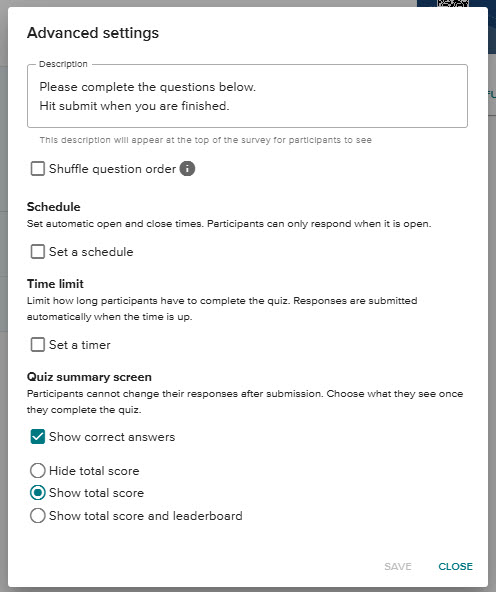
Select the advanced settings button that has appeared next to you quiz questions to modify how the quiz is deployed. Please see below for an explanation of each setting option.
Update the description
Update the default description with a quiz-specific introduction. This text appears on participant devices before they start the quiz. Select Save to update the new description.
Shuffle the question order
Enable Shuffle question order to randomise how questions appear for each participant.
This prevents predictable order bias and reduces the chance of answer sharing. You can toggle this setting on or off at any time.
Schedule when your quiz opens and closes
You can automate when your self-paced quiz becomes available to participants by setting a start and end time. Once a start time is reached, the quiz automatically opens in the participant app and stays open until the end time (if one is set). If no end time is entered, the quiz will remain open until you close it manually.
Set a time limit for quiz completion
The Time Limit feature helps you manage quiz integrity and ensures timely completion.
When a time limit is set, the countdown begins as soon as a participant starts the quiz for the first time. Before starting, participants will see a warning message showing how much time they have to complete the quiz. A timer icon will appear next to the quiz name, and a visible countdown timer will track their remaining time. When the timer runs out, the quiz closes automatically — any completed answers are submitted on the participant’s behalf, while unanswered questions won’t be counted.

Customise quiz summary screen
Once participants complete the quiz and select Submit, they’ll see a quiz summary screen showing their results. This summary can be customised. You can choose whether correct answers are displayed to the student. If enabled, correct answer explanations will automatically show as well. Then you can choose from the following options:
- Show total score (this is the participant’s individual score) or
- Hide total score (choose not to show a score summary at all)
- Show total score and leaderboard (includes top three scorers)