
Moving Mediasite recordings to a module folder - Staff Guide
You can move videos from your personal folder in Mediasite to a module folder. This can help you manage your storage quota in Mediasite and allow for the content to be managed by the University's retention and deletion policy.
This can be especially useful if you have used the Record Now in a teaching space to create an ad-hoc recording, as these always save to your personal Mediasite folder.
IMPORTANT
1. Start by logging into Minerva.
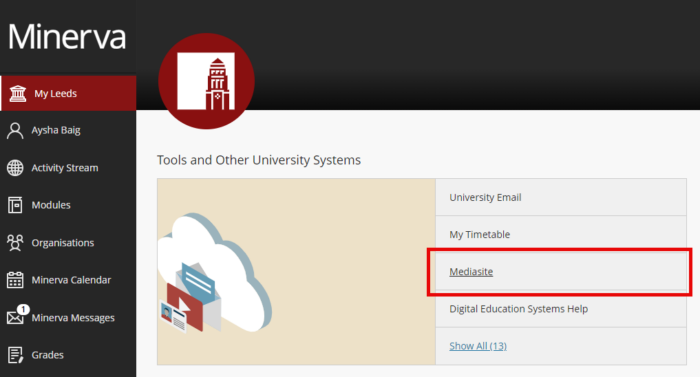
2. On the MyLeeds page, under Tools and Other University Systems, select Mediasite. If you don't see Mediasite listed, please click Show All to expand the options available, you should then be able to select Mediasite from a longer list of options.
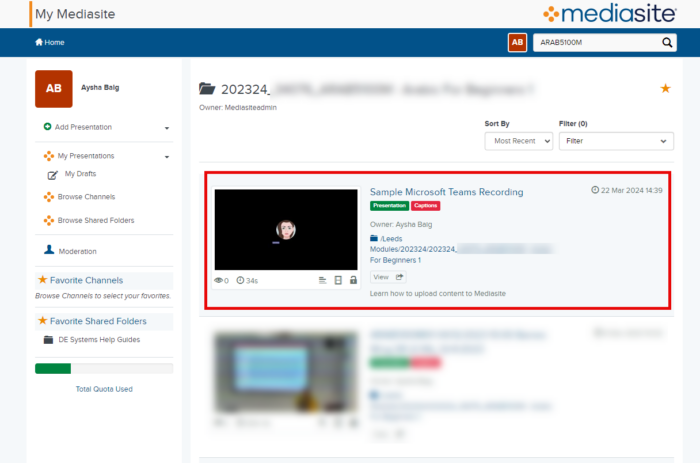
3. Mediasite will then open/launch in a new tab. From your list of videos (presentations), select the video you want to move.
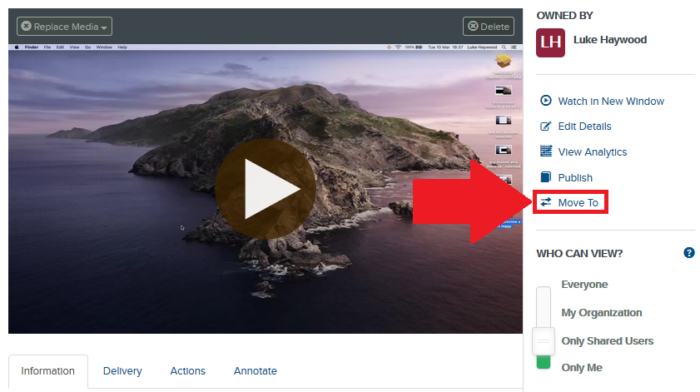
4. This will open the Presentation Details page. Select the Move To option to the right of the video.
5. This will open the Move Presentation pop up window. Choose Place this Presentation in a Shared folder.

6. A list of the modules you have access to will then appear below. It make take up to two minutes to load if you have a lot of modules. Once the list is displayed, select the module you would like to move the video to and select Move Presentation. The video will then be moved into the selected module folder.

The content will still be owned by you, however it will no longer count towards your personal storage quota as it is now saved in the module folder.