
Panopto FAQs
Panopto is a media enhanced learning platform that facilitates lecture capture, video creation, sharing, streaming and media based assessment. Read some of the Frequently Asked Questions about Panopto and media enhanced learning here. This page will be updated with new FAQ items following feedback from users of the Panopto platform.
Panopto and Media Enhanced Learning
What is Panopto?
Panopto is the new lecture capture and Media Enhanced Learning platform (MEL) for Leeds that has replaced Mediasite.
Panopto offers high-quality lecture capture and provides media creation, curation, interactivity, and assessment functionality across the University community.
Why did we change to Panopto?
An extensive evaluation and tender process took place in 2024 to review the University's requirements for lecture capture technology and Media Enhanced Learning. Staff and students from across the institution evaluated systems from five leading suppliers, including the Mediasite platform, which has been in place at the University since 2014.
Panopto, which is used by 22 of the world's top 25 universities, scored highly during our evaluation and tender process, including in functionality, configurability, accessibility, sustainability and value for money.
What is Media Enhanced Learning?
Panopto offers more than just lecture capture; it also provides media creation, curation, interactivity, and assessment capabilities, all on one platform, allowing our University Community to experiment and innovate with Digital Media in education. This is why we're calling this approach 'Media Enhanced Learning' (MEL).
Our vision for MEL is to provide a sector-leading media capture and creation system, by empowering staff and students to produce and share engaging, accessible and innovative content that enhances learning and teaching.
When will I be able to use Panopto?
Panopto is already available to all staff and students at the university.
You can access it from Minerva and watch videos and lecture recordings in the Panopto (lecture capture) folder. Or you can log in to the platform directly at leeds.cloud.panopto.eu
Where is Panopto being used for lecture capture?
Panopto is in use in all central teaching spaces across campus. In-room signage indicates if a room is enabled with Panopto. If you are teaching in one of our central teaching spaces, view the Panopto for Lecture Capture Guide for more information.
Do Panopto rooms have 'Record Now'?
Ad-hoc recordings in Panopto enabled rooms are possible but the process is slightly different from that in Mediasite rooms. To initiate an ad-hoc recording in a Panopto Enabled room, follow the guidance here while using the in room Lectern PC.
We want staff to have the best possible experience in Panopto enabled rooms and recognise this is a more complex process than staff may be familiar with.
The Panopto project team is developing a custom solution that will mimic existing Record Now functionality in time for full rollout in September 2026.
What information is available to students about this change?
We will be communicating with students throughout 2025/26 to introduce Panopto.
In the meantime, students should be advised that Panopto will be fully introduced in Summer 2026 and that advice and guidance will be signposted through communication channels such as the student newsletter, Staff and Student Forums and the Digital Education Systems Help website.
How do I find guidance on Panopto?
The Digital Education Service provides Panopto support and guidance through guides, events and faculty-based support teams.
Panopto guides for staff and student Panopto guides are available on the Digital Education Systems Help website.
You can also access video and written guidance on the Panopto support website.
How does Panopto use my data?
Visit the Panopto support website (external) to learn how Panopto protects your data.
What can I upload to Panopto?
The main use for Panopto is the sharing of video content, but audio and podcasts can also be uploaded and shared. There is a comprehensive list of file formats compatible with the platform on Panopto’s Website.
Please note that use of Panopto should be limited to university related content.
Personal Content, not related to your work or study at the University should not be uploaded to Panopto.
Panopto and Minerva
Who can access a Minerva module folder in Panopto?
Only staff and students enrolled in a Minerva module have access to the Panopto (lecture capture) folder for that module.

Staff members with instructor access to a module can view, edit, share videos, and move videos across folders. Students can only view videos uploaded to the Panopto (lecture capture) folder.
How do I add Panopto content to my Minerva modules or organisations?
All modules at the University have access to Panopto content and Learning Tools Interoperability (LTI).
To add LTI items to your module:
- Click on the + icon and select Content Market.
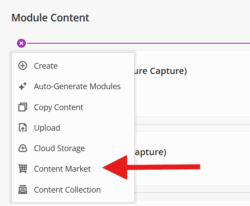
- In the Content Market menu, scroll down until you see the Panopto Items.

- Select the item you need and follow the instructions that appear on the screen to add it to your module.
How do I view my Panopto lecture recordings on Minerva?
Your scheduled lecture recordings will automatically be uploaded to the Panopto (lecture capture) folder on your Minerva module page.
Please note that lecture recordings will be available to students in the same folder two working days after the session took place.
We wrote a guide on how scheduled lecture capture works with Panopto.
You can also edit your lecture recordings in your Panopto (lecture capture) folder on Minerva.
Can I embed videos on Minerva using Panopto?
You can embed videos you recorded with or uploaded to Panopto to your Minerva module page by using the Panopto Video embed tool.
- On your Minerva module page, click on the + icon and select Content Market.
- In the Content Market menu, scroll down until you see the Panopto Items.
- Click on the Panopto Video embed item.

- Choose a Panopto video to upload and click insert.
- Your video will appear in your Minerva module page.
Content Migration and Relinking
What will happen to my Mediasite content?
Active Mediasite content will be moved into Panopto in time for the start of academic year 2026/27. Mediasite content will be reprocessed on Panopto, so staff and students can take advantage of features like automatic captioning and keyword search.
A retention policy for content is being agreed and will be published here.
All Mediasite links created using the Mediasite tool in Minerva will work in Panopto, however, personal links, such as those sent over email or linked in Word documents, will not and will need to be re-shared from the Panopto version of the video.
What about my old content on Mediasite?
Active Mediasite content will be migrated and re-linked to become Panopto videos by September 2026. This includes videos in personal Mediasite folders and module folders.
The University will apply a retention policy to older content once it is migrated but there will be opportunities to recover and restore older content.
What if I can't find my Mediasite content in Panopto?
If your content is not visible on your Panopto home page after September 2026:
-
Include the name or original Mediasite link of the content.
-
A team member will locate the file and move it to the correct folder for you.
No content will be deleted during this migration. All files are being preserved while a long-term retention and recovery policy is being established.
Does Panopto replace Microsoft Teams and Stream Videos?
No, these platforms are out of scope of the Panopto rollout and Media Enhanced Learning Project. However, it is possible to download Microsoft Teams meeting recordings and other videos, and upload them to Panopto manually to take advantage of Panopto’s features.
For more information, follow the guide on uploading videos to Panopto.
Will my Blackboard Collaborate videos be moved to Panopto?
Yes, videos created in Blackboard Collaborate Virtual Classroom will be moved over to Panopto as part of the rollout.
Collaborate videos will be placed in an archive state, and a process will be in place to request access to these videos in Panopto.
Collaborate videos in Panopto will not be re-linked, so any content will need to be re-shared once requested from archive status in Panopto.
It will be possible to request retrieval of archive videos and a process for this will be made available in 2026.
Why can't I embed Panopto content in some Microsoft apps?
Embedding restrictions for Microsoft products such as Sway & PowerPoint are based on Microsoft’s whitelist of supported embed sources. Panopto is unfortunately not on this list yet, which means those apps won’t allow direct embedded content from Panopto.
Many universities and organisations are requesting this feature via Microsoft’s feedback channels, but as of now, it is still on a feature request list rather than fully supported.
Panopto content can be accessed via Sway and other Microsoft products by sharing direct organisational or public links. Please see our sharing in Panopto guide for more information.
Using your Own Device in Teaching Spaces
Can I use my own laptop with Panopto in a teaching space?
Yes. Personal laptops and tablets can be captured reliably in Panopto. Simply connect your device using the HDMI cable labelled "Panopto" in the room.
Why did some laptops show a green or black screen when viewing the recording?
This was caused by a content protection issue affecting some personal devices. New equipment has now been installed to fix it, and devices like MacBooks can be captured reliably.
What if my device only has USB-C?
Some refurbished rooms have a USB-C cable, but this can still cause the green screen issue. Use a USB-C-to-HDMI adapter (e.g. StarTech CDP2HD, available via Science Warehouse or IT) plugged into the HDMI Panopto cable.
Can I still play Blu-ray/DVDs from my own device?
No, this is no longer supported via the HDMI setup. Book a room with a built-in Blu-ray player through timetabling instead.
Who do I contact for help?
Email [email protected] for questions or to arrange a test recording with a technician.
For urgent help in teaching spaces call 0113 3437001.
For technical issues with Panopto generally, please log an IT ticket: it.leeds.ac.uk/it
Panopto and Accessibility
Where can I find out more about accessibility features in Panopto?
There are many features in the Panopto platform that promote and support accessible education practice. You can read more about them on the Panopto Accessibility Page.
Can I change the language shown in my Panopto video captions?
Yes, if the language shown in your Panopto Video captions and subtitles is incorrect, you can change them from the individual settings menu for any video you can edit.
The guide on changing the language of Panopto videos shows the steps in detail.
Does Panopto use AI to caption and transcribe videos?
Panopto uses established machine learning and OCR (Optical Character Recognition) technologies to transcribe spoken and written content in videos and produces an editable transcript.
This transcript underpins Panopto’s search and accessibility functionality, allowing users to search across all of their Panopto content.
More information about captions and transcriptions in Panopto is available on Panopto’s website.
I teach in a language other than English. Will captions appear in the language spoken?
By default, Panopto will attempt to transcribe any content into UK English. If the content is not in English, the transcript will still be in English and is likely to be largely unreadable.
However, it is possible to change the transcript language at any point, including after the video has processed. This is a quick process and Panopto has a short guide here.
Does Panopto Offer Language Translation or Human Captioning?
Both language translation (turning spoken content from one language into written text in another) and human transcription (captions created or checked by people as a service) are specialist services that Panopto offers at additional cost to the University.
If you think you may require these services and would like to start an initial conversation about your use case, please contact:
How do I change automatic language detection settings for my folder?
To change the automatic language detection setting for a folder in Panopto:
- Open the Panopto web interface and go to the folder you want to update.
- Click the three dots (…) menu in the top right.
- Click Settings.
- Scroll down to the Content Language / Captions section.
To disable automatic language detection:
- Untick the box labelled “Auto Detect Language”.
To enable automatic language detection:
- Tick the box labelled “Auto Detect Language”.
This change affects new recordings in that folder. Existing recordings keep their current captions.
Governance and Policy
What is the University policy on recording in teaching spaces?
The University has a comprehensive AV recording policy that sets out how and why we record timetabled teaching. This policy is ratified by University Senate.
I am unhappy that my teaching was recorded, what can I do?
All teaching content in central teaching spaces at the University is recorded automatically unless staff choose to opt out of recording at the point of timetabling.
This policy includes seminar and other taught content.
If you do not wish for a timetabled session to be recorded, Please complete a timetabling change request form in advance of the session date.
If you are in a teaching space and see a red recording light but do not wish for the session to be recorded, press and hold the desktop button for 5-10 seconds until the light turns off. See our guide on in room use of Panopto here.
Why can't my students see lecture capture recordings in Minerva?
The University’s policy on AV recording of taught activities includes a two working-day delay between when a recording is processed and when it is released for students to view. This approach ensures consistency and quality of content and applies to Panopto in exactly the same way it did to the former Mediasite service.
If no action is taken by the recording owner (i.e., the teaching staff present at the event), the Panopto platform will automatically publish the video in Minerva in accordance with the AV policy after the two working-day processing period.
If you would like a recording to be available sooner than the standard two working-day delay, you can do so manually. Please follow this guide on publishing Panopto videos to release your recording earlier.
If after two days students can still not see their lecture capture content, please raise an IT ticket and a member of the Digital Education Systems team will help.
Can I publish a video manually for students to view sooner?
Yes, if you wish to publish a video recorded in a teaching space before the end of the 2-day waiting period, you can do so in the Panopto interface or via the Minerva Panopto Video folder.
Hover over the video you wish to publish, select the 'Eye' icon. This will make the video viewable to students in your module immediately.

For more advanced availability settings, use the availability workflow as set out in this Panopto guide.
How does Panopto use my data?
All content on Panopto from the University is subject to UK and EU GDPR regulations and legislation. This aligns with the practices of other University education and IT systems. For more information, please visit The Panopto Trust and Compliance Website.
If you have a particular question about the use of data on Panopto, please submit an IT query
Has Panopto been assessed for data privacy and security?
Yes, a comprehensive Data Protection Impact Assessment (DPIA) has taken place as part of the platform tender and implementation process. More information on the work of the University Secretariat and Data Protection can be viewed here. (Staff login required).
Does Panopto use AI?
Yes, Panopto uses large language models to facilitate features such as smart video summaries and in the creation of automatic chapters in content as part of its Access AI feature set. Panopto has an AI Pledge regarding the ethical and responsible use of AI models and as a Panopto customer, the University and its content is included in this policy.
Panopto will not use any data from the University to train AI models.
For more information on the use of AI and Panopto, access the AI Pledge here.
If you have a particular question about the use of AI or LLMs use in Panopto, please submit an IT query
< Return to Panopto Staff Guides
< Return to Panopto Student Guides
Page last checked: July 2026