
Preventing a lecture capture recording from auto publishing - Staff Guide
Recordings of scheduled teaching activities that take place in teaching spaces are automatically published 72 hours later to the related Minerva module. Students can then view the videos in the Mediasite Lecture Capture course channel of a module.

If needed, it is possible for the recording owner to prevent the automatic publication of a scheduled teaching recording (lecture capture) by following the steps outlined below.
1. Start by logging into Minerva.
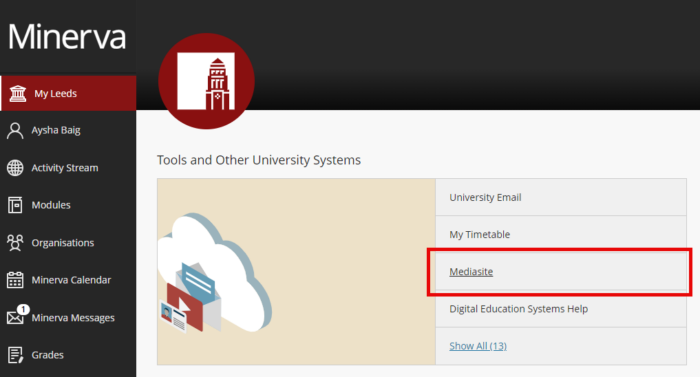
2. On the MyLeeds page, under Tools and Other University Systems, select Mediasite. If you don't see Mediasite listed, please click Show All to expand the options available, you should then be able to select Mediasite from a longer list of options.
3. Mediasite will then open/launch in a new tab. From your list of videos (presentations), select the video you want to add prevent from auto-publishing.
4. Select Edit Details (this is usually found to the right of the video).

5. Scroll down the page and select the Actions tab.
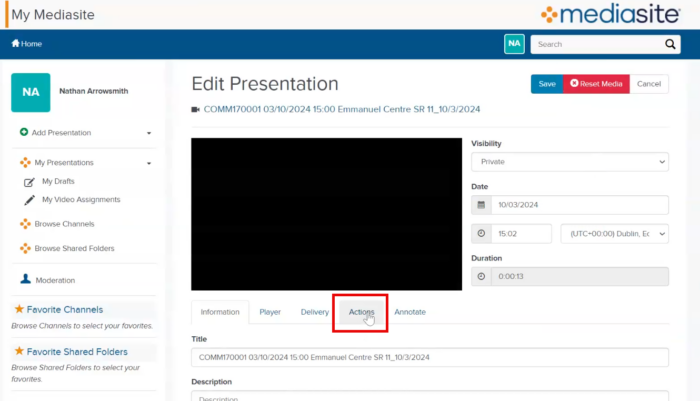
6. In the Actions tab, under the Current Scheduled Actions, you should find a 4 Days after upload date action. You can now either Edit this action or select Remove. Remember to hit Save when you are done.
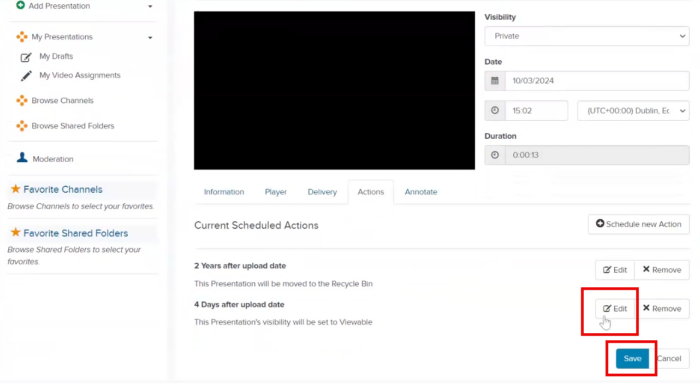
The 4 Days after upload date action is only listed in the Actions tab up to 72 hours after the video has been recorded.
Need to make a scheduled teaching recording unavailable after the 72 hour auto publication date?
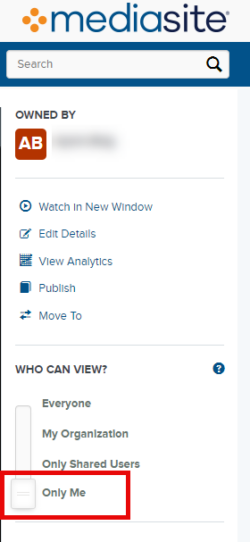
To prevent a scheduled teaching recording from being viewed after the auto-publication date has passed, you can change the view settings to Only Me.
You can also delete the recording by selecting the Delete option, located in the top right above the video in MyMediasite.
