
Minerva update - 2 October
- Tags
- News for Staff
The update brings a new option to specify which file types students can submit to Blackboard Assignment, and improvements to the new content editor. A known issue with the new Breadcrumb feature in Minerva is now resolved.
Blackboard Assignment - option to specify which file types students can submit
You can now specify which file types can be submitted for file submissions on assignments. Students are informed of any restrictions before submitting, and receive a warning message if they attempt to upload a file type that is not permitted.
When configuring an assignment with file submission enabled, staff have a new option in the settings called 'Permitted file types'.
Staff can restrict accepted file types in two ways:
- Select from a list of common permitted file types, including Word, Excel, PowerPoint, and ZIP formats.
- Enter custom file extensions manually.

Instructors can modify file type restrictions after students have started submitting. Existing submissions remain gradable, and students with drafts in progress can still submit.
New Beta Content Editor
In August, a new editor was introduced in Minerva Documents. In time, this editor will be used throughout Minerva. In Minerva Documents, you can select the new editor or 'classic' (current) editor after you select the Content option. Updates have been made to the new editor.
Paragraph Indentation
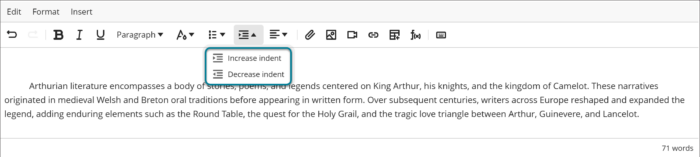
Staff can now apply a variety of indentation styles directly in the editor using the Increase indent and Decrease indent options in the toolbar, or Format menu.
The editor applies indentation based on cursor position: placing the cursor at the start of a paragraph applies a first-line indent on the first use, repeating the action indents the full paragraph while preserving that first-line offset, and positioning the cursor elsewhere in the paragraph indents the entire paragraph evenly.
Responsive Toolbar
The editor toolbar now stays on a single row regardless of screen size or editing area width. As space narrows, the editor hides less frequently used toolbar buttons, though every action remains available from the Edit, Format, and Insert menus. This keeps the editor compact and consistent across devices without removing any functionality.
Keyboard shortcuts
The Edit and Insert menus now display more keyboard shortcuts next to common actions, making them easier to discover for keyboard users and anyone learning the editor.

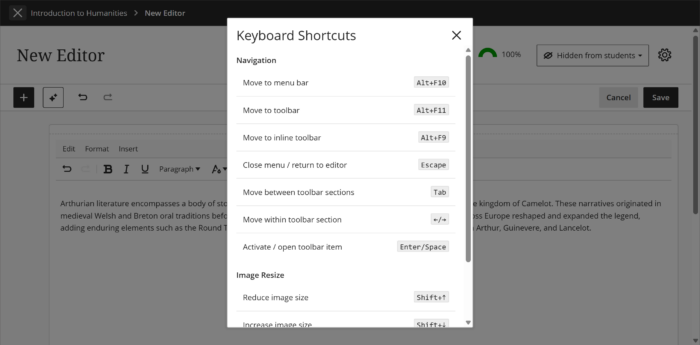
A new Keyboard Shortcuts button, located at the end of the toolbar, opens a centralised reference covering navigation between the Menu Bar, Toolbar, Inline Toolbar, and editor, as well as keyboard-based image resizing.
Known Issue - Image from URL
When you insert an image using the 'image from URL' function with the beta editor, the image is automatically downloaded and uploaded directly into the module rather than linking to the external source. This change is not intended and our supplier are working to change the functionality to be a link (although the fix will not change content added retrospectively.) The old 'classic' editor links to the external source. Use the classic editor until the known issue is resolved if this is a concern.
Known Issue resolved: Breadcrumbs in Minerva
In the August release, breadcrumb trails were added to parts of Minerva (as you navigated within modules or organisations). Some of the trail appeared clickable when it was not. This has now been resolved.