
Lecture Capture with Panopto - Staff Guide
In this guide
- Scheduled lecture capture with Panopto
- Using a central teaching space
- Stopping the recording
- Pausing the recording
- Releasing lecture capture recordings to students
- Bring Your Own Device (BYOD) Guidance
- Font Size and readability for slides in teaching spaces
- Getting help
Scheduled lecture capture with Panopto
If you are timetabled in a central teaching space and have not opted out of recording, your session will be recorded automatically.
Recordings will automatically start two minutes after your timetabled event begins. It will stop recording two minutes before the scheduled end time.
Using a central teaching space
Central teaching spaces will be clearly marked with a door poster and a lectern poster.
On the lectern or teaching desk, there will be a button and a light.
When the room is not scheduled to record, the light will be off.

When the room is being recorded, the light will be a solid red colour.

Stopping the recording
If the red light is on and you do not wish the session to be recorded, you can press and hold the button for at least 5 seconds. The light will turn off, and the recording will stop for the rest of the scheduled session.
Pausing the recording
To pause a recording in progress, press the in-room button once. The red light will begin to flash. To resume a recording when paused, press the same button again, and the red light should return to a solid state.
Please note that paused segments can be recovered later by staff with editor rights to the video (for example, if the video was accidentally paused). Paused segments will not be viewable to students.
For more information on editing in Panopto, please view the guide here.
Releasing lecture capture recordings to students
Panopto will automatically publish lecture capture videos in Minerva two working days after each recorded teaching activity takes place. This is in accordance with the university's AV recording policy.
If you wish to publish a video recorded in a teaching space before the end of the 2-day waiting period, you can do so in the Panopto interface or via the Minerva Panopto Video folder.
Hover over the video you wish to publish, select the 'Eye' icon. This will make the video viewable to students in your module immediately.

For more advanced availability settings, use the availability workflow as set out in this Panopto guide (external link).
Bring Your Own Device (BYOD) Guidance
New equipment has been installed in teaching spaces to improve Panopto recording of personal devices. This resolves an issue that could cause some laptops and tablets to appear as a green or black screen in recordings.
To ensure your device is recorded correctly, connect it using the HDMI cable labelled “Panopto”. This method supports devices such as MacBooks and other personal laptops.
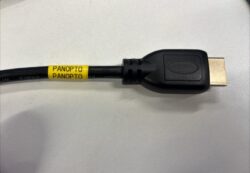
If your device only has USB-C, use a USB-C to HDMI adapter (such as the StarTech CDP2HD) and connect via the HDMI Panopto cable. Adapters are available through Science Warehouse and IT.
Devices connected directly to a room's USB-C cable may still experience recording issues. If you choose to use USB-C, we recommend making a short test recording first.
Please note that Blu-ray playback from a personal device connected via the HDMI Panopto cable is no longer supported. If you need to use Blu-ray or DVD content for teaching, please book a room with a built-in Blu-ray player through Timetabling.
For advice or to arrange support with a test recording, email [email protected].
Font Size and readability for slides in teaching spaces
Use font sizes that are easy to read both in the room and in lecture recordings.
Titles: 36-44 pt
Main text: 18-24 pt
Chart labels and captions: 16-20 pt
Footnotes (if needed): Minimum 14 pt
Avoid using body text smaller than 18 pt, as it can be difficult to read on projectors, shared screens, and recordings. Appropriate font sizes improve readability and accessibility for all students.
Getting help
If you enter a teaching space and the recording light does not illuminate within 2 minutes of the session start time, please consider starting a manual/personal capture from the lectern PC. You can follow the guide to setting up a personal capture recording.
If there is a problem with the in-room audio or visual equipment, including the projector, screen, or laptop connection, phone the teaching spaces team who will provide support on: 0113 343 7001.
< Return to Panopto Staff Guides
Page last checked: August 2026