
Add a Self Paced Quiz to a Minerva Module
To make the most out of the Vevox/Minerva integration we suggest you use the Vevox Self paced quiz functionality, also known as a Survey. This functionality allows you to run a quiz asynchronously and have the grades populate in the Minerva Gradebook.
Before you can add a link to the Vevox Quiz to your Minerva module you will need to create it in Vevox. For information on how to create a Vevox quiz, See guide How to set up a Vevox Self-paced quiz.
Add a Vevox Quiz you have already created to a Minerva module
1. Log in to Minerva and open the module or organisation you want to add the Vevox quiz to.
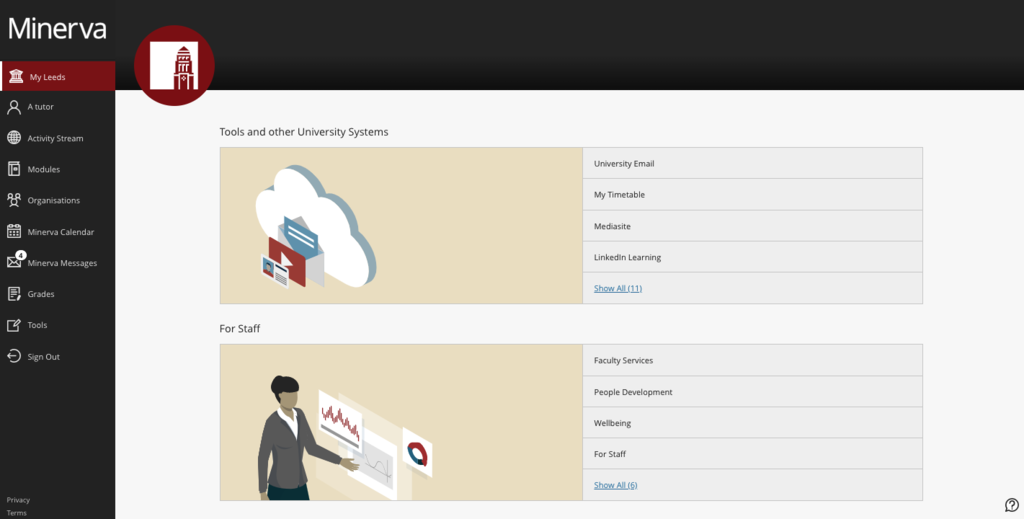
2. From the Content area, click the plus icon where you want to add a Vevox quiz and select Content Market.
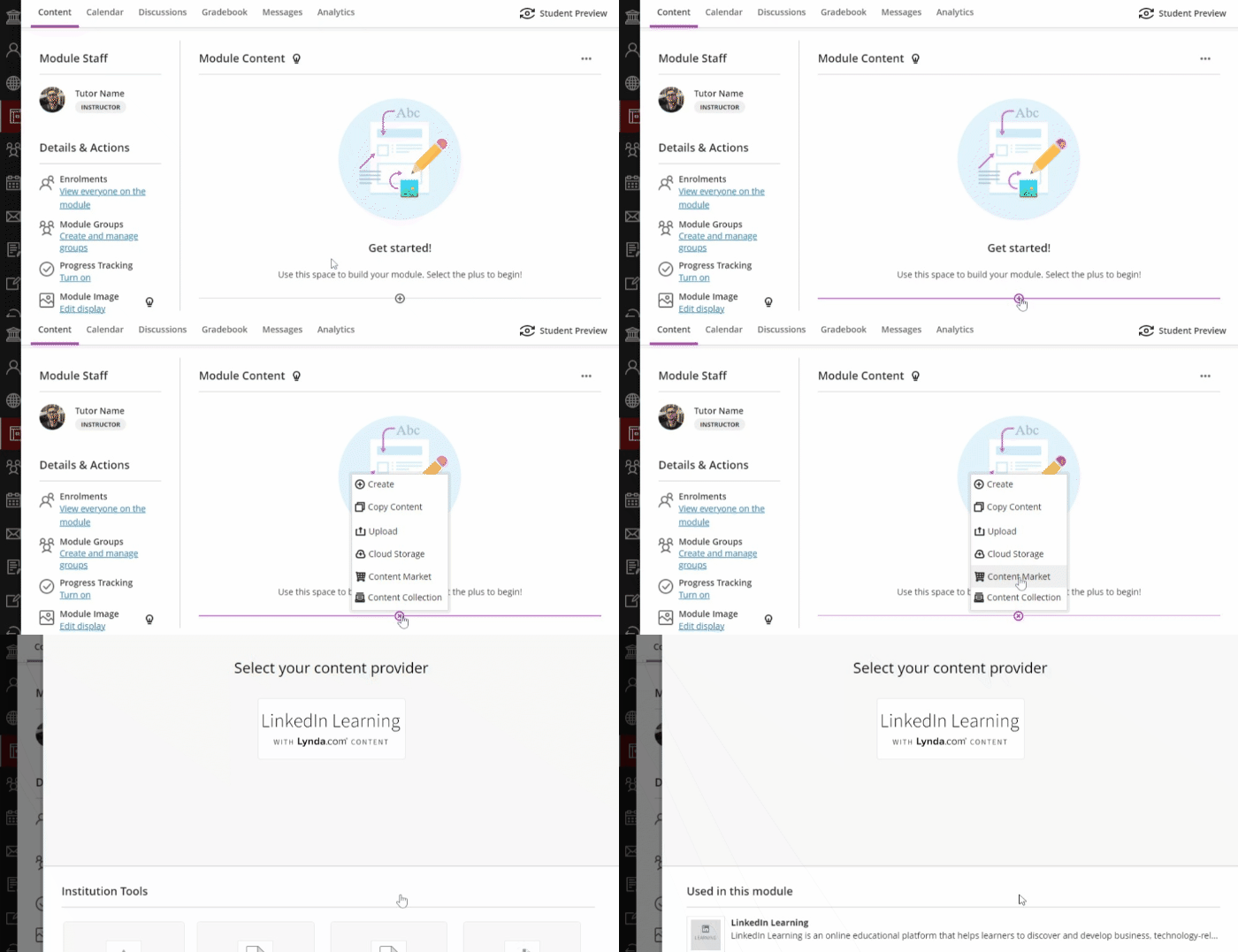
3. From the Content Market, scroll down and choose Vevox.
4. You will then be directed to Vevox. A list of Vevox sessions you have created will appear. Select the session you would like to link to your Minerva Module.
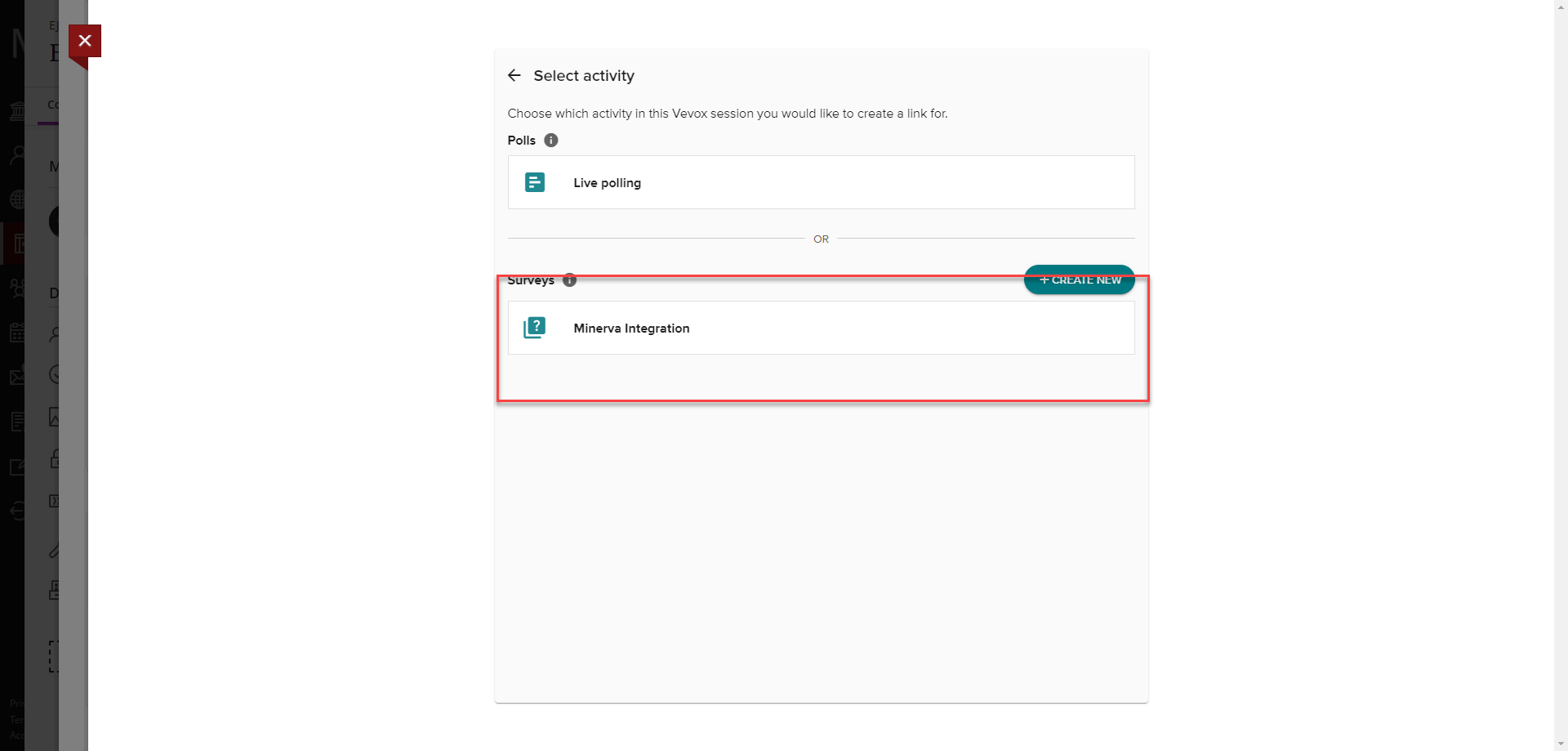
5. You will then need to select the quiz you would like to link. It is important to note that though you can do live polling through a Minerva link, this would not give the best student experience as you would still need to launch the questions one at a time during a session. You may have more than one quiz/surveys in a session, you can make individual links to these but we would suggest creating one session per quiz/survey to have the best user experience. If you have multiple quizzes in one session you will only get a grade book entry for the quiz that has been linked.
6. Once you have selected the quiz you want to link, you will be given some settings to choose from. By default your quiz will be set to Identified. This means that the students information will pass back into the grade book. If you want to change the setting to anonymous you can but no information will pass back to gradebook. If you plan to do the quiz anonymously we recommend not to use the integration and provide users the link to the quiz.
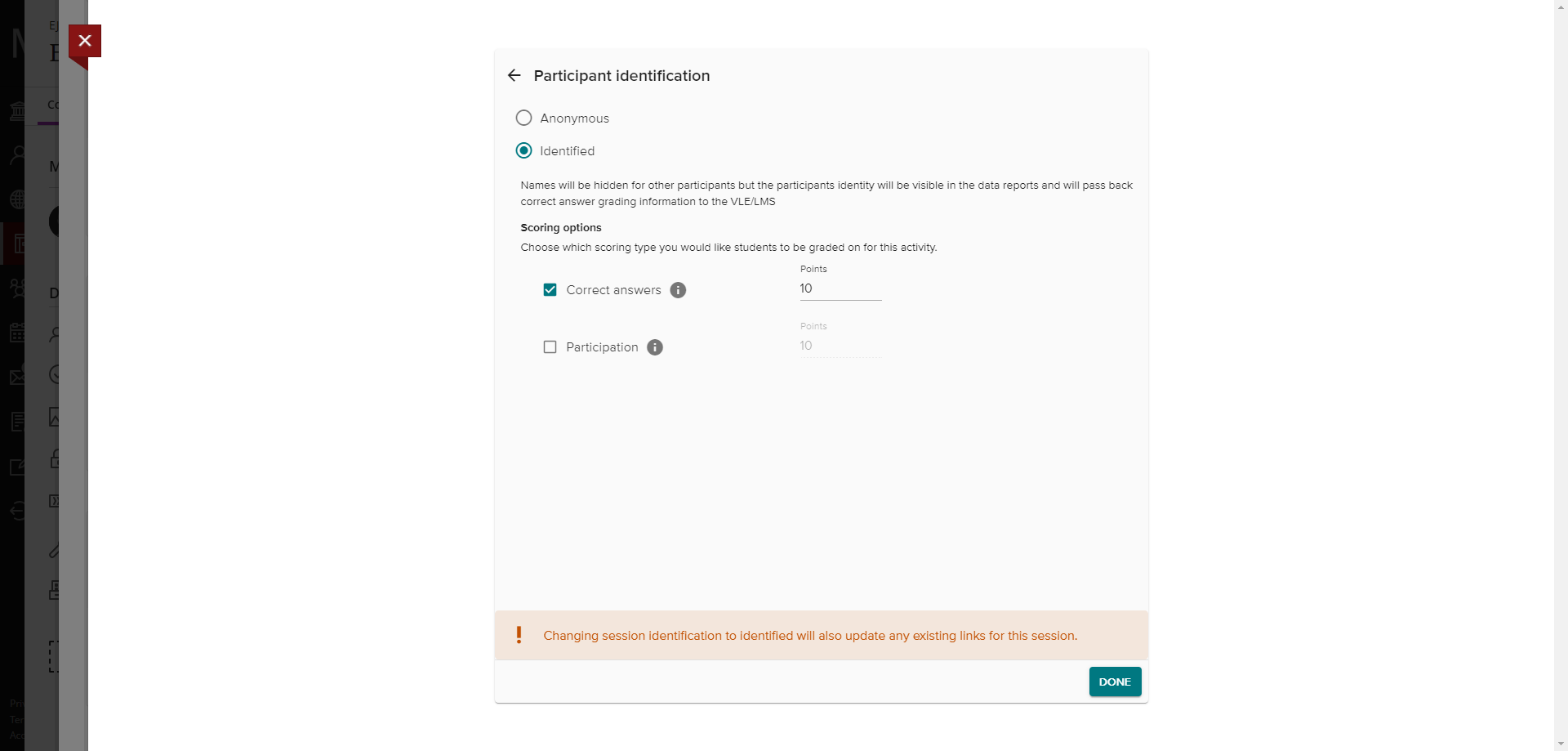
7. You will also see scoring options. You can either select correct answers, meaning users get a point for each answer they select that is correct (or however many points you have assigned when creating the quiz), or you can choose to add participation points, this may be if there are no correct answers but you would like the student to receive a grade for participating. You can select both options if you want the student to gain points for correct answers and for participating in questions. You can also choose Combined if you want users to receive some marks for correct answers and some for participation.
8. You can also decide if you want your LTI score syncing to be automatic (This means that scores are synced from Vevox to Blackboard immediately when the activity is completed.) Or you can choose this to be manual and you can sync the scores from Vevox into Minerva manually from Vevox at an appropriate time.
9. Once you have chosen your settings. Select done and the link to the quiz will be added to your Minerva module. Users can select this link in Minerva, or they can follow the QR code or direct link created in Vevox.
For more information on how to set up a link within your Minerva module or general information on Vevox. Book a session with a member of the DE Systems Team.