
Minerva Monthly Update - June 2025
- Tags
- News for Staff
In the June update, there is a new Jumbled Sentence question in Blackboard Test, some Gradebook improvements and a new Discussion activity indicator.
There are also some updates to Annotate (the inline marking tool for Blackboard Assignment).
Blackboard Test - Jumbled Sentence question
You can now create a jumbled sentence question with one or more blanks for students to complete.
To create a variable, insert the variable in square brackets within the paragraph. Each variable is automatically recognised as the correct answer. Further distractors can be added. Variables can include the following characters:
- Letters
- Digits (0-9)
- Full stops (.)
- Underscores (_)
- Hyphens (-)
Partial credit can be enabled. All answers will be weighted equally.
Read our guide on Blackboard Tests for more information on Tests.
Gradebook - Accessibility improvements
The Gradable Items view of Gradebook has been improved.
Navigate the Gradable Items tab by keyboard
- Use the Tab key to go to the Gradable Items tab.
- Tab to the Gradable Items table header to enter the table.
- Use the arrow keys to navigate the table.
- The Tab key will take you out of the table and to the Close button. Shift + Tab returns you to the Settings button.
Navigate the Gradable Items tab with screen readers
Screen reader users can navigate to the Gradable Items tab using the keyboard instructions. You can also use the specialised keyboard combination for your screen reader to go directly to the table.
- JAWS: Use Insert + Control + T
- NVDA: Use T, then Control + Down arrow to enter the table
- VoiceOver: Use Control + Option + Command + Right arrow key to choose the table option
If you want to add content, use the down arrow to go to the More options button at the end of the row. The next down arrow will be the Add content button.
Note for JAWS users
- JAWS users can move left or right in any row by using table navigation keys.
- To move up and down between assignment rows, navigate to the Item column first.
Discussions - new activity indicator
The module navigation bar will now display an indicator next to Discussions when there has been activity you have not reviewed. Both staff and students on the module will see this indicator:

Annotate
Annotate is the inline marking tool for Blackboard Assignment. It has been recently updated with a new Bookmark feature. This means you can bookmark points on student submissions so you can return to a certain page quickly.
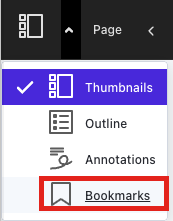
To add Bookmarks, click on the Thumbnail icon to switch to the Bookmarks menu:
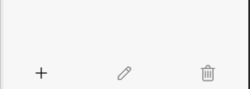
Add new Bookmarks using the options at the bottom of the Bookmarks menu:
Some changes have also been made to the Annotate interface primarily to bring more consistency in the use of colours.