
Tips and troubleshooting for online submissions
If you have been asked to submit assessed work online and are having problems doing so, please read the guide below. If the below steps do not work see, How to report a problem submitting your online assessment or test.
General Advice
 Leave yourself enough time
Please ensure that you give yourself enough time to navigate the correct submission area, upload, check and submit your work. We strongly advise that you submit as early as possible - if you have an issue, you'll have time to get technical help.
Be methodical on submission day
Don't attempt to submit multiple assessments at the same time by opening more than one tab in your browser. You can end up submitting to the wrong assignment! Wait until your first assessment has uploaded … then navigate to the other submission area and upload the next paper.
Make sure the clock and time zone on your device is correct
Check your computer/laptop time – it should show the accurate time, date and time zone (for whatever country you are in at the time). You can find advice on setting your device time here.
 Stop clicking!
Double clicking or repeated clicking doesn’t help and may cause problems. Click once and wait for the page to load.
Check your internet connection
Do you have a strong enough wireless/wi-fi signal? If not, use a wired connection—it’s faster and there’s no competition for a wireless connection. If you must use wireless, ensure your submission is complete before walking away.
Use a PC or laptop
We do not recommend submitting work via the UniLeeds App or on a mobile or tablet.
Assignment Advice
Check the file type
Read the assessment brief to ensure that the file is in the right format. Different assessments have different requirements. You may be asked to produce a PDF version of your work for submission to Turnitin or other assessment systems. It is recommended that you do this from Word Online by following this Microsoft guide on exporting a Word document as PDF. MS office products are available to all students at the university, for more information on how to access see guide, Using Microsoft Word for assessments - Student Guide. Turnitin will not accept image-based or scanned PDFs, as these files do not contain readable text. If you do not follow these steps you may risk creating a pdf that is not compatible with the system, though it may upload successfully it may make it unreadable to your marker.
Submit through Minerva
Ensure you are navigating to your Minerva module to find your submission point. Do not go directly to other platforms to submit your work to guarantee your submission is connected to the correct module.
Don't use long file names with special characters
File names that are really long, or contain special characters such as & , . ( ) % # ‘ “ / \ - { } [ ] : ; @ can experience issues. Try and keep to letters and numbers where possible.
Check the size of your file
Most systems recommend a file no larger than 100MB. If your file is too big, then you may need to change it before you submit. See the guide on reducing file size/compressing for tips on doing this.
Check the assessment brief
Check that you've followed the advice you've been given in your assessment brief. For example, have you been directed to use a coversheet.
Check the number of files
For example, if you are submitting through Turnitin you can only submit one file per assignment. You need to make sure all your work is saved as one file (not .zip) before submission.
Wait until your assignment is fully uploaded
Closing the browser window, shutting your laptop or locking your device can interrupt the upload of your work. Wait until you see confirmation that your work is uploaded before leaving the screen. Download or note any digital receipts or submission IDs.
Browser Advice
Check third party cookies are enabled on your browser
This allows Minerva to "talk" to other systems and is often blocked by default. Use the guide on enabling third-party cookies on your browser.
Run the Browser Checker
To check that your browser is running the right settings for Minerva, use the Browser Checker on the Anthology website.
Check your browser is up-to-date
If it isn't up-to-date, update it before uploading your assignment.
Check that pop-ups are enabled
Some assessment systems open in a new window known as a pop-up. If these are blocked, you may not be able to access the assignment.
Try a different browser
If you are using on campus PCs you can use any of the available browsers. If you are using your own computer see, recommended browsers for Minerva.
How to check you have submitted your work online
For Turnitin submissions
For Turnitin submissions - an onscreen receipt will display when you've successfully submitted your assignment to Turnitin—don't close your browser/tab until you have seen this receipt. Keep a copy of this receipt.
You can also return to the submission link and retrieve a copy of your digital receipt after you have submit, see keep a copy of your submission and receipt for further guidance. Turnitin receipts are not emailed.
A receipt is the only proof of submission. Save your receipt in a safe place. No receipt: no submission.
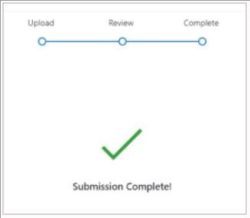
'Submission Complete' and a big green tick will also be displayed on screen.
For Blackboard Assignments
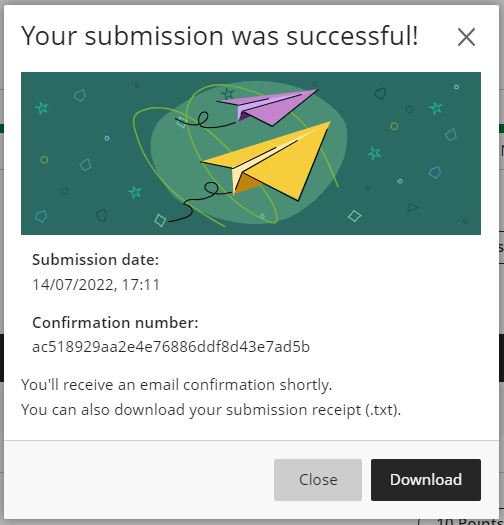
For Blackboard Assignments - Once you have clicked Submit, you should see a ‘Your submission was successful’ pop-up message. This will provide you with a confirmation number and the time and date of your submission. You will have the option to download your submission receipt, we recommend you do this.
The pop-up message will also mention that you’ll receive an email confirmation shortly. Note: during busy times, it can take a few hours for you to receive an email.
You can also go to the Gradebook, find the Assignment name in the list and check the status column, it should say 'Submitted'. Once your Assignment is graded, the status will change to 'Graded'.
For Blackboard Tests
For Blackboard Tests - Once you have clicked Submit, you should see a ‘Your submission was successful’ pop-up message. This will provide you with a confirmation number and the time and date of your submission. You will have the option to download your submission receipt, we recommend you do this.
The pop-up message will also mention that you’ll receive an email confirmation shortly. Note: during busy times, it can take a few hours for you to receive an email.
You can also go to the Gradebook, find the Test name in the list and check the status column, it should say 'Submitted'. Once your Test is graded, the status will change to 'Graded'.