
AI Conversations - Staff Guide
Instructors can create an AI Conversation in Minerva to engage students in a role-play activity with an AI persona. For example, the activity could be to role-play the first day in a new job, a conversation with a historical figure or a healthcare simulation. It is not intended to be used as a module support tool or expert answering students questions regarding the module, its learning materials, the timetable and due dates etc.
There are two parts to the activity:
- An AI Conversation - the student interacts with the AI persona on the activity, as designed by the Instructor
- A reflection question - the student reflects on the activity
All student interactions with the AI persona and responses to the reflection question are captured for review via the Minerva Gradebook. Although linked to the Gradebook, AI Conversations should be used for formative assessment or self study activity only. It is not possible to create an AI Conversation without a link to the Gradebook.
Read our guide on the AI tools in Minerva to find out more about Anthology's approach to AI, importantly, activity in Minerva is not used to train the AI large language model.
In this guide:
Suggested Use Cases
The tool can be used in any module in Minerva. We will develop more use cases as use in Faculty progresses. Here are some ideas to explore.
Role Play
- Humanities: conduct role plays with the AI persona representing an historical figure, character from a book or person from an historical period.
- Clinical sciences: simulate interactions with patients e.g. nursing simulations, counselling
- Education: replicate teaching scenarios e.g. explore challenges with students, approaches to discussions with parents
- Business: simulate negotiations e.g. conversations with clients/suppliers/partners
- Arts: anaylse artistic techniques e.g. engage in conversations with the AI persona representing a famous artist.
AI Literacy
AI Conversation also enables students to develop their skills and build confidence in using a generative AI tool, whilst protecting their data from being shared with the AI large language model.
Using a language other than English
If you want to set up the AI Conversation to work in another language, you need to specifically state this in the AI Persona section when creating the activity, i.e. state 'You will only speak French'. We have seen the language used flip back to English historically but some improvements have been made and if the language is specified clearly, it now seems to work appropriately. Bear in mind, the AI Conversation will always start with a statement in English, clarifying that responses are generated using AI.
How to set up an AI Conversation
Create an AI Conversation
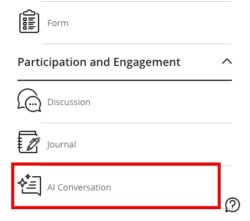
First, navigate to where you wish to add the AI Conversation to your module. Select the + icon, and Create Content. A panel will open. Go to the bottom of the panel and select AI Conversation (in the Participation and Engagement section).
The AI Conversation set up screen will load. There are 4 things to review:
- Student instructions (the AI persona will also see these)
- AI persona
- Reflective question
- Assessment settings
Auto-generate
If you are stuck for ideas, use the auto-generate feature. If you already have an idea, skip this section and begin adding student instructions.
To auto-generate a conversation, click on the auto-generate option which appears above the settings (top right of the screen):
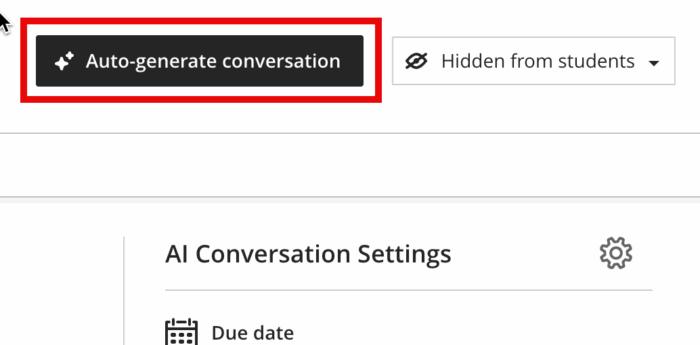
Content will generate automatically based on the module title, but you can add information in the Description field or use 'Select module items' to give the tool inspiration for creating a Conversation activity (however, it is not possible to select items for the AI to use during the AI Conversation activity). You can use the Advanced Options to use another language.
If the system generates an idea you like, select it via the radio button and then click Add.
The AI Conversation will be added to your module for you to review the student instructions/AI Persona/reflection question and settings.
Student Instructions
Now enter the instructions for the student. We recommend you:
- Describe the student's role
- Describe the AI persona's role
- Outline the situation or scenario
- Describe what they are trying to achieve
If you wish, you can set a student message limit in the 'Conversation constraints' section to guide the length of the activity. This means students can only enter a defined number of messages (they will see the number of messages they have remaining as they complete the activity). It is also possible to set a time limit for the Conversation element (i.e. when the student starts interacting with the AI persona).
Select Next when you have completed this section.
AI Persona
Next define the AI persona. There are 4 elements to review: the image, name, personality trait and complexity or responses.

- Image: Students will see the image of the AI persona. Change this to something appropriate by clicking Edit Image. Under Image Source there is a drop down menu, unless you have an image you wish to use, select Stock Images from Unsplash. You can search by keyword to find a suitable image. Click on the image, then Next, adjust the size as relevant and then Save to add.
- Name: Add a name to make the AI persona more relatable.
- Personality trait: Now define the AI persona's personality traits. For example, you could describe the persona as supportive or critical. Also, indicate the AI persona's mood or tone e.g. enthusiastic, calm. You can also provide any relevant background information which you think will help the AI, but you do not want to use in the Student Instructions.
- Complexity of responses: Set the complexity of responses by the AI Persona. Consider the AI persona role and which setting is most appropriate. The default is defined as undergraduate (lower). If you move the slider to the left, the language used should become simpler, if you move it to the right, it should become more complex. There are ten points in the scale which map as:
-
- Early primary school
- Late primary school
- Early middle school
- Late middle school
- Early high school
- Late high school
- Undergraduate lower (default)
- Undergraduate upper
- Graduate level
- Advanced PhD level
Select Next when you have completed this section.
Reflection Question
A question is added by default but can be edited. You may wish to use the reflection question for students to reflect on their performance in the activity or/and comment on the interactions with the AI Persona. If you wish to change it, select the three dots menu and then Edit.

Remember to click Save when finished.
Recommended Settings
This activity should be used for formative assessment or a self-study activity only.
Click the settings cog to access settings.

Enter a due date as required (or select 'No due date')
The following settings are recommended:
- Leave the formative labels checked
- Change 'Grade using' to Complete/Incomplete
- Set as unlimited attempts
Other settings can be left as the default.
Use the description text box to advise students if you will review the activity/return feedback. Where unlimited attempts are allowed, you may wish to specify you will only review the most recent one. We also recommend including a link to the student guide.
Remember to Save your changes.
Preview the activity
There is an inherent risk when using AI tools that outputs could be inappropriate, inaccurate or biased. Students are warned of this when they begin the activity but it is important that you preview the activity so you can understand the student experience, see how the AI persona reacts and refine the information you provided if necessary.
The 'Preview chat' function is available in the interface once you have set up the AI persona.

Previewing the activity allows you to interact with the AI persona but it does not show you the full experience. If you wish to see this, you can use the Student Preview functionality, however, you should only do this if your module is unavailable to students (this is because you will have to make the AI Conversation available to students on the module to use the Student Preview).
When using the Student Preview, save your activity when you exit so you can see how this is accessible via the Gradebook. If your module is currently being used by students, contact the IT Service Desk asking for a sandpit module in Minerva which you can use to test the functionality.
To understand the student experience, you can also watch this short video which shows the student experience and how to access student interactions via the Gradebook (4 mins 3 secs):
Make the AI Conversation available to students
When you are happy with the activity, the final step is to make it available to students. Do this by selecting the Hidden from students option (above the settings) and changing to Visible to students.

Reviewing student interactions/responses
All student interactions during the AI Conversation and responses to the reflection question can be accessed by module staff via the module Gradebook.
Although this tool isn't recommended for summative assessment, being able to view student responses can be useful if you wish to feedback on the activity. It is also useful in case anyone reports the AI persona not acting as expected.
To access responses, navigate to the Gradebook for the module. The link is in the navigation bar across the top of the module.

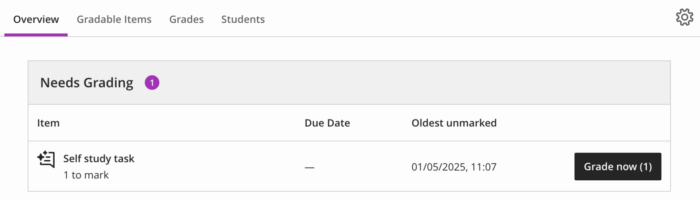
Navigate to the item. The Overview tab is usually the easiest route if students have completed the task, it will appear in the Needs Grading section. Select Grade now to open the first student attempt
This short video also shows you how to view student interactions (skip to 2 mins 30 secs):
If you need help navigating the grading interface, please see our guide on the grading interface.
You will need to score responses and post them for students to see their feedback. If you do not want to give students a specific mark, we recommend giving all full marks to show completion of the activity.
Related Guides
- Student guide on AI Conversations
- Other tools using AI in Minerva e.g. test question creation
- Anthology AI Conversation Transparency Note (note we only have roleplay enabled at Leeds)