
Minerva Class Teams - Update
- Tags
- News for Staff
The method of linking from Minerva to Microsoft Class Teams is being updated by our suppliers. You may see a notice advising you that the Teams Meetings and Class Teams LTI will not be available after September 15, 2025. Please disregard this message; the new method will replace the existing instances and will not have any impact on new or existing Class Teams created via Minerva.
Intermittent issues accessing links
There is an intermittent issue where the Enable/Open Microsoft Teams link may not appear in modules/organisation. Until this is resolved, a workaround is to follow the steps in our troubleshooting guide. This has been escalated as a matter of urgency to our supplier.
I have enabled Teams but the workaround doesn’t work, how can I and my students access the Team?
If you are using Teams for teaching over summer, have already enabled the Class Team but the link isn’t appearing in the Details & Actions menu it can be accessed directly via the Microsoft Teams app.
If you would like to share the link in your module or organisation for students to access this can be done by opening Microsoft Teams.
- Select Teams from the left-hand panel
- From Classes locate the appropriate team
- Select More Options (three dots ...) to the right of the name
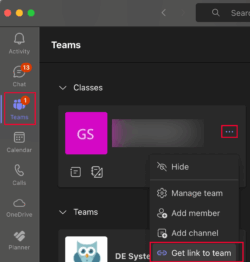
- Click Get link to team and then select copy
- Access the relevant module or organisation and navigate to the location where you want the link to be displayed
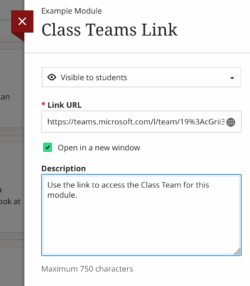
- Select the + icon, then Create and Link
- Add an appropriate Display Name
- Make it visible to students if you want them to have access immediately
- Enter the Link URL and click Save.
We would also advise that you post an announcement informing students.
If none of these troubleshooting steps resolve the issue of not seeing the link please create a support ticket for technical assistance, you can do this via the IT website.