
Minerva Monthly Update - April
- Tags
- News for Staff
The April update introduces a number of new features and improvements, including: the option to specify the assignment type for Blackboard Assignments; some changes to how multiple choice/answer questions work in Blackboard Tests; improvements to the flexible grading interface used for most Blackboard assessments; the addition of 'substantive' and 'non- substantive' labels that are applied to posts when staff mark Discussions; an option to limit the number of messages a student can create when interacting with an AI Conversation; new options to change playback speed in the Minerva recording tool; and an improvement to how images are handled in emailed Announcements.
Blackboard Assignment - specify the assignment type
There are new options when setting up a Blackboard Assignment. These allow you to specify whether the student uploads a file for the submission or uses the editor (or you can allow both options). In the settings, you will see these new options in the Submission Details section.
Select File Upload if you just want students to upload files, and select 'Editor (text, video)' if you want students to use the editor (note, to submit video, students must use Panopto - our new platform for Media Enhanced Learning and lecture capture which will replace Mediasite in 2026-27). Read our blog for more information about Panopto, this includes information on how to become an early adopter.
Read our guide on Blackboard Assignment for more information on this tool.
Blackboard Test - multiple choice/answer questions
A recent update meant that you could specify how many answers a student could select, with the default being 4. Following feedback, this update changes the default to 1. If there is more than one correct answer, this is flagged in the interface, prompting you to change the number of answers a student can select.
Flexible Grading Interface (used for Blackboard Assignment/Test)
Name display
The name display format is now linked to the selected sort order. By default, student names are now shown as 'Surname, First Name' to help instructors quickly locate students. When sorting by 'First Name (ascending or descending)', names display as 'First Name, Surname.'
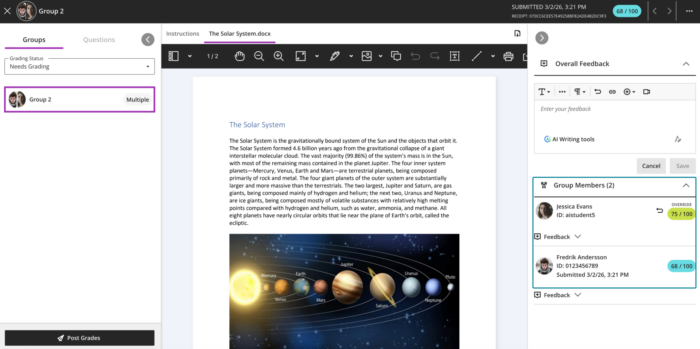
Group Assessment
It is easier to adjust grades for an individual student within a group submission, which can now be done in the Flexible Grading interface. In the Group Members section, individual grades can be entered. The student sees this grade only, instead of the grade for the overall group.
Discussions - substantive and non-substantive labels
When grading Discussions, staff now see 'substantive content' and 'non-substantive content' labels as an aid to the marking process.
AI Conversations
When creating an AI Conversation, it is now possible to specify how many messages a student can post. This can help students understand how many interactions are expected for the activity.
As part of the student instructions, there is an option to enter the maximum number of messages possible under Conversation Constraints:

As a student undertakes the activity, they will see a countdown of the messages they have remaining.
Read our AI Conversations guide for more information.
Announcement Emails - image handling
Announcement emails now display previews of images included in an Announcement. These image previews replace the previous image links that appeared as filenames in the email. When users select an image, it opens on a separate page for a larger, more detailed view. This update makes announcement content clearer and easier to understand directly from the email.
To navigate to the announcement within Minerva itself, users can select View Announcement in the email message.

Minerva recording tool
This tool is in Announcements and can be used to give feedback in Blackboard assessments.
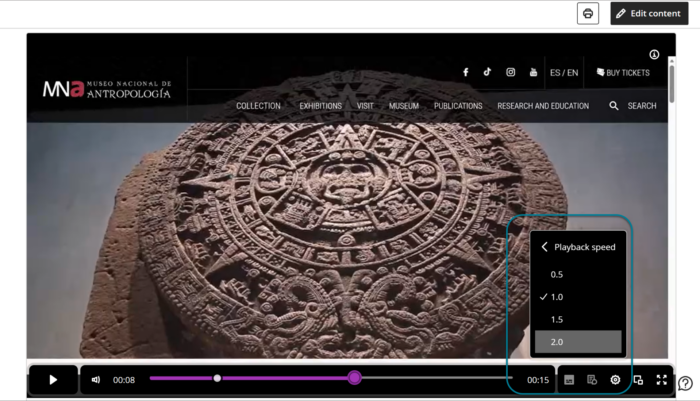
When users watch a recording, they can now choose from predefined speed options such as 0.5x, 0.75x, 1x, 1.25x, 1.5x, and 2x. Playback starts at 1x speed, and users can switch speeds at any time. Speed controls appear clearly in the player and work with mouse, keyboard, and touch interaction. The experience is consistent on desktop, tablet, and mobile devices.
Read our guide on the recording tool for more information.