
Blackboard Assignment Turnitin Similarity Report - Staff Guide
A Turnitin similarity report can be generated for submissions to Blackboard Assignments. Some settings are not supported. The integration is not currently available for:
- Group submissions
- Peer Review
- Parallel Grading (where 2 graders mark the same paper at the same time)
Only files submitted to Blackboard Assignment which are supported by Turnitin will create a similarity report. These are: Microsoft Word, WordPerfect, PostScript, PDF, HTML, RTF and plain text. Note that Blackboard will accept any .pdf whereas Turnitin will only generate a similarity report if it has been generated by Adobe or Microsoft Word online (some PDF generators create an image which cannot be scanned by Turnitin).
Students are able to submit any file type (unless restrictions are set when creating the Assignment) and more than one file to Blackboard Assignment. They may also use the content editor to write their submission rather than attach a file.
With this integration, staff will be marking and grading using the Blackboard flexible grading interface. See the Marking Blackboard Assignments section in this guide. If you want to use Turnitin’s marking features, i.e. Turnitin Feedback Studio, you should set up a Turnitin assignment instead.
Setting up a Blackboard Assignment
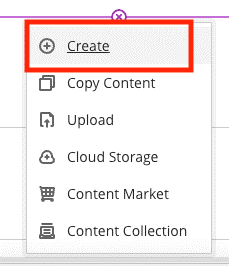
Add a Blackboard Assignment to the module in the usual way. Select the + icon in the appropriate location and then select Create:
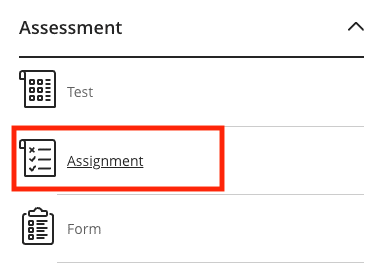
Then select Blackboard Assignment from the panel:
In the settings for the Assignment, you will see the option to enable the Turnitin similarity report. Please note that the assignment setting refers to the similarity report as 'Originality Report'.
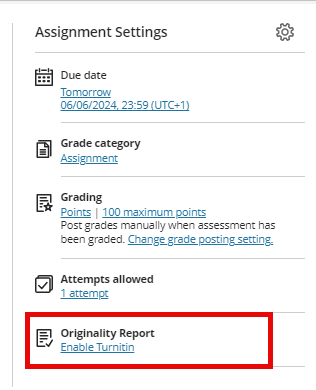
Next review settings for Turnitin. Note the settings are slightly different to a Turnitin assessment:
- Exclude small sources is limited to words only (fewer than 8 by default), instead of a percentage option;
- Report generation options are not available – all reports are generated on submission and are then re-processed on the due date.``
Recommended settings are:
- Store student submissions in the default option: Standard paper repository (papers will be stored in Turnitin's database for future similarity searches.)
- Leave all options under 'Compare submissions against' selected.
- You may exclude small matches, but do not increase the default setting 'Fewer than 8 words'.
- It is generally not advised to allow students to view the report - leave this setting unchecked.
Review the full Assignment settings e.g. due date and options for release of grades (click on the settings cog icon to open them all). For further information on settings, please read the DE Systems guides on Blackboard Assignment.
Marking Blackboard Assignments
Submissions are accessed via the Gradebook or by returning to the Assignment (where students submit).
When using Blackboard Assignment, you will not have access to the Turnitin Feedback Studio suite of marking tools. Instead, you will have access to Blackboard tools (the flexible grading interface). These include an inline marking facility, rubrics, and options to add feedback via a content editor (to add text, upload a file, create multiple audio/video recordings with captions).
The inline marking facility (Annotate) is available for supported file types:
- Microsoft Word (DOC, DOCX),
- Microsoft PowerPoint (PPT, PPTX),
- Microsoft Excel (XLS, XLSX),
- OpenOffice Documents (ODS, ODT, ODP),
- Digital Images (JPEG, JPG, PNG, TIF, TIFF, TGA, BMP, HEIC),
- Source code (Java, PY, C, CPP, etc),
- Medical Images (DICOM, DICM, DCM), PDF, PSD, RTF, TXT, WPD.
If this is not supported, you will see an option to download the file instead.
An overview of the flexible grading interface is available. You may also find the following guides helpful:
- Blackboard’s Annotate tool (inline marking tool)
- Recording tool
- Rubrics - these are different to Turnitin Rubrics - Turnitin Rubrics cannot be copied across in any way. The Rubrics are similar but there is not a ‘no points’ Rubric in Blackboard currently.
Note that if students submit multiple files to an Assignment (within a single attempt), you can switch between the different files using tabs near the top of the grading interface (there is no option to prevent students submitting multiple files within a single attempt):

Also, if you allow students to submit multiple attempts, these can be accessed via a drop-down menu at the top of the grading interface:

Unlike Turnitin Feedback Studio, grades are not released on a certain date. The usual process is to release (post) grades manually. This is the default setting, and it is controlled in the Assignment settings.
Read the DE Systems guide on posting grades for more information on how to return grades.
Viewing the Turnitin Similarity Report
The report you can access is the latest version of the similarity report (if using Turnitin, you can switch between this and an older version). You will notice some changes to the layout and options between the two versions. Turnitin have published a guide on the new report (note that some features described in the Turnitin guide are not yet available in this integration - you can check Turnitin's Blackboard Ultra Assignment faq page for more details).
You must navigate to a student’s submission to view the report. You will see the score above the inline view of their paper. Click on the score to open the report.
