
Create an offline Blackboard Assignment - Staff Guide
This guide covers how to create an offline Blackboard Assignment. This type of assignment is used when there is no submission made by the student (often referred to as submissions collected offline). They are commonly used to return grades/feedback for assessments such as a presentation.
As the submissions cannot be anonymous, only one submission area is needed. Grades/feedback can be returned altogether or individually.
Setting up an offline submission area
Step 1 - Create the Blackboard Assignment
- Go to the Minerva module and select the Submit My Work folder to open it. This is where summative assessments should be added. If you are setting up a formative assessment, you may choose to put it elsewhere.
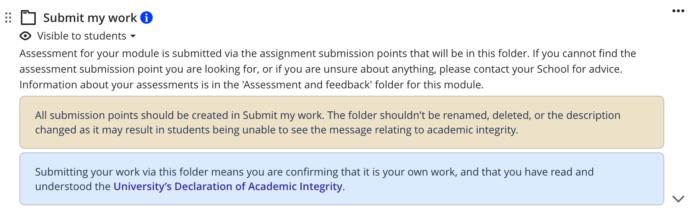
- Once the folder opens, move the cursor under the existing Assessment submission support item and select the + icon (or the bold, purple line that appears)
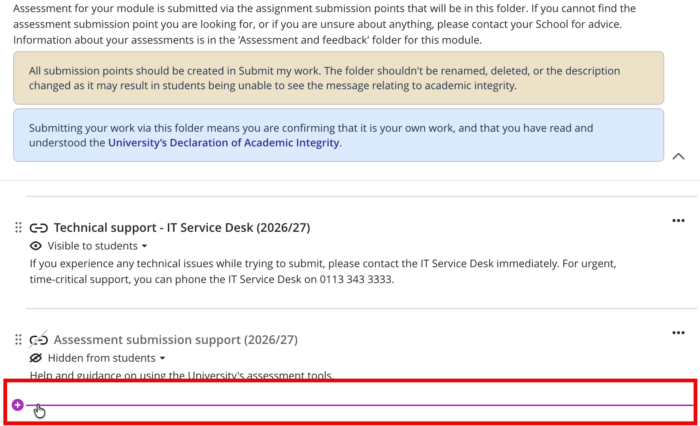
- Select Create, and then Assignment from the panel which opens to add a Blackboard Assignment to your module.
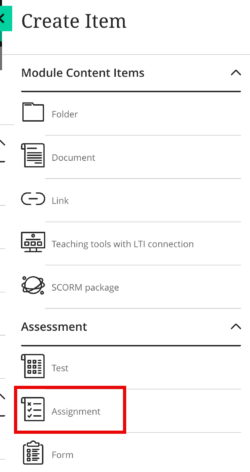
- The assignment will be called 'New Assignment' by default. Select the default name and rename it. Use the following format: module code, name of assessment, due dd/mm/yyyy, hh:mm.
Example: SCH0000, Name of Assessment, 19/03/2026, start time 14:00pm.
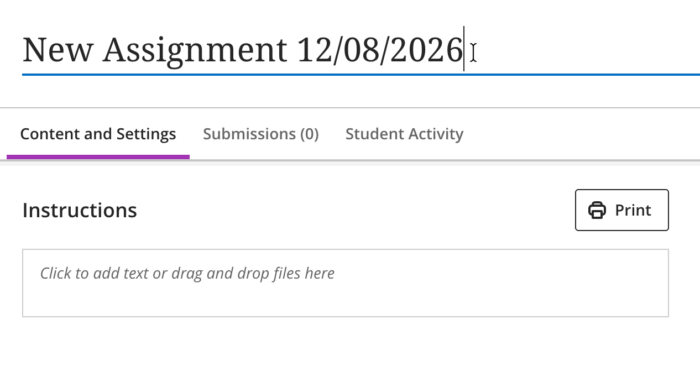
- Enter the instructions for the assessment in the Instructions box and select Save.
Step 2 - Review the Assignment Settings
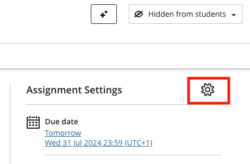
Select the Cog icon to access all settings.
Details & Information
Due date: Add the due date and time for the assessment to remind students when their offline submission is due. You can also select 'No due date' if your offline submissions are being collected over a range of dates (such as in-person presentations). Ignore 'Prohibit late submissions' or 'Prohibit new attempts after due date', as there are no physical submissions allowed. These options will be greyed out once 'Offline submission' is selected later.
Class Conversations: Selecting this option creates a space for students to ask questions about the assessment. This should only be enabled if module teaching staff intend to monitor the conversation and participate.
Submission details
Change the submission method to 'Offline submissions'.
Formative Tools
For formative assessments, you can select 'Formative assessment' and elect to show this label to students. This should be done consistently for any applicable assessments if used.
Grading & Submissions
Grade category: Categories can be used to filter the Gradebook.
Attempts allowed: This option will be greyed out as you cannot allow multiple attempts for submissions collected offline.
Grade using and Maximum points: Enter as required. For more information of these settings see Blackboard Assignment settings guide.
Anonymous grading: You cannot hide student names when submissions are collected offline.
Evaluation options: Select as required.
- 'Two graders per students' facilitates double marking with a third marker reconciling grades.
- 'Peer review' is not available when using Blackboard assignment for offline submissions.
- 'Delegated Grading' can be used to specify that staff only mark certain students.
For a deeper explanation, see our guide on Blackboard Assignment Settings.
Assessment grade: do not select the 'Post grades automatically' option.
Assessment security
You cannot add an access code for submissions collected offline.
Additional Tools
Time limit: You cannot add a time limit for submissions collected offline.
Use grading rubric: If marking with rubrics, add the Blackboard rubric here. For more information on creating a rubric within Blackboard, see our guide on Blackboard Rubrics.
Assign to groups: Use this setting if it is a group assignment, i.e. one grade for a group of students. Read our guidance on creating Groups first if you have not already done this.
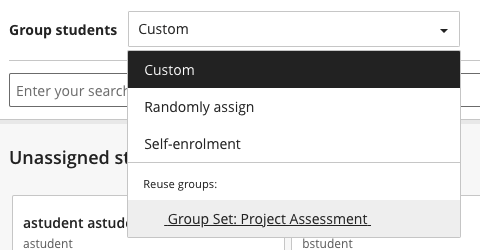
After selecting Assign to groups, you will be prompted to set up new Groups or reuse existing Groups by clicking the Group students drop down menu. Existing Group Sets are listed under the Reuse groups section.
Originality Report: You cannot enable Turnitin for submissions collected offline.
Click Save once you have completed your review of the Settings.
Step 3 - Make the Assignment visible to students
The Assignment will be hidden from students by default. Set the item as 'Visible to Students' as a reminder of the upcoming assessment.