
Blackboard Assignment Settings - Staff Guide
This guide details the different settings for Blackboard Assignment. Click the Settings icon to access all settings.
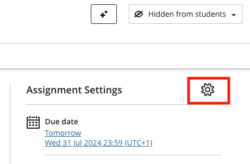
These are divided into sections:
- Details & Information
- Submission Details
- Formative Tools
- Grading and Submissions
- Assessment Security
- Additional Tools
Some settings will become greyed out and cannot be selected depending on what other settings have been selected already.
Details and Information
- Due date and time of the assessment (There is an option to select no due date, if relevant.)
- Prohibit late submissions - When enabled, this will submit all 'in progress' attempts (i.e. drafts of attempts which are created if students don't click 'Submit'.) Selecting this will also enable the 'Prohibit new attempts after due date' option described below.
- Prohibit new attempts after due date - This prevents students from starting new attempts after the deadline.
- Allow class conversations - Conversations are a way for students to ask questions regarding a particular piece of Minerva content. Only enable if module staff intend to monitor the Conversation.
Submission Details
Submission Method
By default the Assignment will be set up for online submissions (where students submit online). Use the dropdown menu to select the offline submissions option to return grades/feedback for an offline assessment; e.g. a presentation where students do not submit anything. Students will see the offline Assignment in their module and see reminders of any due dates set, but it will be clear that they do not need to submit anything.
Allowed format for online submissions
Select 'File upload' if you want students to upload a file, e.g. a PDF or DOC. You can also specify which are the permitted file types as appropriate. Select 'Editor (text, Panopto)' if you need students to upload a video file (using Panopto), or type in their submission. Select both if you need students to submit both ways.
Review the Panopto Video Submission guide for detail on how video assessment is handled and instructions you should provide to students.
Formative Tools
Here you can select 'Formative assessment' and choose to 'Display formative label to students'. This means students will see the assessment marked as Formative in the assessment details and their Gradebook. This can help students to easily understand the purpose of assessments in the Minerva module. There are also Gradebook filters staff can use to include/exclude formative assessment. If this setting is used, it should be used consistently to avoid confusion to students.
Grading & Submissions
- Grade category: Usually automatically assigned, Gradebook can be filtered by category.
- Attempts allowed: Select how many attempts students can make. All attempts are retained and can be accessed by both staff and students. All attempts can be graded with feedback if this is preferred. If you select more than one attempt, you will be prompted to select 'Attempt(s) to mark' - see below.
- Attempts to mark: If you allow students to submit more than once, you will be prompted to specify which grade should appear in the Gradebook (last attempt is the default). Bear in mind that students can see all of their attempts, and any feedback/grades added to all attempts, once their grade is posted.
- Grade using: Select Points, Percentage, Letter, or Complete/Incomplete.
- Maximum points: Add what points the assessment is marked out of - if you want the grade to display as a letter, a numerical grade must be entered. Grading schemas in the Gradebook settings show how points correspond to letters, and can be adjusted. You can also create your own Grading Schemas. For example, you may wish for Pass/Fail to be displayed. For more information, please see the Blackboard help article on grading schemas.
Anonymous grading
Select 'Hide student names' to hide names while grading takes place. Names are only revealed when grades are returned to students (when they are posted). Therefore, it is not possible to reveal any student’s name during the grading process. You cannot select anonymous grading for group assignments or offline assessments.
Evaluation options
Two graders per student (parallel/blind grading)
If enabled, graders are assigned to submissions. Only two graders per student are allowed. If you have more than two people doing grading, they will be randomly assigned to students. A third member of staff needs to reconcile the grades from the two graders.
To set up parallel grading:
- Enable Two graders per student.
- Select the Assign graders option.
- Select which staff member will grade the paper (assign as Grader). All Instructors will by default be listed as Reconcilers, so may need to be removed as a reconciler first.
- Select who will reconcile the grades (assign as Reconciler). Nobody can be a grader and a reconciler at the same time, this needs to be a different member of staff. You should not switch staff from a grader to a reconcile, as it will result in any grades that have been added by them being lost.
See parallel grading on Blackboard's website for detailed guidance.
Peer Review
Select Peer Review to enable students to review their peers' assignment submissions and give feedback. This setting cannot be used with Group assignments, or if multiple attempts are allowed.
To set up peer review:
- Enable peer review.
- Click on Select peer settings.
- Select the number of reviews per student and set the due dates.
- Peer reviews will be available for students to complete immediately after the Assignment due date, as long as there are sufficient submissions (the assigned number of reviews set by you plus one).
See Peer Review for Qualitative Peer Assessments on Blackboard's website for detailed guidance.
For text-based assignments, Turnitin offer a similar peer review tool called PeerMark which has the benefit of a similarity report being generated. See PeerMark guidance on the Turnitin website for more information.
Delegated Grading
For larger modules, it can be useful to delegate grading to different staff members. Delegated Grading facilitates this via Minerva Groups.
To set up Delegated Grading, first create a Group Set. The Group Set should contain Groups for the different graders - e.g. Group Tutor A for those Tutor A will mark, Group Tutor B for those Tutor B will mark, etc. Assign the students to the groups as required, or use the randomise feature.
Once you have your Group Set ready, select the Delegated Grading option in the Assignment settings and assign staff to mark the different Groups. Be aware that Delegated Grading does not work in the same way as Parallel Grading - only one grade can be applied to each paper. For example, if two markers add a grade to the same paper, the first grade added would be overwritten by the second one.
Read our guide on Minerva Groups for more information on how to set these up. See Delegated Grading on the Blackboard help site for more information about this feature.
Assessment grade
Select Post grades automatically (i.e. return grades to students) only if you are happy for students to see grades as soon as they are entered into the marking interface. This is not in general recommended as it means students receive grades at different times. The usual process is to manually post grades.
Assessment security
Add access code
This is only recommended in a supervised assessment, e.g. exam. If set, students will need a code to access the assessment.
Additional Tools
Time limit
You can create a time limit for the Assignment. This means that once a student opens the Assignment, a timer starts and they must complete it within the available time.
Use grading rubric
Blackboard rubrics can be created/added here. Blackboard rubrics belong to a module and must have been created or copied to the module for them to be added. See our guide on Blackboard rubrics for more information.
Assigned groups
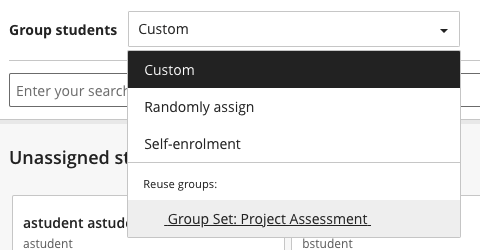
Select if you want students to submit group work, i.e. one submission on behalf of a group. Groups must be created in Minerva, and then Assignments can be assigned to Groups as required. Read our guidance on creating Groups first if you have not already done this.
After you select Assign to groups, you are prompted to set up new Groups or reuse existing Groups by clicking the Group students drop down menu. Existing Group Sets are listed under the Reuse groups section.
Originality Report
Turnitin originality (similarity) reports can be generated for supported file types.
For more information, read our guide on the Blackboard Assignment Turnitin Similarity report integration
Related Guidance
- Getting Started Blackboard Assignment
- Create a Blackboard Assignment
- Create an Offline Blackboard Assignment (where students do not submit work)
- Exceptions and Accommodations
- Download Blackboard Assignment submissions
- Grading Blackboard Tests or Assignments
- Student Guide: Submit a Blackboard Assignment