
Minerva Monthly Update - July 2025
- Tags
- News for Staff
In the July update, there is a new Activity page for staff, a new option to add captions to images in Minerva Documents, and the option to create Test Question Banks via QTI files. It is also now possible to see which students have reviewed Announcements in your Minerva modules, and, for colleagues who utilise Blackboard Group Assignments, navigation is improved. Finally, the option for configuring Progress Tracking has moved to Module Settings.
Activity page - staff view
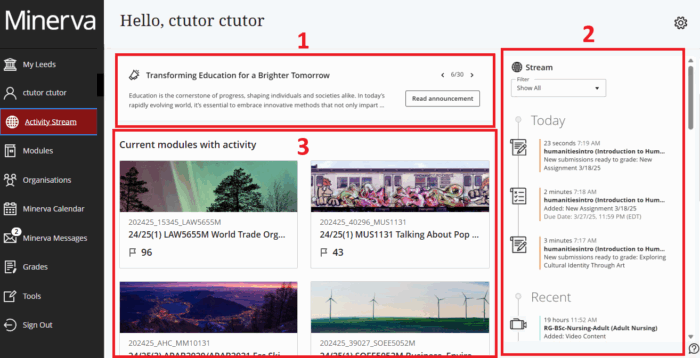
The Activity page for staff has been expanded. Previously, the Activity page only featured a stream of recent events. The page now features three sections containing (1) System Announcements as relevant (2) a stream of notifications from your modules and organisations (highlighting events such as new content, new submissions, new discussion posts, etc), and (3) a list of your available modules with recent activity.
The three sections of the Activity page are shown in the image below. Note that clicking an item in the Activity page will show you the content in a separate overlay, without you losing your place in the Activity page.
Modules
This list will show modules which are available to students, ordered by recent activity (although if you have Favourites, these will be at the top). Note that any modules in which you have the role Module Builder will not be displayed here. You will see numbered icons to indicate:
- Items that need grading (paper and pencil icon)
- Messages (envelope icon)
- Students with access alerts - indicating students have not accessed the Minerva module recently (flag icon). The default flagged is no access for 15 days. This can be changed in the 'alert settings' available in the report the link opens.
Read our guide on the Activity Stream for information on the Activity Stream and instructions on how to configure the stream of notifications.
Add Caption to Image Blocks in Minerva Documents
You can now add captions to Image Blocks in Minerva Documents. When you add an Image block, you will now see the option to add a caption as part of the Edit File Options. The caption can appear above or below the image:


Read our overview on Minerva Documents to find out more about how they can be used to present content in modules.
Create Question Banks for Tests via QTI
Importing questions from QTI version 2.1 packages is now supported for the following question types:
- True/False
- Multiple Choice
- Multiple Answer
- Fill-in-the-blank
- Essay
When you create a Question Bank, you will see the new option:

For more information on Question Banks, read our guide on Advanced Question Creation for Tests.
See who has viewed Announcements
Announcements have viewer information listed e.g., you can see 6/11 people have viewed an Announcement in Minerva:

Now you can click the viewer information to see which students have not yet viewed the Announcement in Minerva. The interface lists the students on the module and whether they have viewed the Announcement:
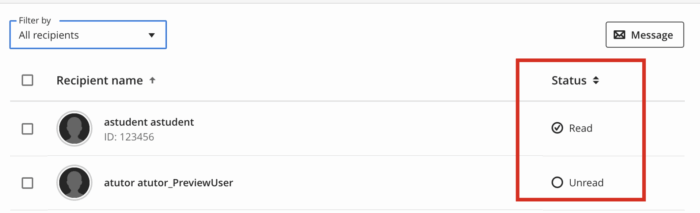
If you wish you can use the Filter to just see who hasn't viewed it, then you can select students and send them a Message via Minerva:

Read our guide on Announcements to find out more about this tool.
Navigating Blackboard Group Assignment submissions
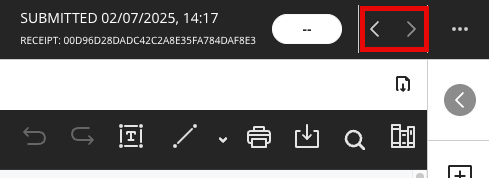
Arrows have been added to help staff navigate between submissions when grading (to mirror the experience of grading individual submissions). These are in the top right of the screen, near where the submission date/time displays:
Read our guide on Blackboard Assignments to find out more about this submission tool.
Progress Tracking Configuration
Modules are configured with Progress Tracking enabled by default. Progress Tracking can help students understand what content they have interacted with, and staff can also see reports so they can see who has engaged with their content.
If Progress Tracking for your module needs to be disabled or re-enabled, this setting has moved from the Details & Actions menu and is now in the Module Settings (accessible by the Module Settings link in the top right of your module):

Read our guide on Progress Tracking for more information on what this tool reports on.