
Minerva Updates Archive 2022/23
This is an archive of the monthly updates made to Minerva from June 2022 to August 2023
These updates provide an overview of the new features, bug-fixes, and improvements made to Minerva.
For the most recent Minerva updates please see the Minerva Monthly Updates page.
Please see Monthly Systems Updates for updates to other Digital Education Systems.
Updates to Minerva in other academic years can be found at Minerva Updates Archive 2023/24.
August 2023
The August update to Minerva introduces updates to Learning Modules, Messages, Gradebook and Groups. A known issue relating to Calculated Numeric Test questions is resolved.
Learning Modules - option to add image
Learning Modules are often used to structure content in Minerva modules (they are used for Learning Resources in the institutional module template). Staff can now add an image to a Learning Module. This will appear on the module content page helping students identify the theme of the Learning Module and also making the module more visually appealing.
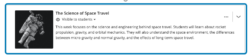
You will see the option to add an image when creating a new Learning Module. To add an image to an existing Learning Module, select the three dot icon for the relevant Learning Module and then Edit. This opens a peek panel where you can add a description and image:
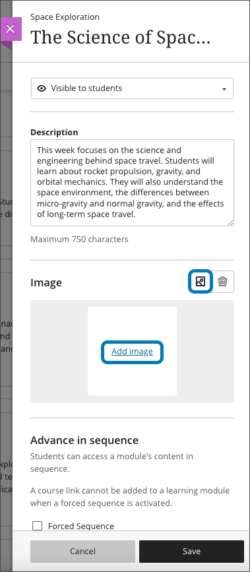
Click Add image and follow the onscreen instructions to add the file. You will have options to crop/zoom the image. Mark the image as decorative or add alternative text if you need to convey meaning (this will help students with screen readers).
Images courtesy of Anthology
Messages
In modules, staff and students will now see a notification if they have an unread message. In the Navigation bar (across the top of the module), a number will appear next to the Messages item indicating how many messages are unread.

If accessing Messages via the Minerva home page (using the Global Navigation menu on the left-hand side), modules with unread messages will now appear at the top of the list. Modules with recent activity will appear next in the list.
Known issue with unread messages indicator
Gradebook
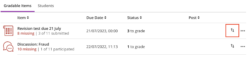
Two changes have been made to the interface. In grid view, staff would see the words 'Grade Now' for each cell, even though there had been no activity. This is now replaced with a '-'. In list view (gradable items tab), it was not obvious how to reorder items. The option to reorder used to only appear if you hover your mouse in the correct place. The reorder option now always displays.
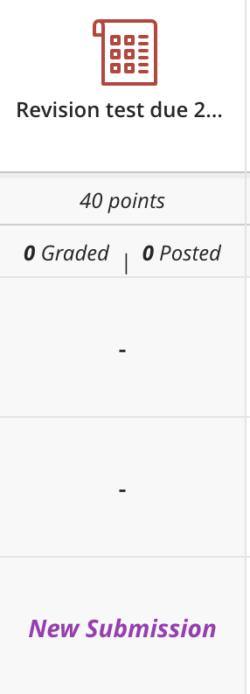
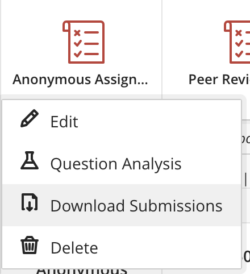
If you use anonymous Blackboard Assignments, it is also now possible to download all submissions at once. This is done in Gradebook Grid View.
Groups
Groups have been moved from the Details & Actions menu into the Module Navigation bar (which is across the top of the module). This change is for both staff and students.
Groups also now have a Group Space. This means staff and students can click on the Group name and see any content assigned to this Group. At the moment, this will only be Group Blackboard Assignments i.e. where students work on an assignment together and submit one assignment on behalf of the Group. We expect our vendor to develop this further to allow other types of activities to appear here.
Known Issue resolved
Students could enter text into the answer of a calculated numeric question. Staff could not enter text into the answers. This caused issues with automatic marking. Students are now warned if they enter text.
July 2023
The July update to Minerva introduces updates to assessment, options to resize media added to Documents, copying, and progress tracking (student view). The option for students to self-enrol is now also possible in Ultra Course View Organisations. A known issue relating to Gradebook icons is resolved.
Tests | Partial/Negative credit
Scoring for partial/negative credit in Multiple Choice/Answer questions has been improved. Previously all were weighted equally, and Instructors could not control how much partial and negative credit was awarded. Now Instructors have more control. New options allow instructors to:
- Enter a positive percentage value to award credit for a correct answer(s)
- Enter a negative percentage value to subtract credit for an incorrect answer(s)
- Allow a negative overall score for the question.
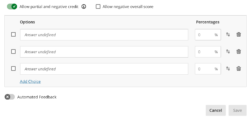
The number of default answer options has been reduced from 4 to 3. To add another answer, select Add Choice under the three default answers provided.
We expect our vendor to improve partial credit scoring in other applicable question types in the future.
Tests/Assignments | Student user interface update
In the past, when a student selected a Test/Assignment, they saw the option to ‘View Assessment’. On clicking this text, students see all assessment information/questions and an attempt is started. The text has therefore been updated to ‘Start attempt’. If the student returns to the assessment after starting an attempt, the text will change to ‘Continue attempt’. If there is more than one attempt possible, the current attempt number is also displayed.
Tests/Assignments | Exceptions – panel update
Exceptions are used to grant students additional attempts and give a bespoke deadline. The panel where these are set has been updated to display more information to help prevent errors.
The panel now includes:
- The module name
- The assessment name
- The student name
Anonymous Blackboard assessment – exceptions and reminders
Exceptions can now be added for anonymous Blackboard assessments (Test and Assignment). These are added via the student overview page in the Gradebook. Read our guidance on how to add an exception to an anonymous assessment.
Reminders can be sent to students who have not completed a Blackboard assessment (Test and Assignment). Read our guidance on how to send a reminder to an anonymous assessment.
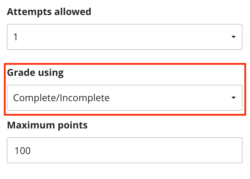
Complete/Incomplete grade schema
Assessments can now be assigned a complete/incomplete grade schema which means no score will display to the student or in the Gradebook. These are assigned in the assessment settings under the Grade using option:
Tests/Assignments | Formative assessment option
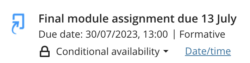
Assessments can now be marked as Formative. Students see this in the interface as do staff, staff can also filter the Gradebook for Formative assessments. Staff are advised to use this setting consistently if they choose to do so. For Blackboard Test/Assignment, this option is enabled in the assessment settings. For integrated assessment tools like Turnitin, Gradescope and PebblePad, after you add the assessment link you will need to edit it to enable the Formative assessment setting.
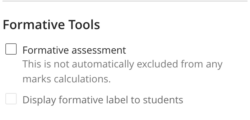
Students see a formative label next to the assessment link in Minerva.
Resize media added to a Document
You can now resize media (images, videos, and media inserted via URL) added to a Document via the Add Content option in the editor by dragging the corner handles.
Copying between modules
When copying materials between modules, items were sometimes moved to ensure the three levels of depth rule was respected. This meant files were sometimes copied across, no longer contained within a folder. Now folders will be copied across at the lowest level possible with all files still within them.
Progress Tracking
Progress Tracking is now enabled in modules by default. This means students will always be able to track their progress through module content and staff will have access to reports to understand how their content is being engaged with.
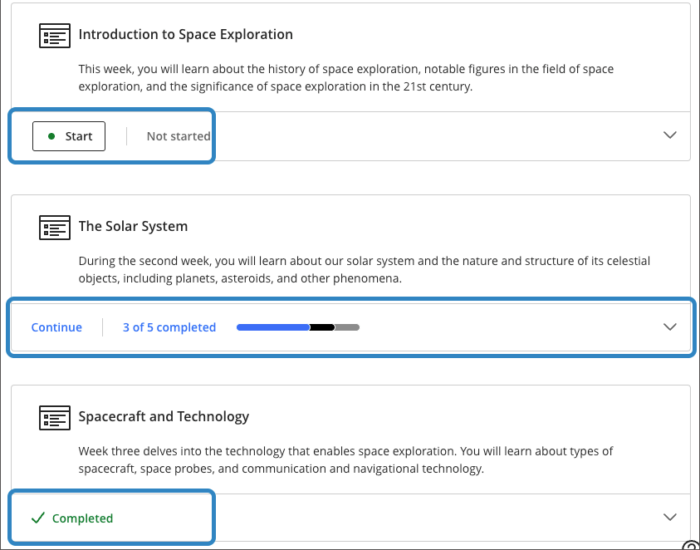
Before this update, students had to expand a learning module to view their progress. Now students can see if they have started the Learning Module/how much has been completed before expanding.
Ultra Course View Organisations – self enrol
It is now possible to allow students to self enrol onto Ultra Course View Organisations. If you were waiting for this feature before moving your Organisation to Ultra Course View, please contact us via the IT Services website.
Known Issue resolved
Icons associated to assessment tools would not appear correctly within the Gradebook. For example, you could see the Turnitin icon next to a Blackboard Test. This has now been resolved.
Ally - Audio Alternate Format Character Limit
The audio alternative format option is now supported on files up to 200,000 characters (up from 100,000).
June 2023
The June update to Minerva introduces improvements to Tests and Module Links. The link to Announcements has been moved to the top navigation bar and Learning Modules now include an icon on the module content page.
Tests | Upload questions by file
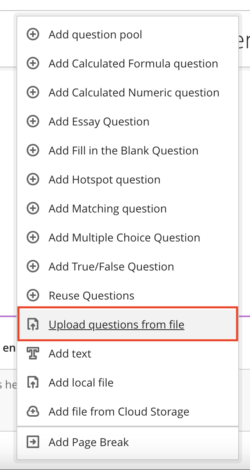
Questions can now be uploaded by file, multiple choice/answer, true/false, essay, fill in the (multiple) blank, numeric response, matching questions are supported. The file must be a tab-delimited TXT file with a recommendation of a maximum of 250 questions per file. Follow the detailed instructions on Blackboard's webpage on uploading questions.
The option to add questions by upload is alongside other options to add questions via the interface.
Tests | Anonymous marking
It is now possible to enable anonymous marking on Tests. Be aware that once students submit, it is not possible to disable this setting. The anonymous marking option is in the Test settings. Anonymous marking cannot be used if 'post grades automatically' is selected.
Module Links
You can now add Module Links to Folders and Learning Modules. Find out more by reading our guide on Module Links.
Announcements
Following user feedback, Announcements has moved to the top navigation bar. This is to improve the visibility and prominence of Announcements. All existing Announcements functionality remains the same.
Learning Module icon
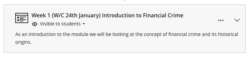
Previously, the Learning Module icon only displayed in the create module content items menu. Now the Learning Module icon will also display on the module content page.
Known Issue resolved
There was an issue where icons for integrated tools such as Turnitin and Gradescope would shrink depending on the amount of text entered in the description. This has been resolved.
May 2023
The May update to Minerva introduces improvements to Gradebook, Tests, drag and drop functionality, editing options for LTI assessments (e.g. Turnitin) and Ally.
Gradebook | Send messages to students from submission page (reminder functionality)
Now staff can quickly message students from the submission page, for example, to remind students to submit to a Blackboard Test or Assignment. Staff can filter by submission status for the assessment (e.g. filter for students with no submission or draft saved) and then select students to send a message to (with email if desired). Students can be removed from the message if they have an extension.
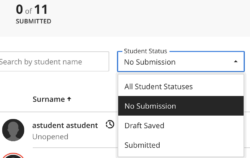
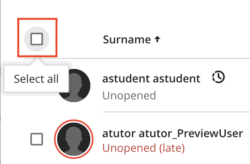
This workflow is not supported for Turnitin however we are expecting this functionality to follow later this year.
See our guide on sending reminders from the Gradebook for further information.
Gradebook | Student Overview - new Notes feature
There is a student overview for each student on a module. This can be accessed by going to the Gradebook, entering the list view as necessary, and then clicking on the Students tab:
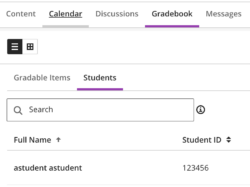
Access the overview by clicking on the student's name. The overview includes the student's submission status for assessments on the module. Now there is a new feature to add Notes as needed.
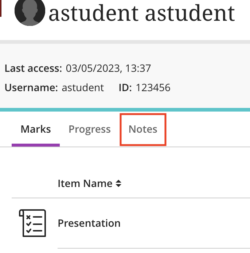
Notes can only be viewed by staff on the module. Staff can see all Notes but can only edit/delete Notes they have added.
Drag and drop folders of files
You can now drag and drop folders of files to module content/folders/learning modules. It is important to note that this can't exceed 2 levels of structure. If you attempt to add a deeper structure, any folders that exceed the limit of 2 levels will be discarded.
See our guide on drag and drop for further information.
Category no longer required when editing certain assessments e.g. Turnitin, Gradescope
When editing due dates or other information relating to an integrated assessment tool (e.g. Turnitin, Gradescope), a category was required. Now staff can edit this information without being forced to select a category.
Ally Improvements to feedback preview
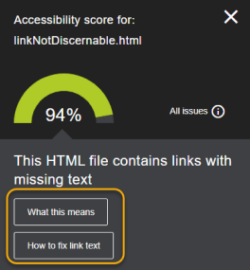
Ally now provides guidance for fixing issues of HTML files containing links with missing text.
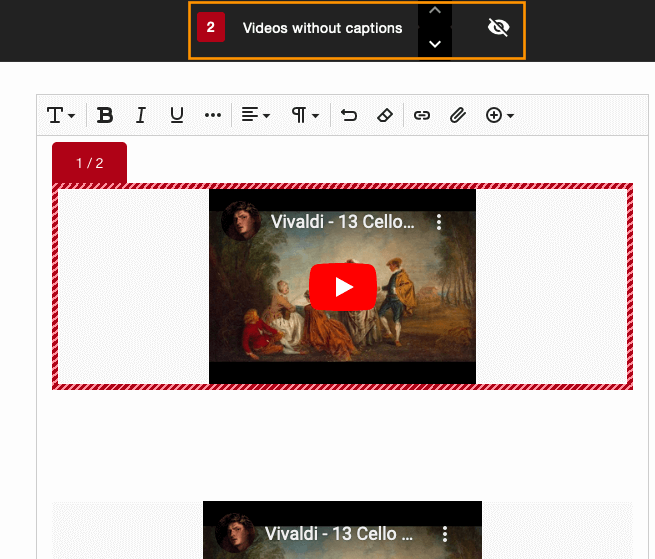
In cases where the same YouTube video is used multiple times, Ally now lists and highlights all instances of the video.
Test Improvements
Hot Spot Question
When creating hot spot questions, staff can now zoom in/out and use full-screen view so that hotspots can be defined more precisely.
Prevent Backtracking
Backtracking can now also be prevented in Tests which contain page breaks.
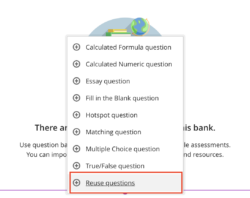
Question Banks - new reuse questions option
Staff can now copy questions between Question Banks. To copy a question, staff should select the new 'reuse questions' option. Other Question Banks can then be browsed and questions selected to copy.
Rubric Improvements
Performance level descriptions are now hidden by default to streamline grading for staff familiar with the performance level requirements. Staff can choose to display them when grading if preferred.
April 2023
The April update to Minerva introduces a new module search function for both staff and students. Improvements have also been made to Gradebook, Tests, Discussions and messages when copying.
New module search
A new search feature is available for all modules (and organisations which have switched to Ultra Course View). The search is accessed via the magnifying glass icon located above module content on the right of the module landing page. It will search the titles of all module content.
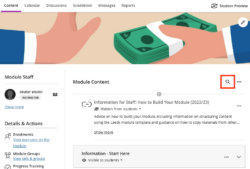
When you type a few letters, the course search function displays a list of matching items. You may expand the search results to view more information related to the item(s). There is an option to clear the search and if you leave and return to the module landing page, the search clears automatically.
A search function has been requested by many of our users and should prove to be a useful tool to help you find content quickly. Naming items appropriately will also help students find content. This can be particularly important for assessment submission points which students are often trying to find quickly; it is helpful to students if assessments are named clearly with the due date included.
Gradebook Improvements
Submission list sorting controls
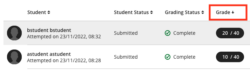
When you view the list of submissions for any Blackboard assessment tool (Test/Assignment/Journal/Discussion), you will now be able to order information by the different fields. For example, for a Blackboard Test, you can order by Grade achieved.
Multiple Grading Schemas
The Gradebook now supports multiple Grading Schemas. This means you can have assessments linked to different schemas. For example, you may want some assessments to display a score out of 100 whilst other assessments just display Pass or Fail.
Schemas can be accessed via the settings icon in Gradebook:
In the Grade Schemas section, click Manage Mark Schemas to add a new schema or edit existing ones. When creating Blackboard assessed items (Test, Assignment, Discussion, Journal) a schema can be selected via the Grade using option in the settings. For integrated assessments (e.g. Turnitin) you can change the way scores display in the Gradebook by editing the assessment settings after set up. Note this will not affect the display of scores in the integrated Tool, only the Gradebook display.
More information is available in our guide on Gradebook settings.
Gradable Items (List View)
In the List View of Gradebook, the default display is of Gradable Items i.e. every assessment in your Minerva module. Improvements have been made to this page. Notably, information such as when marks need to be posted, and how many need posting, are specified. Also, for Blackboard assessments (Test, Assignment, Journal and Discussion), if assessments need grading and you select the corresponding text, you will be taken directly to the work that needs grading.
Test | Hotspot questions
Staff can now add a circle shaped 'hotspot' in addition to the existing polygon and rectangle options. The student experience also recently changed so that a pin is automatically placed on the image when they click on it.
Read our guidance on Blackboard Tests for general information on set up. For detailed information on the hotspot question, please see the Blackboard guidance on the hotspot question.
Discussion navigation changes
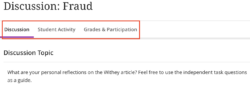
Staff will now see a new navigation menu at the top of each Discussion. This is to help highlight Discussion analytics and make it easier to access the grading interface as relevant.
Messages when copying
When copying content, users often saw an 'Oops! An error occurred copying your content' message, or text indicating that content did not copy - this usually occurred when something changed on copying from original modules (21/22 modules and earlier) to Ultra course view due to the new interface. This text has been updated to make this clearer. Please see our guidance on copying for help in this area.
March 2023
The March update to Minerva brings improvements to assessment grading, scheduling of announcements, and the ability to control the visibility of module/organisation enrolments to students.
Assessment grading
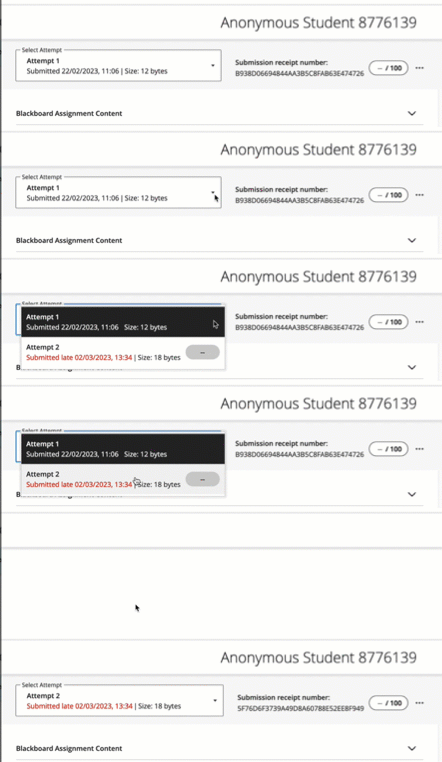
Previously if a student had made multiple assessment attempts an instructor would have to close the attempt and then select a different attempt. It is now possible for instructors to quickly switch between multiple attempts using a dropdown. When a student's name is selected in the list of submissions the most recent attempt will load, and the instructor can then select the appropriate attempt.
Scheduled announcements
If an announcement was scheduled in the future a pop-up would not appear in the module to staff and students, this would also mean that any views of the announcement even if it was accessed via the Announcements section were not tracked. This has been resolved meaning all announcements scheduled in the future will appear as a pop-up in modules, and all views are tracked.
Manage enrolment lists
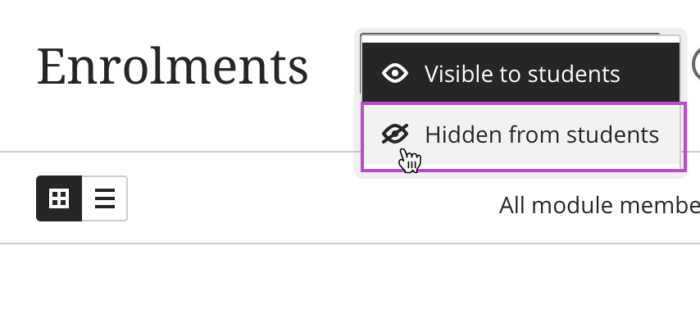
Staff now have the ability to hide the list of module/organisation enrolments from students. Further information on this is available in the Managing/Hiding the Enrolments section in modules and organisations guide.
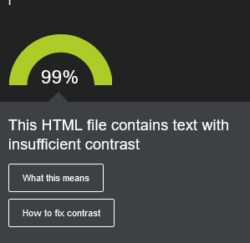
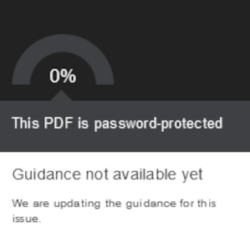
Ally accessibility scoring
February 2023
The February update to Minerva brings improvements to Tests, Gradebook, Progress Tracking and Groups.
Tests
The Hot Spot question now has the option to create a polygon hot spot which can be used to create more complex shapes. These can be drawn via the mouse or keyboard.
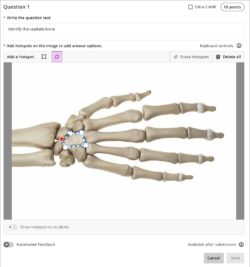
(Image courtesy of Anthology)
Gradebook
Sorting options are now available in the Gradable Items view. Students will also see sorting options in their view of Gradebook. Sorting options for other parts of the Gradebook are planned for a future release (date tbc).
Progress Tracking
Progress tracking now includes interactions students make with Ally (which provides alternative formats of files). Interactions with Ally will be recorded from o3 February 2023 onwards.
Groups
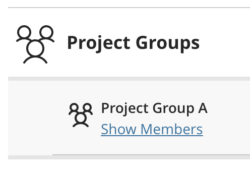
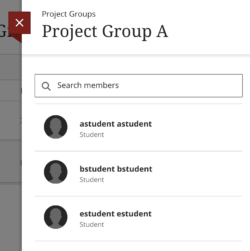
Members of Groups will now be able to easily see who else is in their Group from the Group page.
January 2023
The January update to Minerva introduces new features and improvements to Messages, Tests, Gradebook and Discussions.
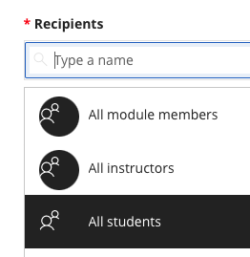
Messages | New Feature
You can now easily send a module Message to just students on the module. When you compose a message, select the option ‘All Students’.
Tests
Randomisation
There were restrictions on when you could use randomisation – it wasn’t available if you had certain types of content in a test e.g. a text block, page break, or file/image. Now you can enable randomisation regardless. The non-question elements are locked in place and the test will randomise the questions between those non-question elements. Where you use page breaks, the questions randomise within their assigned page.
Essay question
You can now add an example answer to essay questions. Staff will see this when marking. Students will also see the model answer if you choose to let students see correct answers for the Test.
Gradebook
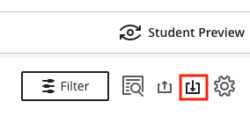
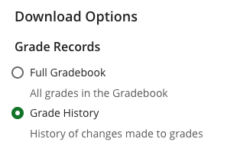
Grade History now includes information about whether a grade has been posted to students (when they are posted, students can see them). This information is in the Event column of the Grade History download.
Find the Grade History in your Module Gradebook by selecting the download icon and then Grade History:
Discussions
You can now lock a discussion after the due date has passed. When selected, students can’t create, reply to, or edit posts after the due date. Students with a due date accommodation set in the Minerva module can continue to create, reply to, and edit posts after the due date.
Click on the cog icon in individual Discussions to review settings. The new setting appears under the Due Date option: ‘Stop discussion activity after due date.'
December 2022
The December update to Minerva introduces improvements to drag and drop, reporting on student progress, question banks, the student preview exit process, and copying improvements. A new feature has also been introduced: module links.
Module Links | New Feature
You can now add links to other parts of your module. You can add links to: Ultra Documents; Blackboard Test/Assignment; SCORM; files; LTI content/integrated tools (e.g. Turnitin, Gradescope, Mediasite, PebblePad, Top Hat and Reading Lists); and Journal. To find out more, review our guide on how to add a Module Link.
Drag and Drop
Many users found drag and drop too responsive and therefore it was difficult to use. The drag-and-drop experience is improved in this release. The icon for drag and drop has also been moved, it is now on the left of the item’s name. Content can also be moved using the keyboard, see our guide on using keyboard shortcuts.
Single Student Progress report
If you have switched on Progress Tracking in your module, you can now review interactions for an individual student. To find out how to access this report, review our guide on Progress Tracking functionality.
Question Banks
You can now search for a Question Bank and for questions within your Question Banks.
Student Preview
How you exit Student Preview has been refined to make for a better user experience. When you exit, you will be asked whether you wish to Save or Delete the Student Preview account. If you delete it, this will remove all content related to the Student Preview account on that module.
Copying Content
The copy panel is now larger, and you can see the items you have already selected to copy whilst browsing for more items to copy. Breadcrumbs have also been introduced to improve navigation. Please see our Copy Content guide for guidance.
Known Issues Resolved
Student enrolments are managed by Banner (all students officially studying the module will be automatically enrolled on the Minerva module). However, there are times when you may need to manually add a student to a module. In the past, if you typed in their full name to add them to the module, no results were returned. This issue has been resolved.
November 2022
The November update to Minerva introduces updates to Tests, Gradebook and content items.
Hotspot Question in Tests | New Feature
Hotspot questions allow students to identify elements in a graphic by placing one or more pins on the image. Partial credit is not available when there is more than one correct answer. When creating a Hotspot question, you can choose to display defined hotspots to students, asking them to select which are correct. Further information on how to set up a hotspot question is available in the Blackboard Hotspot Question guide.
To answer this question type, students click a pin icon and drag the pin to the desired location on the image. This can also be done by using the keyboard. Hotspot questions are not suitable for users using screen readers.
Page Breaks in Tests | New Feature
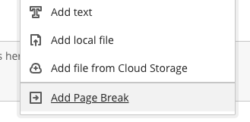
Page Breaks can now be added to Tests, allowing for the easy creation of sections within the Test. To add a Page Break, click on the + icon in the Test canvas. Then select Add Page Break:
Grade History
The Gradebook stores the history of grade changes in Gradebook which can then be downloaded. This update brings some improvements to functionality. Now you can: choose which Gradebook items to download, select a time frame and choose whether to include deleted items.
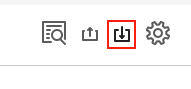
To access the Grade History, go to the Gradebook and select the download icon in the top right.
Gradebook view
Staff who prefer Gradebook Grid view no longer have to switch to Grid view each time they open the Gradebook. Minerva will remember and load the previously opened view of Gradebook (on a per module, per user basis).
Gradebook – manually added item
Staff sometimes add a manual Gradebook item for assessment which does not take place in Minerva. Now student feedback options feature a full content editor and option to attach files.
Ultra Document – upload files from the content collection
It is now possible to upload files from the Minerva content collection to an Ultra Document. You will see this new option alongside the functions to Add Content, Add HTML etc. It is also possible to add links to files in the Content Collection via the Content Editor. Click the + icon in the Content Editor to do thi
Rocket icon replaced with tool image
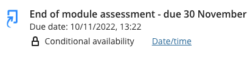
In module content, staff and students would see a rocket icon next to many commonly used tools e.g. Turnitin and Gradescope. This could make it hard for staff and students to identify what each different piece of content was.
These have now been replaced with an image representing each tool. For example, Turnitin assignments will now be displayed with the Turnitin icon alongside them.
October 2022
The October update to Minerva introduces the staff view of progress tracking functionality in Ultra Course View modules. There are also improvements to Tests and the rendering of Math Formulas.
Staff view of progress tracking
Staff can already enable progress tracking on their module. When enabled, students can easily see which items on a module they have opened and can also mark them as ‘complete’. With this release, staff can now see this activity per item on their module. Staff can launch an overview of activity highlighting whether students are engaging with the content. Find out more by reading the Progress Tracking Staff Guide.
Auto Save functionality in Ultra Course View Tests – improvements to Essay question
Improvements have been made to this question to help prevent loss of work. Any text entered into this question type will be saved 2 seconds after a student stops typing. If their network is lost whilst completing the question, students will see an on-screen warning.
Math Formulas – improvements for screen-readers
Staff can directly enter latex into the Ultra Course View content editor. This creates an image. The image format has been updated to make this work better with screen-readers.
September 2022
The September update to Minerva introduces introduces the ability to create Group Sets via CSV upload, along with other new features and improvements to existing functionality with a focus on assessment and accessibility features.
Minerva Groups CSV Uploads
You can now create Groups Sets and add members via CSV upload. Please see our guide which details the CSV upload process.
Assessment | New Features
Grade overrides are now included in Grade History downloads.
Blackboard Rubrics can be copied from Original (used for 21/22 modules and earlier) and Ultra Course View modules.
New Ally alternative format | New Feature
Ally now includes a new alternative format: Microsoft Immersive Reader. Microsoft Immersive Reader helps students improve their reading, comprehension, and grammar skills. Find out more in our Ally staff guide.
August 2022
The August update to Minerva introduces new features and improvements to existing functionality with a focus on Tests.
Tests | New Feature
- You can now create Question Banks and edit/delete questions within Question Banks (Question Banks are the replacement for Pools if you used Tests in Original (21/22) modules). Find out more in our Getting started with Blackboard Tests guide.
- Due Date exceptions can be added for an individual on a per Test basis. Find out more in the Gradebook guide.
- When copying a Test from an Original (21/22) module with questions linked to a Pool, you no longer have to select the Pool for copying (it will copy the associated Pool automatically). However, if you have multiple Tests linked to one Pool, make sure you copy them all at the same time. If you copy multiple Tests linked to one Pool separately this will result in multiple copies of the Pool in your destination module with each Test linked to a different copy of the Pool. Find out more in our guide on Copying Tests.
Student Preview | New Feature
You now have the option to delete your student preview user. We recommend you delete the user when you have finished testing. This will remove their record from the Gradebook. Find out more in our Student Preview guide.
Messages | New Feature
Messages can now be posted to modules before they are available to students. Useful if you wish to contact students before your module materials are ready.
July 2022
The July update to Minerva introduces new features and improvements to existing functionality with a focus on assessment, grading, module content and accessibility. Some issues with copying content have also been resolved.
Module Content | New Features
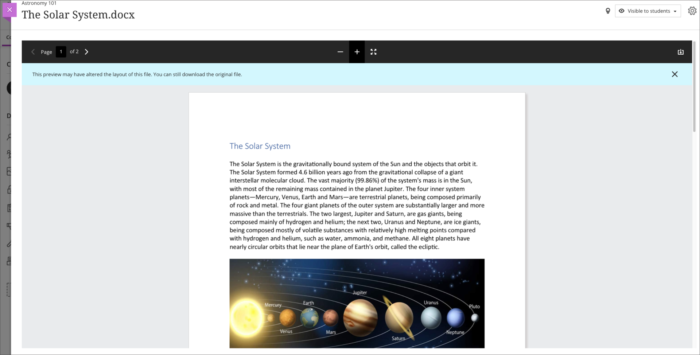
- View files inline - PDF, Microsoft Word, PowerPoint, Excel, Open Office, Text, audio and image files will now display directly in Minerva Ultra Course View modules rather than download by default (N.B. .xlsx, .xls, .xlst, .csv, and .tsv files over 10MB can only be downloaded.) Students will also automatically have the option to download the file. Staff have the option to review the file settings. Staff can select that the file can be: viewed inline/with download option (the default and recommended option); view inline only; or download only. For important/complex documentation, it is advisable to review the inline version to ensure formatting is maintained.
- Support for Blank Page copying - Blank Page can be copied from Original (21/22) modules to Ultra Course View modules. It will be recreated as a Document.
Gradebook | New Features
- You can now set up the overall grade to be calculated as a point value, it was previously only possible to set the format as weighted. It is also possible to display the overall grade in points, in the past this could only be set as a grade letter or percentage.
- You can also choose to display the overall grade as a running total. When you set up the overall grade, select ‘Base calculation on points earned out of total marked points’ if you wish to have a running total.
- A download of the Gradebook history is now available. Please note that only grades posted (returned) to students are listed in the Gradebook history.
Tests | New Features
- Display one question at a time – new prohibit backtracking option. This allows instructors to force a sequence through questions in an assessment. Once a student answers a question and continues to the next, they cannot then go back to review previous questions.
- Edit points a student earns on a test question - Instructors can now change the points an individual student earns on an assessment question. The points field supports negative and positive values with up to two decimal points.
- Question Pools – these can now be copied to Ultra Course View as a Question Bank (previously known as Question Pools in Original view). If you have a Test with questions linked to a Pool, you will need to copy the Test (from where it is deployed in the module) AND the Question Pool (you will see a folder called Question Banks when you go to copy – this contains the Pools from the module.) Make sure you copy both at the same time. This should result in both the Test and Pool being copied with supported question types linked as before
Accessibility | New Feature
Math formulas added via the Ultra Course View content editor are now rendered in Scalable Vector Graphics (SVG) format. This means that users can zoom without quality being affected, making for a more accessible experience.
Copying Content | Resolved Issues
- Content copied into Learning Modules was incorrectly placed at the top level of Module Content. This issue has been resolved. You will still see an error message stating the structure will be changed, however, this is incorrect – your content will be copied into the correct location.
- When copying a Document containing HTML, the HTML could not be edited in the copy. This issue is now resolved.
Updates to Minerva in other academic years can be found at Minerva Updates Archive 2023/24.