
Minerva Updates Archive 2023/24
This is an archive of the monthly updates made to Minerva from September 2023 to August 2024.
These updates provide an overview of the new features, bug-fixes, and improvements made to Minerva.
For the most recent Minerva updates please see the Minerva Monthly Updates page.
Please see Monthly Systems Updates for updates to other Digital Education Systems.
Updates to Minerva in other academic years can be found at Minerva Updates Archive 2022/23.
August 2024
The August update introduces improvements to Blackboard Assignments, Forms, conditional availability and options to follow Discussions.
Blackboard Assignments
Blackboard Assignments have been updated to remove functionality more relevant to Tests e.g. the option to add questions. This means the interface is simpler and free of functionality you'd expect to find in Tests.
For students, the experience is also improved. Previously, students had to 'start' an Assignment to view instructions. This means draft attempts were saved when no work was started. Now students can view instructions without starting an attempt.
For information on how to set up Assignments, read our guide on Assignments.
Blackboard Forms
Blackboard Forms can be used in a variety of situations to get feedback from your students. For example, you can use a Form to help you place students in a clinical placement or learn about student interests and opinions. Now it is possible to receive anonymous responses.
To do this, when setting up the Form, click on the settings cog to open the settings panel and enable Anonymous submissions in the Grading & Submissions section.

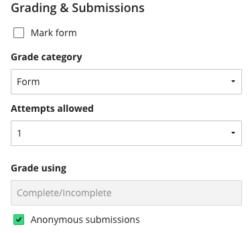
For more information, read our guide on Blackboard Forms.
Conditional Availability
It is now possible to create multiple rules for release conditions. You can create rules for release conditions based on these criteria: date, time, and grade range performance criteria. You can also create rules for specific individual learners, groups, or for all members.
For more information, read our guide on Conditional Availability.
Follow Discussions
Our supplier is working to improve the options available to staff and students to receive notifications about Discussions. In the August update, staff and students receive notifications in the Activity Stream. In September, we expect staff and students to have new email options for updates to Discussions they follow.
At present, you will receive updates to Discussion in the Activity Stream. By default, you will receive updates to activity on your responses or responses you reply to. You will also receive updates for posts from Instructors. If you choose to 'Follow' a Discussion, you will receive updates on all activity.
To follow a discussion, click on the Follow button within the Discussion:

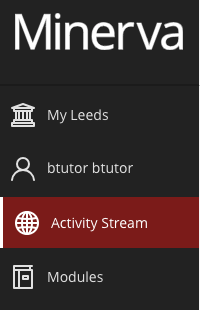
To view notifications, go to the Activity Stream in Minerva (accessed via the navigation bar on the left when you log into Minerva):
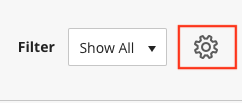
Click the settings cog in the top right to amend settings:
July 2024
The July update introduces improvements to Announcements, Blackboard Assignments and Tests. An issue which prevented IDs displaying in the Gradebook has also been resolved.
Announcements
When scheduling an Announcement (so that students see it at a future date), it is now also possible to select the email option. The email will be sent on the day/time the Announcement is available to students.
To find out more about Announcements, read our guide on Announcements.
Blackboard Assignments and Tests | Multiple Attempts
If you allow a student to have multiple attempts at a Test or Assignment, you now have options to specify which should be marked and how the final mark is determined (which appears in Gradebook).
This is controlled in the assessment settings in the Grading & Submissions section:
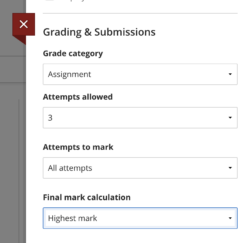
Adjust the Attempts to mark and Final mark calculation settings as needed. For staff who make use of the Needs Grading filter when marking, this will now also reflect the settings you have selected.
Blackboard Assignments and Tests | Printing Tests
Tests can now be printed with answer keys to help staff marking paper copies of Tests.
For more information, see our guide on Tests.
Blackboard Assignments and Tests | Feedback Options
Recently, the option to add recordings (audio/video) when giving feedback on a Blackboard Assignment/Test/Journal or Discussion was added. Now you can also add recordings to contextual feedback for a student's specific answer to a Test question.
To add contextual feedback, select the add feedback icon when viewing a student's answer.

The recording option is in the content editor.
For more information, see our guide on the recording tool.
June 2024
The June update introduces improvements to Announcements, Blackboard Tests, Gradebook, Group settings, and updated filtering options when accessing modules. The AI Design Assistant now also has the option to create content in different languages.
Announcements
Currently, when you create an Announcement, you must first save it and then post it (students only see it when it is posted). With this update, you can either post the announcement straight away, or save a draft.

For more information, see our guide on Announcements.
Blackboard Tests | Printing
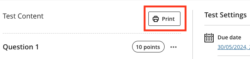
It is now possible to print a copy of a Test (not available for Question Pools). Staff see the option to print in the Test canvas. A PDF is generated and can be saved to your computer.
Blackboard Tests | Grading
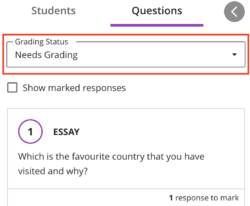
When grading a Blackboard Test by question, the flexible grading Needs Grading interface now has a filter so you can choose whether to include graded responses.
Gradebook | Grader Notes
Staff can now add a private grading note to student grades (only Blackboard assessments are supported e.g. Blackboard Assignment and Test). Once a score is assigned, a new Feedback & Notes menu option is available.
Staff can access Feedback & Notes from:
- The Grades tab in Gradebook. Select a specific score and then select the Feedback option.
- The submissions list page for an assessment. Select the three dots icon (...) for a student and then Feedback.
Gradebook | Improved visibility of new grades/feedback for students
To ensure that students are aware of any newly released grades, there is now an indicator on the Gradebook tab in the module.

When students visit the Gradebook, they will now see items with newly released grades/feedback at the top of the list. Where grades/feedback haven't been viewed, a purple indicator will display.
Settings for self enrolment Groups
At the end of the enrolment period for self-enrolment Groups, unassigned students are distributed into groups. In this update, you can now opt-out of this behaviour:

Module filter
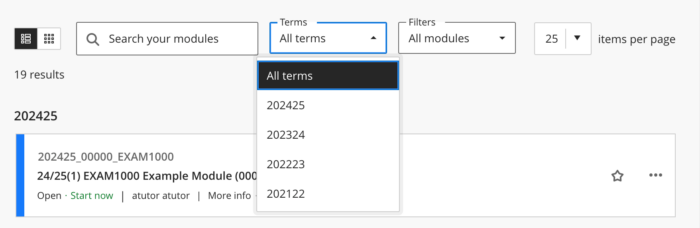
The carousel for moving between academic years has been removed, and replaced by a term filter. By Default 'all terms' (academic years) will display with the most recent year modules at the top of the list. Where favourites are used they will continue to be above any term selected.
AI Design Assistant
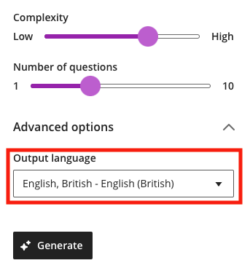
Staff can now use a language selector to set the desired language for generated content. When using the AI Design Assistant, select the output language in the advanced options:
The following languages are supported:
- Arabic
- Chinese, Simplified
- Chinese, Traditional
- Czech
- Danish
- Dutch
- English, Australia
- English, United Kingdom
- English, United States
- French, Canada
- French
- German
- Hebrew
- Italian
- Japanese
- Korean
- Malay
- Norwegian, Bokmal
- Norwegian, Nynorsk
- Portuguese, Brazilian
- Polish
- Portuguese, Portugal
- Russian
- Spanish
- Swedish
- Thai
- Turkish
- Ukrainian
- Welsh
May 2024
The May update introduces improvements to Blackboard Tests, Gradebook navigation and conditional availability.
Blackboard Tests
In the April update, the option for staff to provide contextual feedback by student on all question types when grading by student was introduced. Now, this functionality is available when grading by question.
To add feedback to a student's answer, look for the + feedback icon next to where the score displays:
Gradebook Navigation
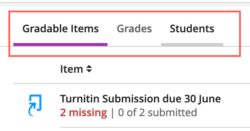
The grid and list view buttons have been replaced with text links. The link to view student details has also been moved to the top level.
The options are now:
- Gradable Items (a list of all assessment items in the module)
- Grades (the grid view - where you see the latest grade for all students for their assessments)
- Students (a list of all students which gives access to student activity/progress tracking reports and their submissions)
The last option you selected is remembered when you return to the Gradebook in that module.
Conditional Availability
You can release an item or folder in your Minerva module when a student achieves a certain score on an assessment in the module. It is now possible to create multiple performance conditions i.e. a student must achieve a certain score on multiple assessments for content to display.
For more information, read our guide on conditional availability.
April 2024
The April update introduces improvements to Blackboard Tests and Assignments, Discussions, Learning Modules, Gradebook Calculations, Conditional Availability, Forms and Batch Edit functionality.
Blackboard Tests and Assignments
Tests: add question feedback when grading by student
Staff can now provide contextual feedback by student on all question types when grading by student. We expect this option to be available when grading by question Summer 2024.
When grading a Test by student, add feedback by clicking on the add feedback icon which appears above their answer, next to the question score:

Default question score: changed from 10 to 1
Following client feedback, our supplier is changing the default question score from 10 to 1.
Duplicate questions in Tests and Question Banks
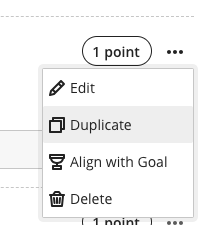
Once you have created questions, you can now duplicate them which may help speed up the creation process. To do this, select the three dot icon next to the question and Duplicate.
Test/Assignment Attempt Logs
Attempt logs show a student's activity when completing a Blackboard Test or Assignment. With this update, the log will now state if an attempt was automatically submitted is clarified (e.g. due to the time limit being reached).
Read our guide on how to access Attempt Logs to find out more.
Discussions - anonymous contributions
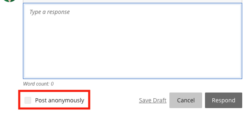
There is now the option to allow anonymous posts in ungraded Discussions. To enable, go to the Discussion Settings, and select 'Allow anonymous responses and replies'. This does not mean all posts students make to the Discussion will be anonymous, instead it will give them the option to post anonymously. Please note: it is not possible to anonymise existing discussion posts.
For more information, read our guide on creating Discussions in Minerva.
Learning Modules - persistent navigation
To improve students' navigation in a learning module, the navigation bar has been updated. Now it is sticky and remains visible as students vertically scroll through content. Students no longer need to scroll back up to the top of content to access the navigation tools.
Gradebook Calculations
The software library to create calculations has changed from (from BigDecimal to BigFraction). Previously, some calculations were inaccurate. For example, an average of 13/22, 14/22 and 15/22 would calculate as 13.99/22. The new software library ensures calculations compute as expected.
Conditional Availability - change to functionality
In the January update, a change was made to how conditional availability worked for graded items. This means that if you select 'Conditional availability' and restrict access to an item by date, students will still be able to see the grade for that item via their Gradebook link. Only the link for submission is hidden.
A further change has been made to ensure students can also access feedback for the graded item via the Gradebook link. However, students will only be able to access feedback entered directly into Minerva e.g. for Blackboard Test/Assignment. Students will not be able to access any feedback in Turnitin/Gradescope as the submission link must be available to students for them to see this feedback.
Read our guide on Conditional Availability for more information.
Forms
A change has been made to the recently released Forms tool. Forms can be used to gather information from students. Forms features a number of different question types including the Likert scale question. On release, the Likert question had 3 or 5 answer options. In this update, 4 or 6 answer options are now possible.
It is also now possible to duplicate questions which may help speed up the creation process. To do this, select the three dot icon next to the question and Duplicate.
Read our guide on Blackboard Forms for more information on this tool.
Batch Edit
It is now quicker to update the availability of items to students where restricted by date via the Batch Edit tool. This could be helpful if you want to change lots of items quickly.
It is also possible to change due dates but this is only recommended for Blackboard assessment tools e.g. Test and Assignment. Adding or changing a due date via Batch Edit will not update all integrated tools e.g. Gradescope. Also, Turnitin has a feedback release date which cannot be updated via this interface.
Read our guide on Batch Edit for more information about this tool.
March 2024
The March update introduces updates to the AI (Artificial Intelligence) Design Assistant, Gradebook, Blackboard Assignments/Tests, and Announcements.
AI (Artificial Intelligence) Design Assistant
The AI Design Assistant provides staff with tools to assist them in the creation of test questions and learning modules. In this update, there is a change in how test questions can be generated. Staff can now browse their module for content to help define questions.
An option to select module items is now present:
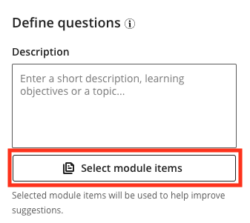
Once selected, staff can browse the module content and select item(s). Remember to click Generate for the AI Design Assistant to create questions (questions will auto generate based on the module name alone).
Read our guide on the AI Design Assistant for more information.
Gradebook
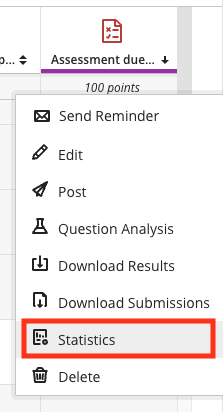
Statistics have been introduced for Gradebook items. This means staff can review key statistics regarding assessments in Minerva. Information about completion progress and grade distribution is available. Grade statistics include:
- Minimum and maximum value
- Range
- Average
- Median
- Standard deviation
- Variance
Statistics can be accessed from the Grid View by selecting the column header for the assessment item and Statistics from the drop down menu:
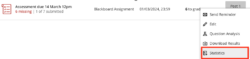
From the Gradable Items View, select the three dot icon menu and Statistics:
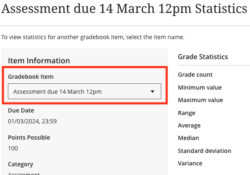
Once you open Statistics, you can switch to a different assessment item without returning to the Gradebook. Use the drop down men under Gradebook Item on the left of the page:
Blackboard Assignments and Tests | No Due Date
No Due Date
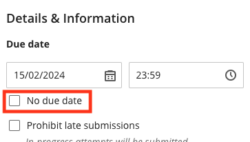
It is now easier to set no due date for a Blackboard Assignment or Test. A new setting is available: No Due Date. Check the box if there is no due date:
Blackboard Assignments and Tests | Flexible Grading Interface
When using the Flexible Grading Interface to mark Blackboard Assignments or Tests, it is possible to collapse or expand the left/right panels. Now, as you navigate between attempts, the last used state is preserved i.e. if you had the feedback panel open it will remain open as you navigate to the next attempt.
Announcements
Where there are unread Announcements, staff and students will see an indicator in the top menu:

If an Announcement is opened (i.e. clicked on to open fully), it will automatically be marked as read. Staff and students can also mark an Announcement as unread as a reminder to read it later.
February 2024
The February update introduces a new tool for gathering information/surveying students (Forms) and improvements to the flexible grading interface and recording tool.
Forms
A new tool is available for staff needing to gather information from students via their Minerva module. The interface is similar to the Minerva Test tool. At this time, Forms does not support anonymous submissions (this is expected in a future release). Results can be viewed by student in Minerva or can be downloaded as a .csv file to open in Excel. By default Forms have no grades associated although this can be changed if required, however, grades will need to be manually entered.
Note: although named Forms, this tool has no connection to Microsoft Forms.
How to add a Form to your module
Select the + icon in your module, where you want to add the Form. Select Create. Under the Assessment section, select Forms. The Forms interface will open.
Change the title of the Form by clicking the default title/pencil icon in the top left. Then add questions by using the + icon. Settings can then be reviewed by using the cog icon on the right panel. Full guidance on the Form tool will be available shortly.
Question types
Forms support the following question types: essay , likert, multiple choice, true/false questions. Essay can be used for when you require a free text response. Multiple choice allow students to select multiple answers.
For the Likert question, the scale range defaults to 3 answers, Instructors can change this to a range of 5 or 7. A 'not applicable' option can be added. The scale range is not labelled by default so it is important to add in text to describe the range required.

Recording tool
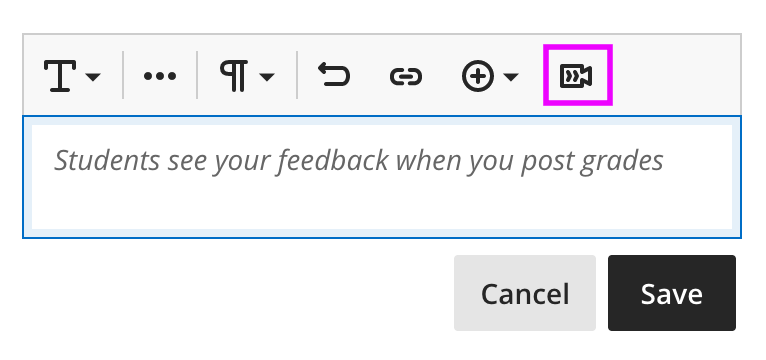
The Recording tool can be used to create an audio and video, or audio-only recording, directly in Minerva. It is available in Announcements and Overall Feedback (within Gradebook). Usability improvements have been added making it clearer to access, it is now exposed in the content editor toolbar.
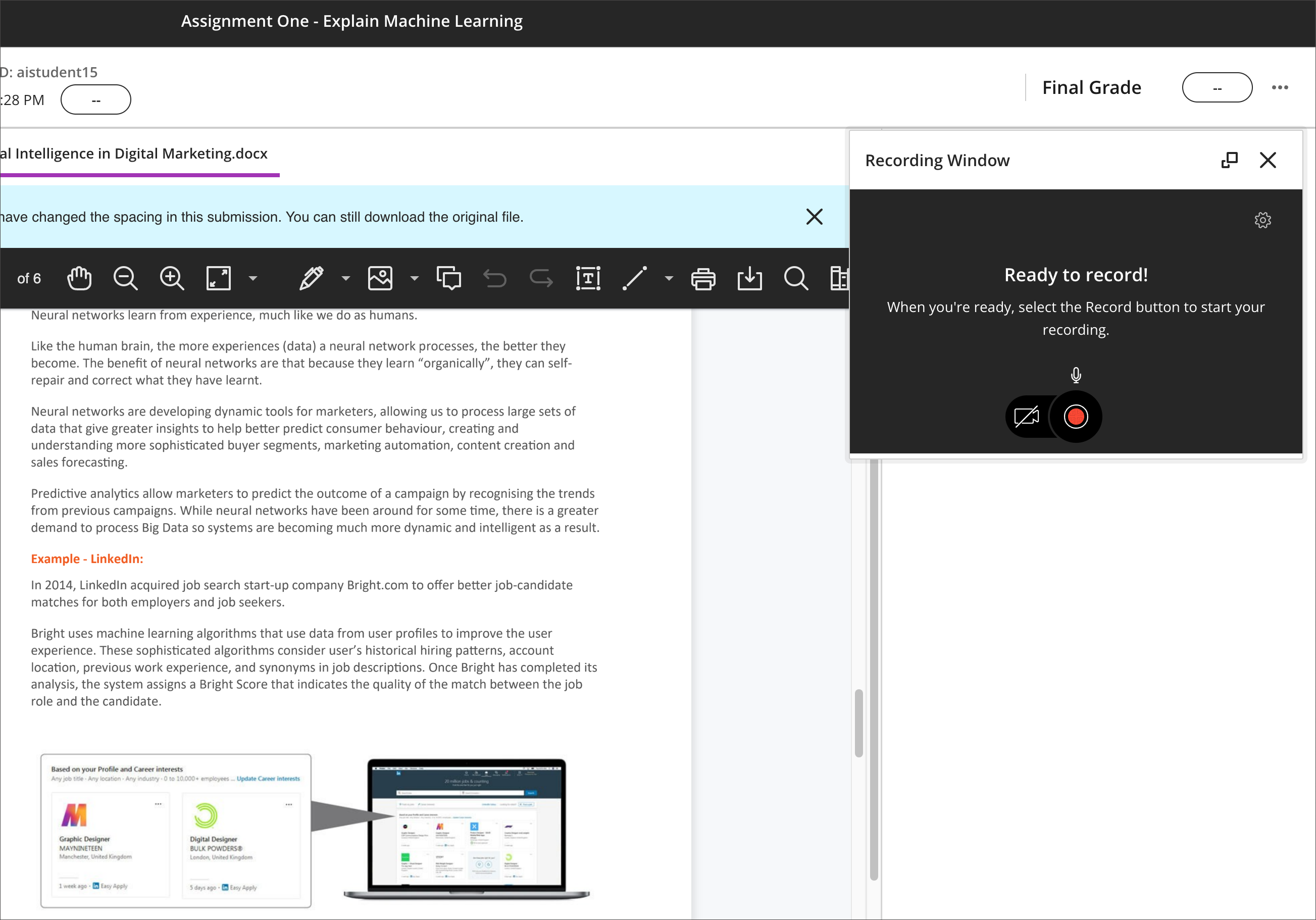
When in use, the recording window appears on the right side of the screen so that the instructor can view the student submission.
Flexible Grading Interface
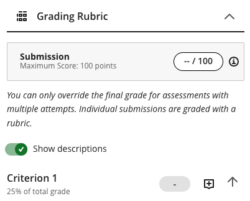
The flexible grading interface is available for many Blackboard Assignments and Tests. Following feedback to the vendor, the setting to 'show descriptions' for rubrics is remembered as staff navigate through student papers. This means you do not need to keep clicking the 'show descriptions' check box if you need to see them when grading.
January 2024
The January update brings some improvements to assessment tools (including the introduction of a Test attempt log), changes to conditional release functionality, and Gradebook.
Conditional Release - change to functionality
Conditional Release functionality can be used to prevent students from accessing content by date. Conditional Release functionality is accessed by selecting 'Conditional availability' for the item:
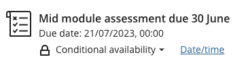
Date/time rules can then be added and you can choose whether students can see the item in the module content page.
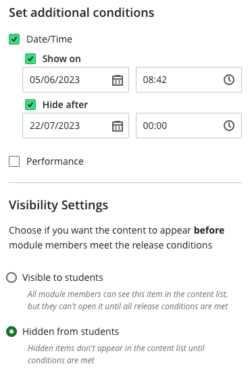
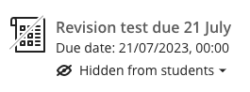
Previously, if you selected 'Hidden from students' in the Visibility Settings this meant students could not see the item and could not access the grade either. Now, if you select 'Hidden from students', students won't see the item but can still access their grade via their Gradebook link. However, they will not be able to access their submission or feedback so adding an end date for access is not typically recommended.
For clarity, if you select 'Hidden from students' at the top level for the item (instead of 'Conditional Availability') the item and grade is still completely hidden from students. This functionality is unchanged:
Gradebook | Calculations
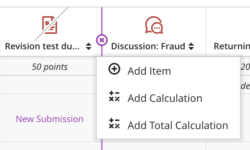
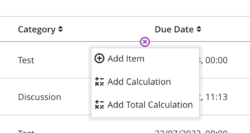
A new type of calculation - a Total Calculation - can be added in Gradebook. It functions similarly to Gradebook's Overall Grade, but with the advantage of having results appear in a distinct column (which could itself be selected as an element feeding into the Overall Grade, or could be used as the basis for further calculations). One of the main benefits of Total Calculations is that they allow weighted calculations to be performed (and displayed as percentages) in a much more intuitive way than the standard Gradebook Calculation (which can tend to give unexpected and undesired results when results are displayed as percentages).
To create a Total Calculation, place the cursor between columns in grid view, or rows in list view, and select near the plus icon which appears:
Gradebook | Grid View - presentation
A new type of calculation - a Total Calculation - can be added in Gradebook. It functions similarly to Gradebook's Overall Grade, but with the advantage of having results appear in a distinct column (which could itself be selected as an element feeding into the Overall Grade, or could be used as the basis for further calculations). One of the main benefits of Total Calculations is that they allow weighted calculations to be performed (and displayed as percentages) in a much more intuitive way than the standard Gradebook Calculation (which can tend to give unexpected and undesired results when results are displayed as percentages).
To create a Total Calculation, place the cursor between columns in grid view, or rows in list view, and select near the plus icon which appears:
Assessment | Attempt Logs for Blackboard Tests and Assignments
Attempt Logs are now available for Blackboard Tests and Assignments. The Attempt Log for a student's Test attempt will show the time they started, the time they submitted, the times at which each answer was saved, and an estimate of the amount of time they spent on each question. For a Blackboard Assignment, the Attempt Log will show the time a student started (ie, clicked on the 'Start attempt' button) and the time they submitted.
Logs are accessed via the Gradebook. You can click on the name of a student from Student List view or Grid View to see all their assessments and access the log:

Alternatively, you can navigate to the list of attempts for the assessment, find the student name, and select the log as required:

Assessment | Delegated Grading improvements
Blackboard assessments (Assignments and Tests) support delegated grading - this means you can assign markers to grade certain students' assessments by using Minerva Group functionality. This functionality has been updated to support assessments marked anonymously.
Find out more about these assessment tools:
Flexible grading interface improvements
Sorting options
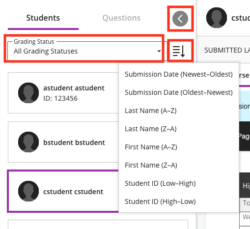
New sorting options were introduced into the Flexible Grading interface recently. There are now sorting options for anonymous assessments - you can sort by submission date of the latest attempt.
Available sorting options can be accessed by the arrow with the arrow pointing downwards, next to the grading status filter. The options you see will depend on whether the assessment is anonymous.
Attempt display logic
Logic has been introduced to determine which attempt is displayed when there is more than one (previously the most recent attempt was displayed):
| Attempt Aggregation Model | Grading Status and Attempt Displayed |
|---|---|
| Average of all attempts | If all attempts are graded, the most recently submitted attempt displays. If ungraded attempts exist, the most recent, ungraded attempt displays. |
| First attempt with a grade | If all attempts are graded, the first submitted attempt displays. If ungraded attempts exist, the oldest ungraded attempt displays. |
| Attempt with highest grade | If all attempts are graded, the attempt with the highest grade displays. If ungraded attempts exist, the most recent, ungraded attempt displays. |
| Last attempt with a grade | If all attempts are graded, the most recently submitted attempt displays. If ungraded attempts exist, the most recent ungraded attempt displays. |
| Attempt with lowest grade | If all attempts are graded, the attempt with lowest grade displays. If ungraded attempts exist, the most recent ungraded attempt displays. |
Read our guide on the Flexible Grading interface for information about this recently introduced interface.
December 2023
The December update brings some improvements to the Gradebook and assessment tools. Support for adding images via the content editor is also expanded.
Option for adding images - expanded support
In the November update, a new option for adding images via the content editor was introduced. This was available in Ultra Documents, Journal prompts, Discussions, and Messages for staff. Students could see the option for Discussions and Blackboard Assessment responses.
Support has been expanded and staff will now also see this option in Announcements, Test questions, and Journal entries. Students will also see this option in Journals and assessment question answers.
Staff see an option to search the image library Unsplash for images, students do not have this option.
For step-by-step instructions on adding an image, please read our guide on adding images.
Gradebook - grid view sorting
In the November update, new functionality for sorting certain items in the grid view was introduced. This is now expanded to all items.
An icon displays in the column header when sorting can be applied.
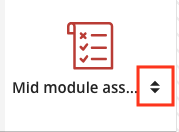
Click on the name of the assessment or the arrows to sort. When the arrow points downwards, the column is ordered with highest score at the top. When the arrow points upwards, the column is ordered with lowest score (or no attempt) at the top. When both arrows display (as in the above screenshot), sorting is not applied.
Assessment | Group Assessment - exceptions
If setting a Blackboard Group Assessment (typically Assignment), it is now possible to give the Group an exception i.e. a different due date to other Groups. This works in a similar way to setting an exception for an individual.
Find out more about setting exceptions in Minerva by reading our guide on exceptions.
Flexible grading interface improvements
It is now possible to sort the order student submissions appear in within the interface. You can order by first/last name, student ID and submission date.
Read our guide on the new grading interface to find out more about the interface.
November 2023
The November update brings some improvements to the content editor (for adding images), the Gradebook and Assessment tools, and a new feature in Turnitin allowing assignment settings to be copied. A known issue relating to progress tracking is also resolved.
New options for adding images
Staff now have a new option for adding images via the content editor. Staff will see this option in the content editor for Ultra Documents, Journal prompts, Discussions and Messages.
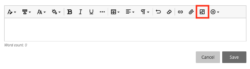
When selected, staff can either upload their own image or select a royalty-free image from Unsplash. After selecting the image, staff can zoom and focus the image and set the aspect ratio. They then see options to mark the image as decorative or provide suitable alternative text needed for accessibility reasons. Students will see similar options to add an image when using Discussions and in Blackboard Assessment responses. They do not have access to the image library Unsplash.
For step-by-step instructions on adding an image, please read our guide on adding images.
Assessment | Gradebook Grid View Sorting
Staff can now sort the following Gradebook grid view columns: student name, Blackboard Tests/Assignments and manually created columns. An icon displays in the column header when sorting can be applied.
Click on the name of the assessment or the arrows to sort. When the arrow points downwards, the column is ordered with highest score at the top. When the arrow points upwards, the column is ordered with lowest score (or no attempt) at the top. When both arrows display (as in the above screenshot), sorting is not applied.
Assessment | Blackboard Test matching questions
Partial/negative credit options for matching questions have been updated. Partial and negative credit is enabled by default with partial credit auto-distributed across the matching pairs. Staff can edit the partial credit values as desired (although they must add up to 100%).
Assessment | Flexible grading interface improvements
In September a new 'flexible grading' interface was launched for Blackboard Test and Assignment. There are a number of improvements in this update.
-
- Anonymous submissions are now supported.
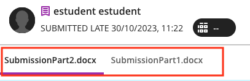
- When students submit more than one file for their attempt, these now display to staff in a tabbed view. This makes it easier to navigate between files and reduce the need to scroll:
- Finally, if you notice an error/need to change the question points when marking by question, this can now be done from the mark by question interface. The edit/regrade option is available via the three dot icon in the top right of the screen:
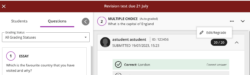
Read our guide on the new grading interface to find out more.
Assessment | Turnitin copy assignments feature
Turnitin has introduced a new feature which you can use to copy previous assignment settings when setting up new assignments. This feature allows multiple assignments to be created at once. For details, see our guide on copying Turnitin assignments.
Known Issues Resolved
A known issue where progress tracking did not work for web links is now resolved. More details on the progress tracking issue are available on this news item.
October 2023
The October update to Minerva introduces updates to Blackboard Assignments, Tests and improved functionality to send reminders to students for Turnitin assessments. Changes have also recently been introduced to the grading interface for Blackboard Assignments and Tests.
Blackboard Assignments - Delegated Grading
For larger modules, it can be useful to delegate grading to different staff members. This is now possible for Blackboard Assignments.
The process is facilitated via Minerva Groups. To set up Delegated Grading, first create a Group Set. The Group Set should contain Groups for the different graders e.g. Group Tutor A for those Tutor A will mark, Group Tutor B for those Tutor B will mark etc. Assign the students to the groups as required (or use the randomise feature).
Once you have your Group Set ready, select the Delegated Grading option in the Assignment settings and assign staff to mark the different Groups.
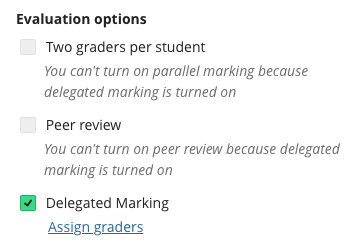
Be aware that if you assign 2 staff to a group this is not parallel grading - if they both graded the same paper the original grade would just be overwritten for example.
This new feature does not support group assessments, anonymous submissions, or parallel grading at this time. Our vendor is working on supporting these configurations going forward.
Read our guide on Minerva Groups for more information on how to set these up.
Tests - partial credit
This update affects Multiple Answer questions with partial credit enabled. Before this update, staff had to enter a value for each answer. Now, partial credit across correct answer choices is auto-distributed. If desired, staff can edit the values if some correct answer options warrant more or less credit.
Sending reminders to students for Turnitin assessments
We recommend using Progress Tracking functionality to send reminders to students for Turnitin assessments. Progress Tracking is enabled on all Minerva modules by default and allows you to view students' interactions with most content types (e.g. you can see which students have not clicked on the Turnitin assessment/which have opened it but not submitted). You can then send a message (with email if desired) to students who have not submitted.
For more information, read our guide on how to send reminders to students who have not completed Turnitin assessments.
Similar functionality can be used to send Messages/emails to students who have not submitted to Blackboard Assessment tools (e.g. Tests and Assignments) via the Gradebook. Read our guide on how to send reminders to students via the Gradebook to find out more.
Please note it is not possible to send reminders for all integrated assessment tools via Minerva (e.g. Gradescope).
Grading interface update for Blackboard Assignment and Tests
A new 'flexible grading' interface has been introduced by our supplier for Blackboard Assessment tools. At Leeds we enabled this in September. It is available for:
- Blackboard Test
- Blackboard Assignment
The new grading interface is not available for all Test/Assignment configurations, but our vendor will expand support during the 2023/24 academic year. Read our guide on the new grading interface.
Annotate and Recording Tool
Alongside the new grading interface, we have enabled Anthology's inline marking tool, called Annotate, to offer more marking options for staff using Blackboard Assignment. Staff may also want to utilise the recently released Recording tool which can be used to create an audio and video, or audio-only recording, directly in Minerva.
September 2023
The September update to Minerva introduces updates to Learning Modules, Module Banners, Batch Editing and Progress Tracking. Additionally, a Recording Tool has been enabled and there is now the option to remove Blackboard Collaborate from the Details & Actions menu.
Learning Modules & Module Banners - Add images from Unsplash stock library
Following the introduction of the ability to add images to Learning Modules in the August update, staff can search for stock images from the Unsplash image library. All images in the Unsplash library are copyright cleared. Images from Unsplash can also be used as a module banner or card thumbnail.
When adding an image, click Stock images from Unsplash from the image source dropdown menu. You can then search for and add images to Learning Modules and as a module banner or card thumbnail.
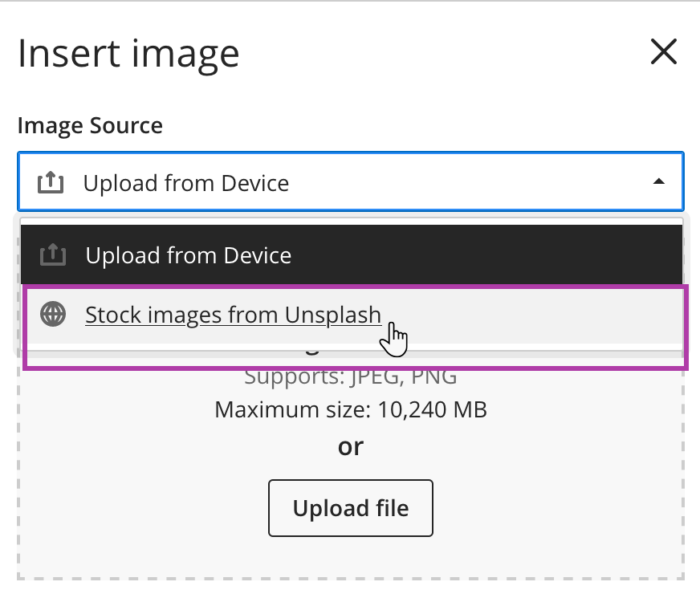
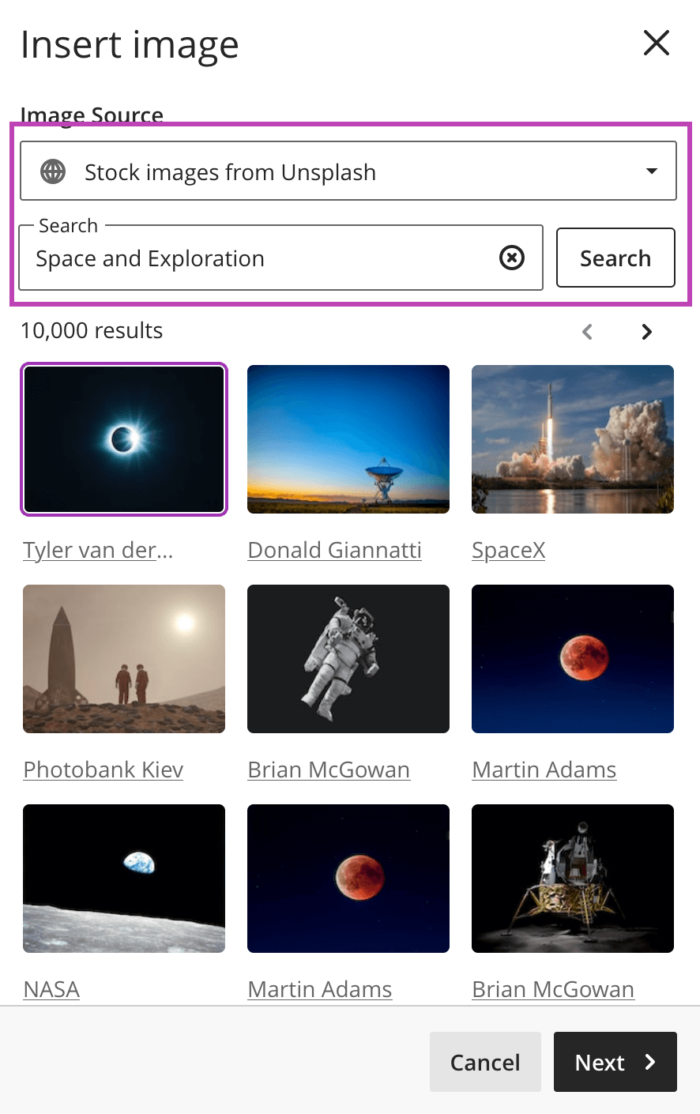
Read our guide on adding a Module Banner/card thumbnail and Learning Module guidance for further information.
Batch Edit
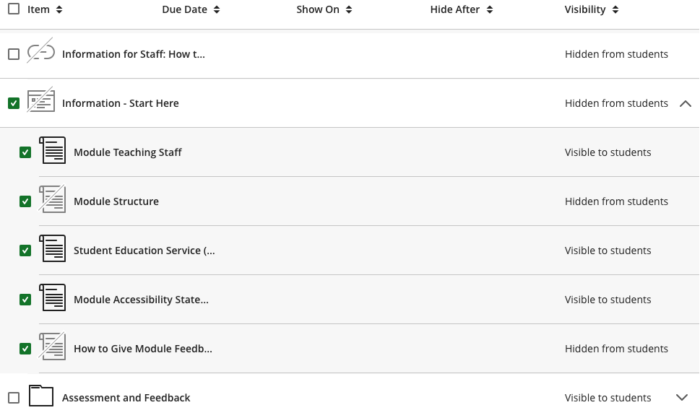
Previously, if staff wanted to batch edit the availability of content, any changes to Folder or Learning Module settings wouldn't propagate to individual items within the Folder/Learning Module. Now, if you select a Folder/Learning Module, the update will apply to all items inside the Folders and Learning Modules.
To avoid errors, we recommend you click on the Folder/Learning Module to show all the content items before changing any settings at the Folder/Learning Module level.
Progress Tracking
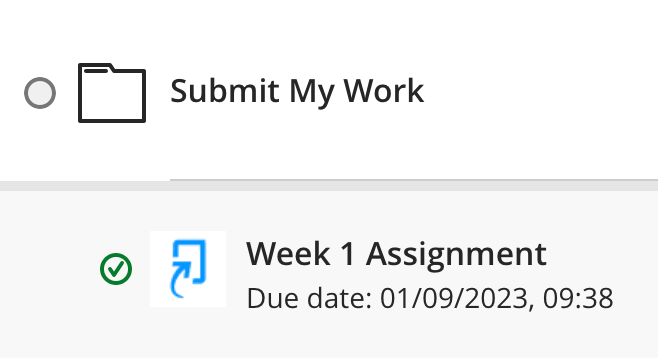
In the past, progress tracking for Turnitin assignments had to be updated manually by the student and didn't indicate a successful submission was made. Now when a student submits their work to Turnitin, their progress status updates to "complete." This change ensures better reporting for instructors and accurate progress tracking for students.
Recording Tool
The Minerva Recording tool allows staff to create an audio and video, or audio-only recording directly in Minerva. It is available in Announcements and in the Overall Feedback editor for Blackboard Assessments within the Gradebook (e.g. for Blackboard Assignments / Offline Assignments, Tests, Discussions, Journals, and manually created Gradable Items.) Our guide on Using the Recording Tool in Minerva has further information including how to use the tool.
Remove Blackboard Collaborate from the Details & Actions menu
Blackboard Collaborate is a web based online interactive session platform. It is available in the Details & Actions menu by default. If preferred, staff can now remove this. To remove, go to your module and select Module Settings (in the top right or the module page).
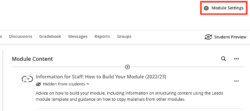
Scroll down to the Virtual Classroom header and under Class Collaborate, toggle the on/off option next to 'Allow student access'.
Now when the module home page is refreshed in your browser, the Blackboard Collaborate option will no longer appear under the Details & Actions menu. This affects both the staff and student view.
Updates to Minerva in other academic years can be found at Minerva Updates Archive 2022/23.