
Minerva Updates Archive 2024/25
This is an archive of the monthly updates made to Minerva from September 2024 to August 2025.
These updates provide an overview of the new features, bug-fixes, and improvements made to Minerva.
For the most recent Minerva updates please see the Minerva Monthly Updates page.
Please see Monthly Systems Updates for updates to other Digital Education Systems.
Updates to Minerva in other academic years can be found at Minerva Updates Archive 2022/23 and Minerva Updates Archive 2023/24.
August 2025
In the August update, there is a new table of contents in Learning Modules for students, a new method for creating video/audio in Announcements, an AI option to help you format Minerva Documents and some minor changes to copying integrated assessment tools. Later in August, there will be a change to how LaTeX is rendered in Minerva.
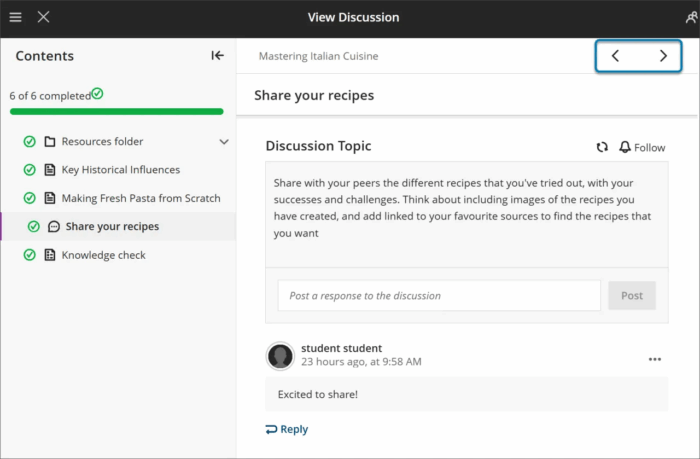
Learning Modules - Table of Contents
This is currently only available in the student view but will come to the staff view soon. When students navigate Learning Modules, they will now see a table of contents to help them move between items more easily. Staff can see this by using the Student Preview function.
Creating Video/Audio in Announcements - new functionality
The technology used to create video/audio in Announcements has been updated. This option is also available in Blackboard Feedback tools e.g. for Assignment and Test, but has not been updated (it will be in the future). Improvements include: 20 minute recording limit, transcript and an option to record from screen.
When you select the record option, you will see the options available:

For further help, see our Using the Recording Tool in Minerva guide.
Use AI to help format Minerva Documents
AI will suggest a structured layout, images and knowledge checks. All suggestions must be reviewed by you and can be edited before the Document is made available to students in Minerva. To access the AI option, select the AI indicator when in the edit view of Minerva Documents:

For more information on Minerva Document, see our guide.
Changes to copying Integrated Tools in Minerva
In Minerva we have a number of tools which are integrated with Minerva e.g. Turnitin, Gradescope, Feedback Fruits. Previously, it was not possible to copy individual items in the Minerva interface. It is now possible but, in many cases, this is unlikely to save time as you still need to set up the tool for the new module.
Notable exceptions are Turnitin (which will need submission dates/settings checked only) and Feedback Fruits which appears to copy but will have technical issues.
It is important that any copied content is checked thoroughly, for more information, read our Minerva copy guide.
Minerva - change to the way LaTeX is rendered
The way LaTeX is rendered will change in Minerva w/c 25 August (after resits). A new MathJax integration will instead render any LaTeX entered in the Minerva content editor. The integration is the first step by our supplier (it is under development and we expect more MathJax features to follow). The new integration will be beneficial to students as the current method for rendering often fails and also produces formula as an image which is not accessible.
We have observed that in switching to MathJax, LaTeX with styling added via the Minerva math editor will fail to render. However, the LaTeX is still present and can be edited.
If you use LaTeX in your module, we can give you early access so you can observe whether this change will affect your content. Please e-mail us at [email protected] if you use LaTeX in the Minerva content editor.
July 2025
In the July update, there is a new Activity page for staff, a new option to add captions to images in Minerva Documents, and the option to create Test Question Banks via QTI files. It is also now possible to see which students have reviewed Announcements in your Minerva modules, and, for colleagues who utilise Blackboard Group Assignments, navigation is improved. Finally, the option for configuring Progress Tracking has moved to Module Settings.
Activity page - new staff view
The Activity page for staff has been expanded. Previously, the Activity page only featured a stream of recent events. The page now features three sections containing (1) System Announcements as relevant (2) a stream of notifications from your modules and organisations (highlighting events such as new content, new submissions, new discussion posts, etc), and (3) a list of your available modules with recent activity.
The three sections of the Activity page are shown in the image below. Note that clicking an item in the Activity page will show you the content in a separate overlay, without you losing your place in the Activity page.
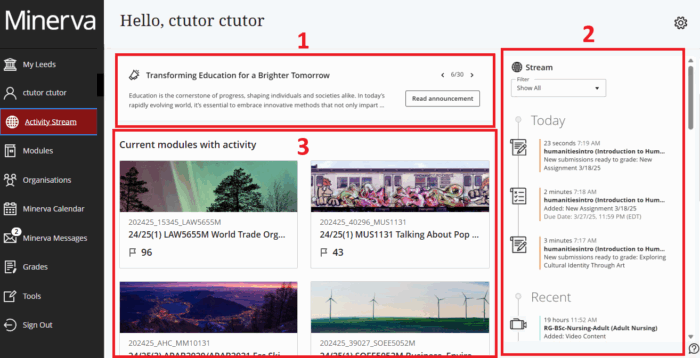
Current modules with activity
This section will show modules which are available to students, ordered by recent activity (although if you have Favourites, these will be at the top). Note that any modules in which you have the role Module Builder will not be displayed here. You will see numbered icons to indicate:
- Items that need grading (paper and pencil icon)
- Messages (envelope icon)
- Students with access alerts - indicating students have not accessed the Minerva module recently (flag icon). The default flagged is no access for 15 days. This can be changed in the 'alert settings' available in the report the link opens.
Read our guide on the Activity Stream for information on the Activity Stream and instructions on how to configure the stream of notifications.
Add Caption to Image Blocks in Minerva Documents
You can now add captions to Image Blocks in Minerva Documents. When you add an Image block, you will now see the option to add a caption as part of the Edit File Options. The caption can appear above or below the image:


Read our overview on Minerva Documents to find out more about how they can be used to present content in modules.
Create Question Banks for Tests via QTI
Importing questions from QTI version 2.1 packages is now supported for the following question types:
- True/False
- Multiple Choice
- Multiple Answer
- Fill-in-the-blank
- Essay
When you create a Question Bank, you will see the new option:

For more information on Question Banks, read our guide on Advanced Question Creation for Tests.
See who has viewed Announcements
Announcements have viewer information listed e.g., you can see 6/11 people have viewed an Announcement in Minerva:

Now you can click the viewer information to see which students have not yet viewed the Announcement in Minerva. The interface lists the students on the module and whether they have viewed the Announcement:
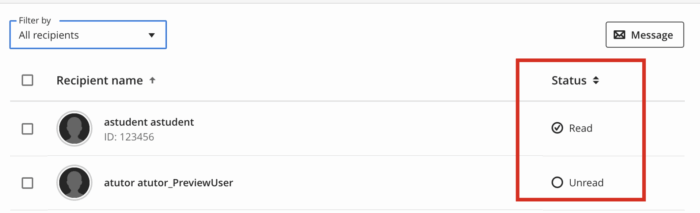
If you wish you can use the Filter to just see who hasn't viewed it, then you can select students and send them a Message via Minerva:

Read our guide on Announcements to find out more about this tool.
Navigating Blackboard Group Assignment submissions
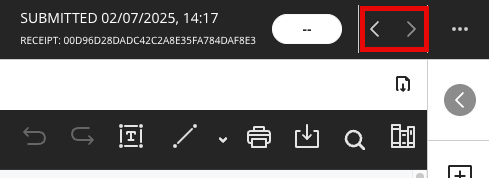
Arrows have been added to help staff navigate between submissions when grading (to mirror the experience of grading individual submissions). These are in the top right of the screen, near where the submission date/time displays:
Read our guide on Blackboard Assignments to find out more about this submission tool.
Progress Tracking Configuration
Modules are configured with Progress Tracking enabled by default. Progress Tracking can help students understand what content they have interacted with, and staff can also see reports so they can see who has engaged with their content.
If Progress Tracking for your module needs to be disabled or re-enabled, this setting has moved from the Details & Actions menu and is now in the Module Settings (accessible by the Module Settings link in the top right of your module):

Read our guide on Progress Tracking for more information on what this tool reports on.
June 2025
In the June update, there is a new Jumbled Sentence question in Blackboard Test, some Gradebook improvements and a new Discussion activity indicator.
There are also some updates to Annotate (the inline marking tool for Blackboard Assignment).
Blackboard Test - new Jumbled Sentence question
You can now create a jumbled sentence question with one or more blanks for students to complete.
To create a variable, insert the variable in square brackets within the paragraph. Each variable is automatically recognised as the correct answer. Further distractors can be added. Variables can include the following characters:
- Letters
- Digits (0-9)
- Full stops (.)
- Underscores (_)
- Hyphens (-)
Partial credit can be enabled. All answers will be weighted equally.
Read our guide on Blackboard Tests for more information on Tests.
Gradebook - Accessibility improvements
The Gradable Items view of Gradebook has been improved.
Navigate the Gradable Items tab by keyboard
- Use the Tab key to go to the Gradable Items tab.
- Tab to the Gradable Items table header to enter the table.
- Use the arrow keys to navigate the table.
- The Tab key will take you out of the table and to the Close button. Shift + Tab returns you to the Settings button.
Navigate the Gradable Items tab with screen readers
Screen reader users can navigate to the Gradable Items tab using the keyboard instructions. You can also use the specialised keyboard combination for your screen reader to go directly to the table.
- JAWS: Use Insert + Control + T
- NVDA: Use T, then Control + Down arrow to enter the table
- VoiceOver: Use Control + Option + Command + Right arrow key to choose the table option
If you want to add content, use the down arrow to go to the More options button at the end of the row. The next down arrow will be the Add content button.
Note for JAWS users
- JAWS users can move left or right in any row by using table navigation keys.
- To move up and down between assignment rows, navigate to the Item column first.
Discussions - new activity indicator
The module navigation bar will now display an indicator next to Discussions when there has been activity you have not reviewed. Both staff and students on the module will see this indicator:

Annotate - new Bookmark feature
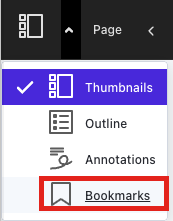
Annotate is the inline marking tool for Blackboard Assignment. It has been recently updated with a new Bookmark feature. This means you can bookmark points on student submissions so you can return to a certain page quickly.
To add Bookmarks, click on the Thumbnail icon to switch to the Bookmarks menu:
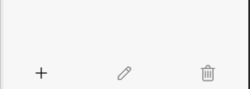
Add new Bookmarks using the options at the bottom of the Bookmarks menu:
Some changes have also been made to the Annotate interface primarily to bring more consistency in the use of colours.
May 2025
In the May update, there are changes relating to assessment tools and Discussions. There is also an improvement to the recently released AI Conversation tool.
Assessment | Rubrics - new no-points rubric
Rubrics for Blackboard Assessment tools - new qualitative rubric
Instructors can now create and use no-points rubrics for qualitative evaluation. These can be used for Blackboard tools: e.g. Assignment, Test, Discussion and Journal.
Read our guide on Blackboard rubrics for more information on how to use them.
Assessment | Blackboard Test - new 'view submission one time' option
There is a new setting: view submission one time. This means that when a student completes the test, they can review their answers, automated feedback, see question scores and the correct answer (as specified by the Instructor) for one time only, immediately at the point of submission. When their overall test score is posted (released), they still will not be able to see their submission again.
Assessment | Annotate - comment formatting
Annotate is an inline marking tool for Blackboard Assignment. In Annotate, you can add a comment inline to a student's work. This has been improved to make formatting options clearer. In the past, you had to highlight text to see formatting options. Now, you will see the formatting options permanently across the top of the comment box.
Read our guide on Blackboard Annotate for more information on this tool.
Assessment | Text-based Gradebook item
You can now create text-based items in the Gradebook, giving you the option to record information in the Gradebook, such as group membership or tutoring information.
These items can not be used to return grades or feedback to students, they only display information. By default, the item is hidden from students.
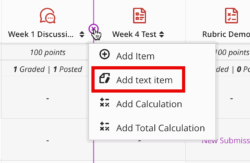
To add a text-based item, hover your mouse between current Gradebook items. A purple line appears. Select the area of the purple line/add icon. The option to add Gradebook items appears. Select Add text item.
Discussions - updates to the interface
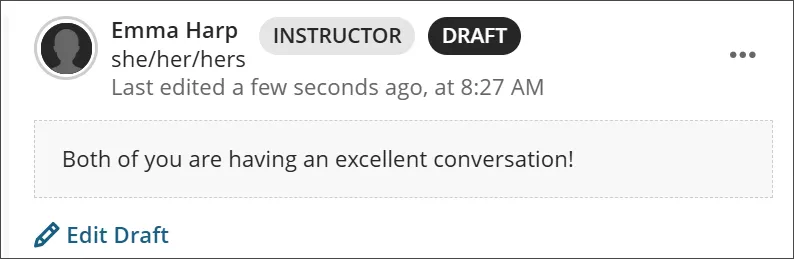
Some small changes have been applied to the Discussions interface. Discussion contributions used to be called 'responses' and 'replies'. These are now called 'posts' and 'replies'. When an instructor posts in a discussion thread, an indicator beside their name now identifies them as an Instructor. The Draft indicator is now aligned with the user's name, enhancing clarity.
AI Conversations - auto-generate role play activites
AI Conversations was recently made available on Minerva. Instructors can now create an AI Conversation in Minerva to engage students in a role-play activity with an AI persona. For example, the activity could be to role-play the first day in a new job, a conversation with a historical figure or a nursing simulation.
In the May update, you now also have the option to auto-generate an AI Conversation. This means you can, via the click of a button, generate ideas for AI Conversations to add to your module. These can be edited once added.
When you create an AI Conversation, the option to auto-generate appears above the settings (top right of the screen):
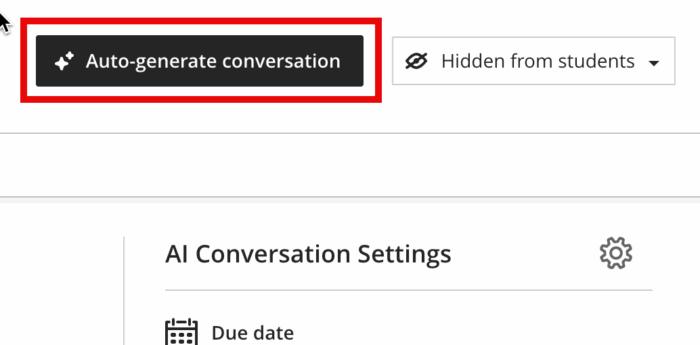
Content will generate automatically based on the module title, but you can add information in the Description field or use 'Select module items' to give the tool inspiration for Conversations (however, it is not possible to select items for the AI to use during the AI Conversation activity).
For more information, see our guide on AI Conversations. A session on AI Conversations is also available on Thursday 8 May.
Ally OCR Improvements
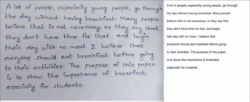
Ally offers alternative formats to learners to expand the accessibility of your learning materials. For PDFs that have been scanned, this includes Optical Character Recognition (OCR). The latest update offers better conversion of handwritten content, allowing text to be highlighted and machine-readable by assistive technologies, which previously could not be read at all.
April 2025
In the April update, there are changes to Gradebook to indicate whether students have reviewed assessment feedback, Group Assignments, and a new print option for Minerva Documents. There are also changes to Ally alternative formats in relation to maths notation.
Gradebook - Reviewed Feedback
Staff can now see an indication of whether a student has reviewed feedback for an assessment via the Gradebook. This is available via the student's page in Gradebook (go to the Grades or Student view of Gradebook and click on their name to open the student's page).
Look at the status column. If a student has selected the View option next to the item in their Gradebook, the symbol 'Reviewed' appears in the status column. For Blackboard Assessments like Assignment and Test, clicking View launches a view of the assessment with feedback, for integrated tools such as Turnitin, clicking View gives students the option to launch Turnitin.

Group Assignments - interface update
Group Assignments are now presented in the newer 'flexible grading' view. However, not all flexible grading features are available. There is currently no Turnitin similarity report integration, pop-out rubric, or per question feedback.
Minerva Documents - Print option
Students can now print Minerva Documents.
This has been primarily developed to allow students to view content offline. It does not create a fully accessible file.

Ally Alternative Formats - maths notation
Alternative Formats provide learners with options to engage with materials by converting to different formats such as audio or offline HTML.
Ally now offers improved support for maths notation. BeeLine Reader, HTML and Microsoft Immersive Reader alternative formats will now convert and display MathML maths equations within Microsoft Word files. Support for additional source file types, markup languages, and for conversion to other alternative formats is continuing to be developed.

March 2025
In the March update there are changes to rubrics in Blackboard Assignment, module settings, the AI Design Assistant tools and release conditions.
Blackboard Assessments - new Pop-out rubric
When marking Blackboard Assignments, a pop-out rubric is now available. To access the rubric, click the pop-out icon above the rubric in the grading panel:
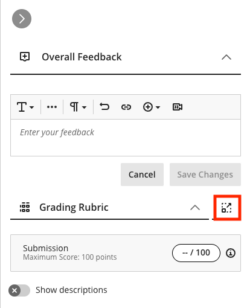
As you navigate through student submissions, the rubric will update accordingly.
Module Settings - update to making your module open (available to students) or closed
Following feedback, the toggle for opening or closing a module has been replaced with radio buttons labelled Open and Closed. It is now clearer how to make your modules open (available) to students:
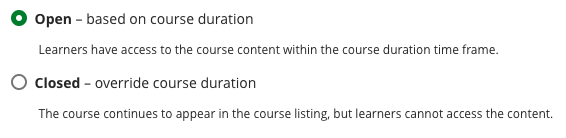
At present, the text in the interface refers to the setting being based on overriding the course duration - this is not relevant at Leeds. We have asked our supplier for an option that will allow us to change this text to make it more relevant and meaningful for staff at Leeds.
AI Design Assistant - updates to image generation
Image Generation
Following this update, the AI Design Assistant will only generate one image at a time and will save previously generated images (just click Generate again if you don't like what was initially generated). Previously, four images were generated. This is to save processing power (AI tools use a lot of energy).
Learning Module Generation
If images fail to generate, a placeholder is now created. It is then possible to re-generate the image from the placeholder.
Conditional Release: due dates now included
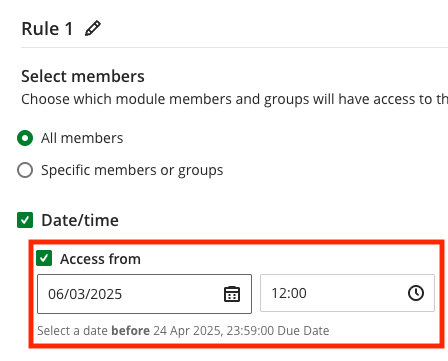
When you use conditional release to allow access from/until certain dates for Blackboard assessment items (Assignment and Test), the due date is now flagged in the interface.
February 2025
The February update introduces changes to Blackboard Assignment, rendering of files, image options in Minerva Documents, Group creation, and the AI Design Assistant.
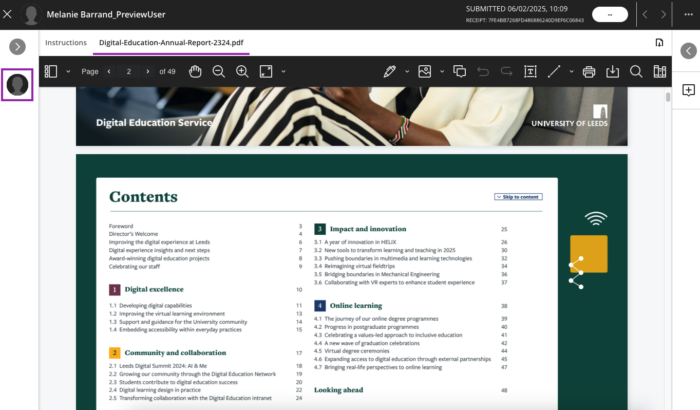
Blackboard Assignment - larger submission area for inline marking
A larger area of the screen is now dedicated to displaying the student's submission in the Grading Interface (information in the top menu has been condensed).
Improvements to rendering of uploaded files
Files uploaded by staff to Minerva should better retain their original formatting/characteristics when displaying inline. There were previously reported issues with Excel, PowerPoints, right-to-left languages and files containing formulae.
These improvements also apply to the inline display of files uploaded to Blackboard Assignments by students.
Minerva Document - new Image Block
An image block has been added to Minerva Documents. Staff can use image blocks to upload their own images, use the AI Design Assistant to generate images, or select images from Unsplash. Image blocks can be moved throughout, just like other block types. Staff have the option to resize images, set height, and maintain aspect ratios in image blocks. Adding images via the image block also reduces white space around images and provides greater control over content design.
Read our Minerva Document guide to find out more about Documents.
Changes to Group Creation
Before this update, you could create two types of Group: one at the module level and one at a 'tool' level. For example, if you navigated to Discussions and created a Group via this interface, the Group was only associated with the Discussion, which meant that you did not see it in the Module Groups interface and could not reuse it for another activity. Now, all Groups are created at the module level, regardless of where you create them.
Read our Groups guide to find out more about Groups.
AI Design Assistant - Learning Modules update
When creating questions or Learning Modules, staff can now create up to 20 questions/Learning Modules in one action. When using the AI assistant to generate Learning Modules, staff can now choose whether to add the descriptions.
Read our guide on the AI Design Assistant to find out more about these tools.
Blackboard Assignment - Changes to what is classed as an override
In the January update, a change was made so that grades directly added to the Grades View or on the Submission List for a Blackboard Assignment were no longer marked as 'Override'. This change has now also been applied when grading Discussions or Journals. If you upload grades via spreadsheet for Assignment, Discussions or Journals, these will also no longer be marked as overrides.
This change is to prevent any confusion to students, as they also used to see the 'override' label next to grades entered using these methods.
January 2025
The January update introduces changes to how Minerva modules are made available to students. There are also changes to Gradebook, the AI Design Assistant and Conditional Availability.
Making modules/organisations available to students
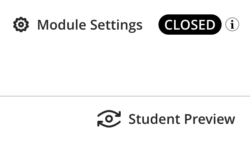
There are some changes to terminology in this update. When a module/organisation is available to students (i.e. they can enter it), the module/organisation is now described as 'open'. When a module/organisation is unavailable to students (i.e. students are enrolled but cannot enter it yet), the module/organisation is now described as 'closed'.
How you switch from closed to open has also changed. There are various ways to do this. For example, when you are in a module, the status of the module is displayed by the open/closed button in the top, right hand corner of the module. Click on this to change the status:
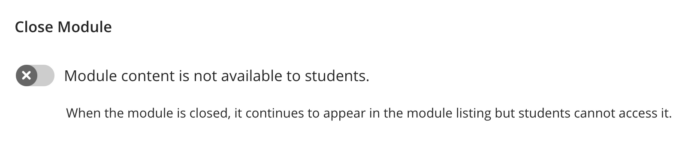
The Module Settings page will open. Scroll down to the Close Module option. To open the module and make it available to students, toggle the 'Module content is not available to students' option to off:
The process is the same for an organisation.
See our guide on how to make your module or organisation open/closed for full details.
Hiding items in Gradebook from the staff view
If you have many assessed items in your module and don't need to monitor them all, you can hide items from the staff view.
To hide Gradebook items from the staff view, go to Gradebook settings by clicking the cog icon in the right-hand corner of Gradebook:
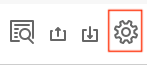
Scroll down the page to the Item management section and select Manage gradebook items.
On this page, you can toggle on/off gradebook visibility for an item. You can also select multiple items and Edit visibility to change them all in one action.
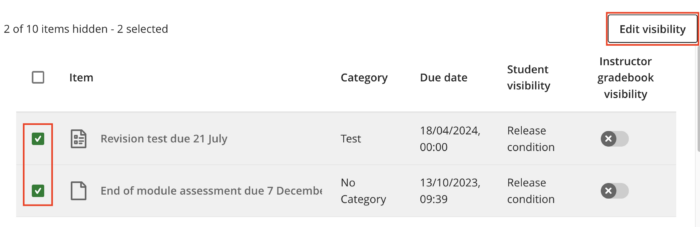
Remember, hiding items here will not affect the student view.
Changes to what is classed as an override when marking Blackboard Assignments
Marks directly entered to the Grades View or on the Submission List for an Assignment were previously marked as an 'override' and stored slightly differently in Minerva. Grades View and the Submission List look like this (marks can be entered directly to these interfaces):
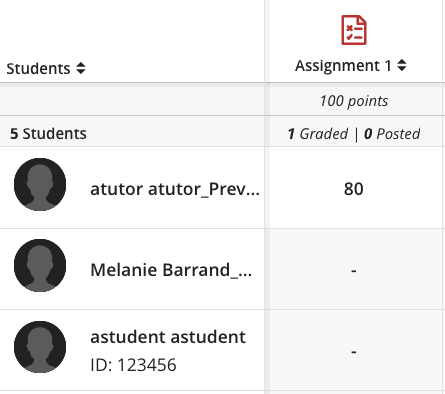
The Grades View in Gradebook

The Submission List in Gradebook
After this update, marks entered in this way will not be classed as overrides. Marks included in File Uploads for Assignments will still be classed as 'overrides' for now, but this is expected to change in February.
Classifying marks as overrides does not impact the return of marks for students but may cause confusion as students see the term 'override' in the interface.
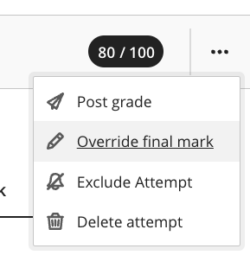
It will still be possible to enter an override for Blackboard Assignments. For example, they could be used when a penalty is applied. This can be done when you view an Assignment submission, in the top right hand of the grading interface you must click the three dot icon to see the override option:
Conditional Availability - new setting for student attempts
In addition to being able to release content to students on the basis that they have achieved a mark within a given range for a graded item, it is now possible to release content solely on the basis that they have made an attempt (ie, they have submitted something), without the need to specify a range of marks.
See our guide on Conditional Availability for more information.
AI Design Assistant - new languages
The output languages for the AI Design Assistant have been updated. Greek, Catalan, Croatian, Irish, and Slovenian and now included.
Read our guide on the AI Design Assistant for more information on this functionality.
December 2024
The December update introduces an improvement to Learning Module navigation, new discussion posts and late assignment submissions are now easier to identify. There is also a fix to an accessibility issue with images in Minerva Documents.
Navigation for LTI and SCORM Items within Learning Modules
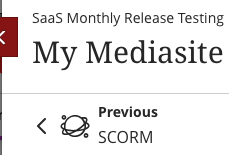
Students can now use navigation arrows to the left and right of LTI tools, such as Turnitin and Gradescope, as well as SCORM items, to seamlessly move through learning modules.
Discussions: New post indicator
A "New" indicator displays next to posts and replies that you have not yet accessed, making new discussion activity easier to find and access.

Blackboard Assignment - Late submission indicator
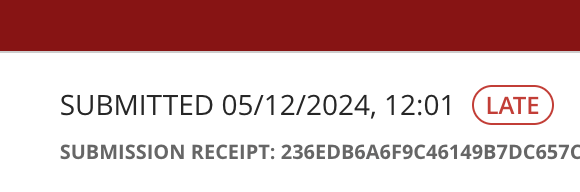
Instructors using Blackboard Assignments can now easily identify late submissions with a "Late" indicator in the flexible grading attempt banner.
Resolved: Issue with image accessibility in Minerva Documents
An issue where embedded images were added as buttons that were incorrectly identified by screen readers has been resolved.
November 2024
The November update introduces an improvement to the file submission process for Blackboard Assignment. There are also some changes to the Print Tests functionality and a new option to download the Activity Log. The Minerva Document content item was also recently updated.
Blackboard Assignment - warning to student if file does not upload successfully
If there is a problem during the submission process (e.g. internet connection is lost), is it possible that a file can be uploaded by a student which cannot be opened. Although this rarely happens, it is problematic as the root cause is not obvious. Following this update, if this occurs it will be flagged to the student during the upload process. If they choose to proceed without re-attaching the file, staff are advised when reviewing the assignment that there was a technical problem during the file upload.
Print Tests
This functionality has been re-worked. Now, when you use the Print Test function, answers will always be included.
For more information, see our guide on Tests.
Activity Log - option to download
The recently introduced Activity Log now includes the option to download the log.
See our Activity Log guide for more information on this tool.
Minerva Document - new interface
In October, the Minerva Document content item was updated. Key changes include: better formatting options (e.g. you can create multiple columns), knowledge checks, and the option to convert a file into a Document.
For more information, read our news post on the new Document item.
October 2024
The October update introduces a new option to have email notifications for followed Discussions. There are also updates to how leavers show in the Gradebook and AI options for Question Banks. Recently, a change to how module staff appear on the module content page has been made. A known issue with the Gradebook Overview is also resolved.
Module Staff - who appears on the Module content page
Recently, a change to how module staff appear on the module content page has been made. In the past, two Instructors appeared on the module content page - this was based on surname (alphabetical order). Now, the module leader appears on the module content page. The module leader is determined in Banner.
If the module leader for your module needs updating, this needs to be done in Banner. The student education team in your school should be able to advise on how Banner is updated locally.
Emailed notifications for Discussions
Staff and students now have new options to set up emailed notifications for Minerva Discussions (notifications can also be set for the Minerva Activity Stream).
In your settings for Email Notification (Email me straight away) there are new options to receive an email for:
- Activity on my responses
- Activity on responses I have replied to
- Responses from instructors
- Responses for followed* discussions (on by default)
- Replies for followed* discussions (on by default)
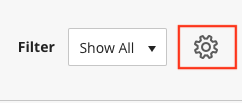
Although there is an 'Email me once a day' setting for 'New discussion messages' we do not recommend using this as it has proved unreliable. You can review your notification settings by visiting the Activity Stream (accessed via the navigation bar on the left when you log into Minerva). Click the settings cog in the top right to amend settings.
*The option to 'follow' a Discussion is a recent addition to Minerva. When viewing a Discussion, you should see the option to follow it. Click on the Follow button if you wish to do so.

When you follow a discussion, you are prompted to review your notification settings. Check you are happy with the settings for followed Discussions. You will receive an email each time a post is made by default.
For more information:
Leavers now appear in the module's Gradebook
When a student leaves the University, their account in Minerva becomes unavailable. This used to mean you no longer saw the student in the Minerva Gradebook. Now students with unavailable accounts still appear in the Gradebook.
In the 'Grades' tab of Gradebook, you will see the avatar of unavailable students has a strikethrough to indicate their unavailable status:

If you prefer not to see unavailable students, you can change this via the Gradebook settings. Click the Settings cog whilst in the Gradebook (top right). Then select the option to Hide students in the gradebook who no longer have access to the course:
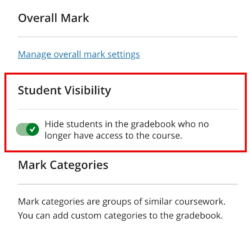
For more information, see our guide on Gradebook settings.
Create Test Question Banks using AI
Question Banks can be used to present different questions to students in a Test e.g. you can choose to randomly present 10 questions from a bank of 20.
Previously you could only create Question Banks using AI from a Minerva Document. Now you can create Question Banks using AI directly in the Question Banks interface. From the Question Banks interface, select the + icon. Then you should see a 'Auto-generate' option. Click this to launch the AI Design Assistant.
The tool will automatically suggest questions based on the name of the module. Enter text into the Description field or select module items to base questions on, to improve results. Remember to click Generate to get new suggestions.
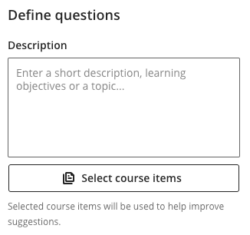
For existing Question Banks, you will also now see an option to add AI generated questions to the Bank.
For more information:
- Guide on advanced question creation using Blackboard Tests (covers Question Banks).
- Guide on AI Design Assistant
Gradebook Overview - known issue resolved
In the September update, a new Gradebook Overview feature was introduced. This contains links to work that needs grading. The Link 'Grade Now' didn't work for integrated tools like Turnitin and Gradescope. This issue has now been resolved.
September 2024
The September update introduces changes to the layout of module pages and some new Gradebook functionality.
New layout for module pages
There are three notable changes:
- The Details & Actions menu has moved;
- There are subtle changes to the colour palette to create visual depth;
- The + icon (for adding content)/drag and drop icons now always display.
The Details & Actions menu has moved to the right. This will be particularly useful for students on mobile devices as they will no longer have to scroll through 'Details & Actions' to get to important module content. The re-design should also work well on screen readers.
Content items now have a white background with the module page having a grey background. This is to help staff and students differentiate between items more easily.

For staff, the + icons (for adding content) have now moved to the left and always show. Similarly, the drag and drop icons always display. This means that you no longer have to position your mouse in the right place to make the icons display.

Leeds Minerva guides will be updated over September/October to match this new interface.
Gradebook - new functionality
Gradebook Indicator
An indicator has been added to the Gradebook link in the top navigation menu in your modules. This will highlight when there are items which need grading.

Gradebook Overview
A new Overview tab in the Gradebook highlights items which need grading and any grades which need posting (returning to students).

When you click the Overview tab, you will see a list of Gradebook items which need Grading and/or grades which need posting (returning) to students.

Click Grade now to be taken to the grading interface for the item. For Turnitin and Gradescope, you will need to click on the item name instead of Grade now as the latter isn't currently working (we have reported this to our suppliers).
Clicking Post now will give the option to immediately post the grades to students.
Student Activity Log
Click on the name of a student in the Gradebook to access the student's Activity Log. This will present a list of the student's interactions with the module. Please note this should be considered an indicative list of their interactions and should not be considered 100% reliable or a comprehensive list of their activity in the module. At present, it will not report on all interactions with integrated assessment tools like Turnitin or Gradescope (this should be supported in a future release).

Looking for older updates? Minerva updates from other academic years can be found at
Minerva Updates Archive 2022/23 or Minerva Updates Archive 2023/24.
For the most recent Minerva updates please see the Minerva Monthly Updates page.
Please see Monthly Systems Updates for updates to other Digital Education Systems.